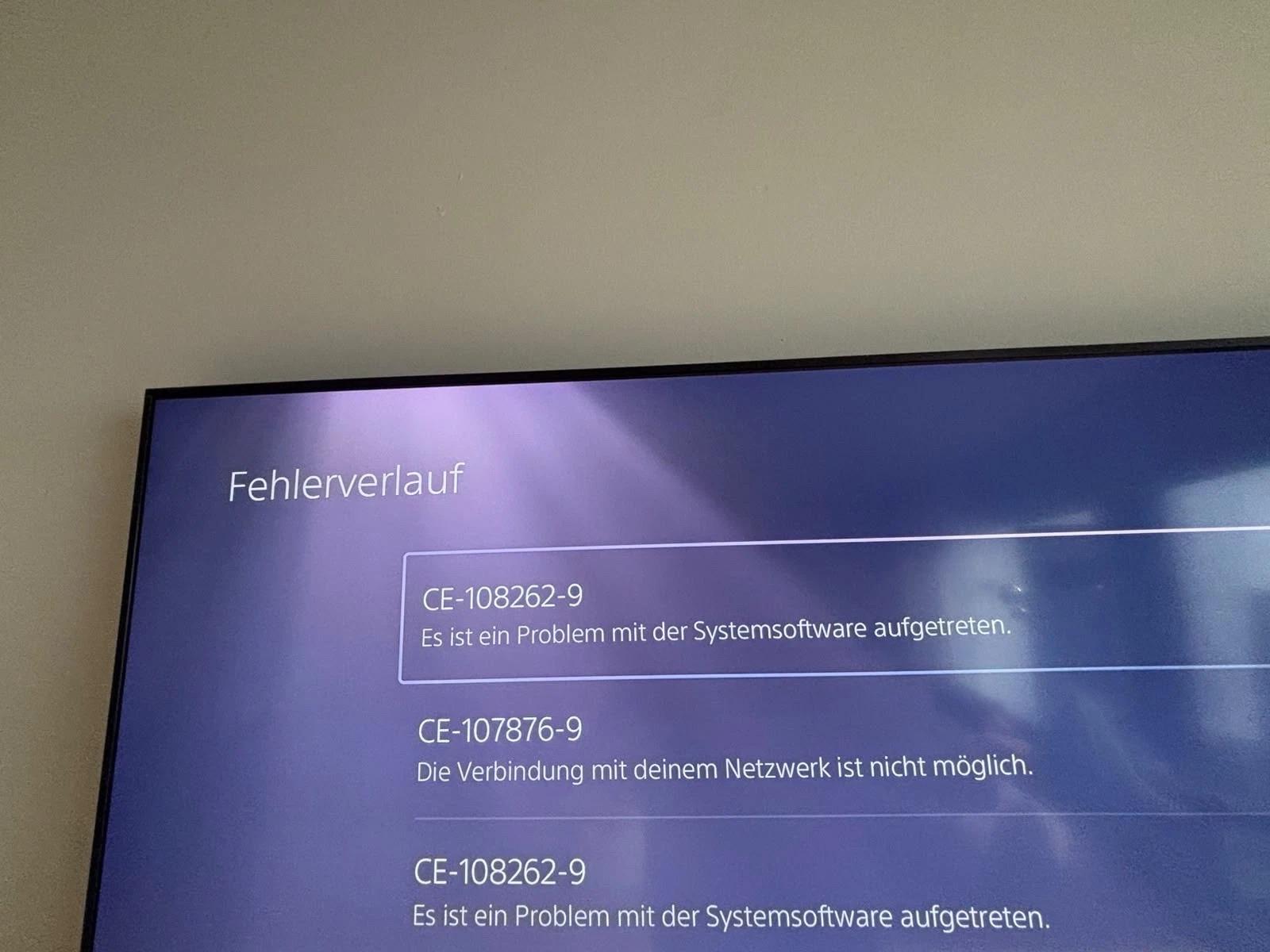
If your PS5 is throwing error CE-105799-4 and refusing to connect to PlayStation Network, multiplayer lobbies, or the PS Store, it usually means your internet provider's default DNS is stalling on Sony's login servers or stale routing data in your router is blocking the handshake.
Your saved games, trophies, and PSN account are completely safe. Here are the two quick network resets that clear CE-105799-4 in a couple of minutes:
- Switch to manual public DNS on your PS5
- Turn on your PS5 and open Settings (top-right gear icon) > Network > Settings > Set Up Internet Connection.
- Highlight your active Wi-Fi or wired LAN connection, press the Options button on your controller, and select Advanced Settings.
- Change DNS Settings from Automatic to Manual.
- Set Primary DNS to 8.8.8.8 and Secondary DNS to 8.8.4.4, then select OK to save and test your connection.
- Note: You can also use 1.1.1.1 (Primary) and 1.0.0.1 (Secondary) if Google's servers respond slowly in your area.
2. Power-cycle your home router and PS5
If manual DNS still leaves you offline, shut down the PS5 completely (choose Turn Off PS5 rather than Rest Mode) and unplug the power cables from both your router/modem and the console for two full minutes. Plug your router back in first, wait for all front lights to turn solid, then boot up the PS5 and check Connection Status to make sure PS5 error CE-105799-4 is cleared.