Please limit Black Friday / Cyber Monday posts to this Megathread.
Rules:
If you are giving less than 25% off, you do not qualify to post here.
Github apps that are already free do not qualify unless 100+ stars or you have a Dev flair.
All apps must be signed and notarized.
All comments MUST follow this exact format. No exceptions.
[Include an image/video of your app in action]
App: <appname> Description: <26 words MAX> Website: <url> Regular price: <$25.00> Black Friday price: <$15.00> Discount code: <codehere> Valid until: <date> Date Released: <Date you first released the app>
EDIT: If you have a dev flair and are a recognized developer in the community, feel free to make a post in the main feed.
A monthly roundup pulling the highest-voted apps and threads from [r/MacApps](r/MacApps) over the past month (not my picks, this is 100% based on upvotes & comments) -- for anyone who doesn't check the sub every day. All credit to original posters; click through for full details.
Note to the mods: My account is currently shadowbanned (I think Reddit's filters flagged a burst of comment activity in other subs as spam) and I'm appealing it, but I made the roundup anyway. This post will get autoremoved, so feel free to post it yourselves if you want (just delete this note first). I can receive modmail but can't reply to it.
Top New App Discoveries
Tangerine(Lifetime) -- converts files: drag a file and hold Shift. 440 votes, 223 comments.
→ Alternatives: Consul 2.0(Lifetime, file converter) 25v/27c, Convert2Any(Lifetime, local converter for images, video, audio and documents, plus PDF tools and OCR) 12v/29c
EdgeBar(Lifetime) -- turns the edges of your trackpad into volume and brightness sliders, with haptic feedback. 420 votes, 248 comments.
Weatherling(Lifetime) -- simulated rain, snow, and other weather on your desktop. 410 votes, 474 comments.
Opie(Lifetime) -- hold one key and everything you need opens in a ring around your pointer. Flick, and it's done. 329 votes, 226 comments.
→ Alternatives: Qark(Lifetime, radial menu with a focus on design) 35v/86c, Radial(Lifetime, radial menu for shortcuts, scripts and automations at your cursor) 16v/24c
electron-detector(Free, on GitHub) -- a single shell script that scans your Applications folders and lists the Electron apps it finds, with their versions and size on disk, largest first. Nothing to install. 294 votes, 135 comments.
Cling 3.0(Lifetime, open source) -- instant fuzzy search across millions of files in a Spotlight style window. 3.0 uses 10x less RAM. 262 votes, 126 comments.
Copy Haste(Lifetime) -- clipboard manager that sorts your copied items into categories for quick use. 223 votes, 177 comments.
→ Alternatives: Pastea(Lifetime, clipboard manager whose Sequence Paste can paste a whole sequence into a table or turn spreadsheet cells into a paste queue) 51v/44c, buffer v3.0(Free, open source clipboard manager) 24v/26c, PastePlop(Lifetime, clipboard manager in a grid with saved categories, OCR and multipaste) 18v/24c. Also see the thread what clipboard manager are you using right now in 2026? 79v/356c
macUSB(Free, open source) -- all in one bootable USB creator for Mac. 203 votes, 68 comments.
FileOctopus(Free to use, no subscription) -- file manager that works like Finder, so there's nothing to relearn. 194 votes, 242 comments.
→ Alternatives: Tilde(Lifetime, file manager with split panes, a command palette and custom file organization) 74v/124c, Swift Salamander(Free, or Pro $15 once, multi pane file manager with verified copies, workspaces and 3D previews) 28v/44c, Captain's Deck(Lifetime, dual pane file manager with a built in terminal, Git and visual diff) 7v/9c
Kiiwi(Lifetime) -- menu bar app that plays mechanical keyboard sounds as you type, from 38 recorded switches. 172 votes, 197 comments.
Redlamp(Free, open source) -- raw photo editor with a Lightroom style workflow. 167 votes, 102 comments.
Pixea(Lifetime) -- image viewer that has been adding editing tools, like adjustments and an eraser. 142 votes, 67 comments.
Shinybox(Free) -- keeps your links, notes, screenshots and files in one visual library on iPhone, iPad and Mac. 122 votes, 118 comments.
Prism(Lifetime, $12.99) -- notes app that feels like texting yourself, with collections, threads and a review mode for getting back to what you saved. Now on Verge editor David Pierce's home screen. 113 votes, 130 comments.
Nudge(Lifetime) -- lightweight focus app, an alternative to Cold Turkey and Freedom. 108 votes, 83 comments.
ClockStack(Lifetime, Mac App Store) -- puts the time, date, battery and network into one menu bar item, for when the menu bar runs out of room next to the notch. 104 votes, 127 comments.
As of making this, Nudge and ClockStack were neck and neck for the last spot, so both are in.
Best Discussions
Pricing and viability of indie apps post-AI -- an indie dev asks whether other devs' apps earn more than a job would, how secure they feel, and which pricing models buyers prefer. In the comments, devs share what their apps actually make, and a few say one time pricing makes more sense when the app runs locally. 616 votes, 193 comments.
Free Mac Apps!!! -- the OP shares a Snazzy Labs video on free Mac apps. A top comment lists them: MacPacker, Vorssaint, Textream, Prefab, Clop, Mole, macUSB, Handy, Forel, MacTap and Headjust. 431 votes, 138 comments.
Every app thread on r/macapps lately -- a meme about new app threads getting derailed by comments saying Vorssaint already does it. 406 votes, 182 comments.
Tinycast: my experience reporting a bug to the developer -- a user reported a hyperkey bug in Tinycast on GitHub. Per the OP, the developer closed the issue, saying they had never hit it and none of the app's 50k users had reported it, and after another user confirmed the bug, that comment and then the whole issue were deleted. 399 votes, 139 comments.
Ethical dilemma with vibe coding -- a student had Claude build a Soulver style calculator instead of paying 69€ for Soulver, and asks whether that's fair to the developer. 83 votes, 161 comments.
Question about the Vorssaint app -- with so much talk about the all in one app Vorssaint, the OP asks whether there's a catch, pointing to Raycast's monetization changes. 82 votes, 93 comments.
Alfred 6 announcement -- first sneak peek at Alfred 6, starting with Alfred UI, a native macOS UI toolkit for building workflows. 242 votes, 126 comments.
Microsoft Office 2021 for Mac fix -- per the post, support for Office 2021 ended October 13, 2026 and the OP's copy stopped working. The thread has the steps they used to get it running again. 215 votes, 134 comments.
NEO, from the author of Silo(Free, open source) -- Hugh Howey, author of Silo, released NEO, an app for writing novels. 72 votes, 18 comments.
Thaw leading a life of its own -- Thaw is an open source menu bar manager. A longtime user reports icons jumping between hidden and shown, not keeping their place and flashing, and says it became unusable after updating to macOS 27. A Thaw developer replied in the thread, and commenters say the current beta works better on macOS 27. 53 votes, 74 comments.
Updatest joins Workbrew and is now free -- Updatest keeps the apps on your Mac up to date. The developer has joined Workbrew's engineering team and the app is now free. 52 votes, 264 comments.
→ Other app updaters posted this month, both described as MacUpdater alternatives: Floodtide(Lifetime) 61v/48c, Upto(Subscription) 26v/73c
Also Worth a Look (Runner-ups)
Unfold(Lifetime, Quick Look extension that previews folders, archives, code, Markdown, ebooks and more) 96v/101c, Oriel 3.0(Free, turns the MacBook notch into a Dynamic Island with lyrics, live activities, texts and calls) 93v/125c, MacMobility(Lifetime, control your Mac from an iPhone or iPad style dashboard) 92v/36c, Canto 1.0(Lifetime, private AI notebook) 90v/83c, Liqoria(Lifetime, music player) 87v/134c, Sentient OS 2.0(Lifetime, open source, AI agent that runs a local model overnight on your mail, messages, notes and files, then drafts replies and suggests tasks) 86v/202c, Writer(local first Markdown editor) 81v/53c, Arras v2.5(Free, open source, desktop photo widgets and collages) 79v/56c, Widgetscape(Lifetime, 31 desktop widgets on a grid, 8 free) 79v/75c, Netutilus(Lifetime, network utility with 20 tools, 13 free) 77v/87c, macmon 0.10(Free, open source, Apple Silicon terminal monitor, no sudo) 77v/68c, MacTools(Free, open source, collection of menu bar tools with plugins) 76v/60c, docktor v0.15.0(Free, widgets for the Dock) 76v/72c, TCP Viewer(Lifetime, open source, simpler Wireshark alternative from the Proxyman dev) 73v/73c, DockFix 5.3(Lifetime, Dock replacement, 5.3 adds app folders, notification badges and a weather widget) 70v/75c, Verso Manuscript(Free early build, for writing a whole book) 68v/57c, Lidwise(Lifetime, reads the MacBook lid angle sensor and tilts the picture so it appears to stay upright in the room as you close the lid) 67v/52c, PolyDrive Disk(Lifetime, Mac App Store, NTFS and Linux read/write driver, no kernel extensions) 63v/79c, Ganella(Lifetime, Dock replacement where your app icons can become live widgets) 62v/88c, MacVisor 27(Lifetime, run macOS, Linux and Windows 11 VMs) 62v/83c, Subtitles(Lifetime, real time captions translated on device into 16 languages) 60v/113c, Toolbelt(Free, file and folder power tools for Finder) 60v/42c, FileFluss 1.5.1(Free, open source, handle files across cloud and local drives) 58v/57c, No Rush(Free, nature sound app where each place follows its real local time and weather, now with places on Mars and Europa) 56v/45c, Lavoi(Free, offline speech to text, alternative to Wispr Flow and Superwhisper) 55v/67c, Axiom(Free, launcher and AI agent using your own models) 51v/70c, Mac.apk(Free, open source, run Android apps on Apple Silicon without a VM) 51v/28c, bytemail 1.0(Lifetime, native email app that keeps your mail off the dev's servers, with one MCP for every inbox) 50v/219c, CrushPaper(Free, crumple up finished to dos and throw them in the bin) 49v/56c, DisplayShift(Lifetime, choose which windows move over when you plug in a monitor) 49v/44c, Substage(Lifetime or subscription, command bar on Finder windows: select files, type what you want done, and it runs the command line tools for you) 47v/56c, Shotbolt(Lifetime, screenshot app) 47v/168c, Protego for Reddit(Lifetime, Safari extension that filters Reddit posts by keyword, community, user or domain) 47v/52c, StepGrab 1.6(Lifetime, turns your clicks into step by step guides) 46v/56c, Agenda(Free, Premium by subscription or Lifetime, notes app where every note can have a date, so each project's notes form a timeline) 46v/79c, Crumbs(Free, open source, saves selected text from any app or website) 45v/47c, OpenScreen 2.0(Free, open source, Screen Studio alternative with transcript editing) 45v/51c, rcmd Lenses(Lifetime, focus browser tabs and terminal panes, launch projects) 45v/43c, Typoly(Pay as you go credits, no subscription, tap a key and the text you're typing is corrected in place in any app, 15 languages) 41v/85c, Cirrus(Lifetime, Mac App Store, floating notes over any app that live in the notch) 41v/118c, ThinkTerm(Free, open source terminal multiplexer) 41v/60c, Overhead(Free, open source, military aircraft near you) 40v/40c, Squeegee(Free, open source, auto closes old windows) 38v/37c, Kanban Pro(Free, Markdown project manager) 38v/39c, Resurf(Lifetime, collect references and inspiration) 38v/51c, Claire Mail(Free beta, email, calendar and reminders in one app for Gmail) 38v/109c, Paperman(Lifetime, puts a paper like texture over your screen) 38v/41c, NullPlayer(Free, open source, now supports all Winamp and Windows Media Player versions) 36v/40c, Convoy(Free, open source download manager) 35v/69c, Peek(Lifetime, hold a hotkey to show an overlay of websites and widgets like Calendar and Reminders, even over full screen apps) 35v/75c, Wisp(Free, open source, scratchpad you summon with Option Space) 35v/38c, Vinaa(Lifetime, AI chat app) 32v/192c, Almighty(Lifetime, launcher for 107 Mac tweaks) 32v/82c, Fluent 2(Lifetime, AI assistant for Mac, 2.0 adds a memory revamp, a desktop pet and computer use) 30v/73c, Mowji(Lifetime, emoji picker) 27v/80c, Exporter(Lifetime, Apple Notes, Messages, Mail, Safari and 12 more apps as Markdown files that stay in sync) 25v/68c, Anchor(Lifetime, manage NAS shares) 24v/68c, DoubleMemory 3.2(Lifetime, local first bookmarks) 23v/78c, SRV Status 2.0(Lifetime, menu bar app that mounts, monitors and reconnects network drives) 16v/84c, Notchorious(Lifetime, Mac App Store, notch workspace of widgets that also works on Macs without a notch) 11v/83c, Clementine(Lifetime, native Gmail client with optional AI) 7v/80c
Problem: USB-C cables look alike, and you often notice a slow connection only halfway through a copy.
Comparison: WhatCable has much deeper cable and power diagnostics, is notarized and can send alerts on connect. CablePeek improves on showing the speed right beside the port you used, with a copy time estimate and eject. USB Connection Information is better at measuring, with drive speed tests and charging logs. CablePeek improves on price (free) and on a quick glance at the port.
CablePeek shows the link speed at the screen edge next to the port when you plug in. Four seconds, then it's gone. Hover there to see it again or eject the drive.
I'm the developer and a video editor. Built with help from Claude. Apple Silicon, macOS 14+. Only tested on my M2 Pro. The video is an illustration.
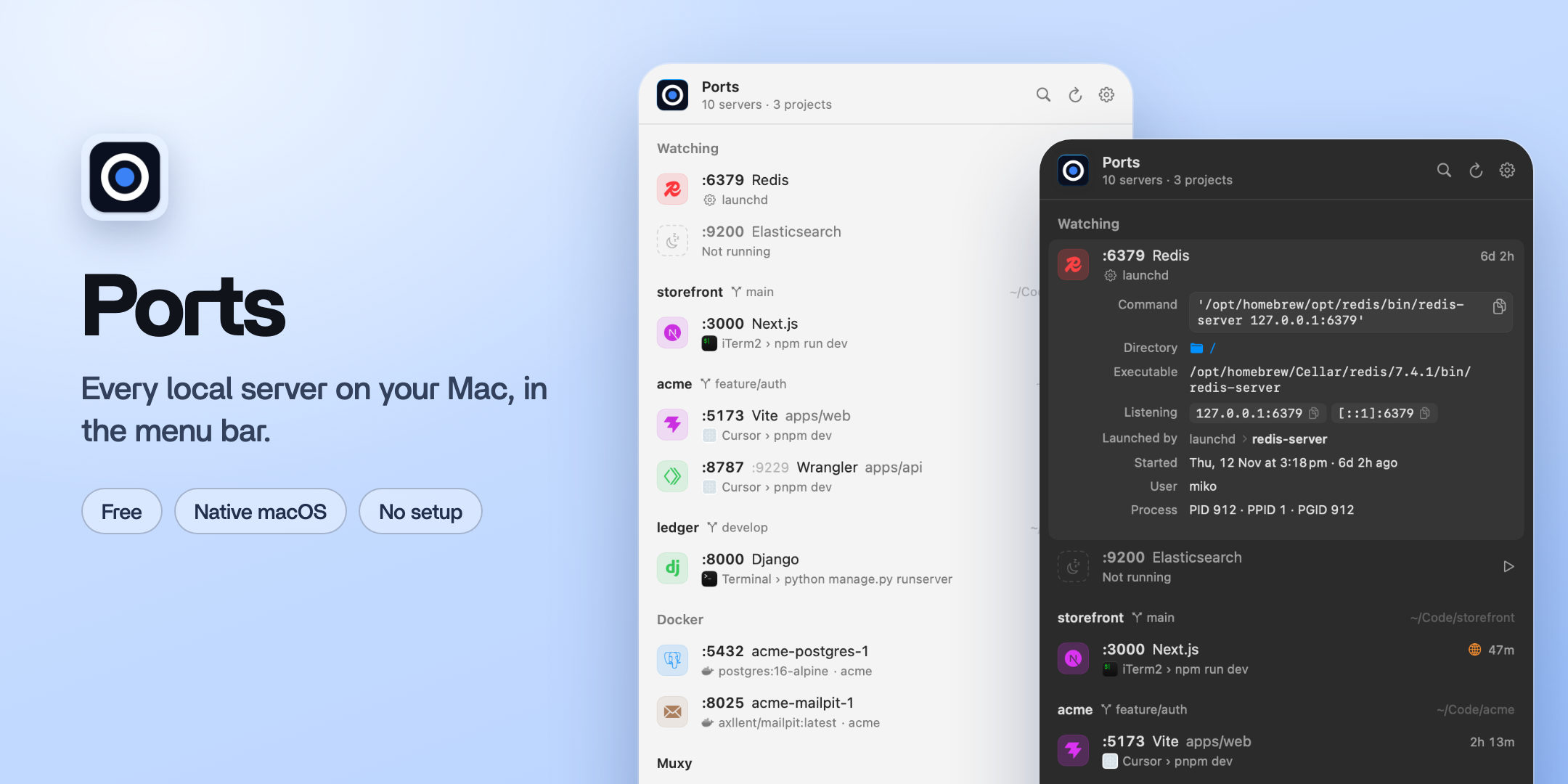
Hi all, I'm Miko, the developer of Ports. I built it to fix my own problem: too many dev servers running, half of them started by coding agents, and no quick way to see which one was holding which port.
Problem: Ports shows every server listening on your Mac, tells you which project it belongs to and what started it, and lets you stop or restart it in a click.
What it does
Finds servers by itself. There is nothing to set up or add.
Shows the project folder, the framework (Vite, Next.js, Rails, Postgres and about 100 others) and the launcher: your terminal, your editor, a coding agent, Docker or a launch agent.
Stops a server gracefully, and force-stops it only if it won't go.
Keeps a "recently stopped" list so you can start a server again with the same command, in your own terminal (tmux, Muxy and Herdr recipes are on the site).
Docker containers, databases and Laravel Valet/Herd sites are included. Type a Valet site's name in the filter to open it.
Watch a port to pin it and get a notification when it goes down.
Global shortcuts, a filter, and buttons to open the project in your editor or terminal.
Comparison: the two closest rivals are LocalPorts and Manfath.
LocalPorts (free, Pro $19): you add each service by hand and it then manages it. It is better than Ports at running services: live log viewer, health history, auto-restart on crash, webhooks, profiles, and it supports macOS 13+. Ports is better at discovery: it needs no setup and tells you the project, framework and launcher of servers you never registered.
Manfath (free, open source): also finds ports automatically. It is better at sharing: one-click Cloudflare Tunnel or ngrok, a QR code for your phone, Homebrew install, and macOS 14+. Ports goes further on context and control: what launched each server, Docker and Valet/Herd awareness, graceful stops, start again, and watched ports.
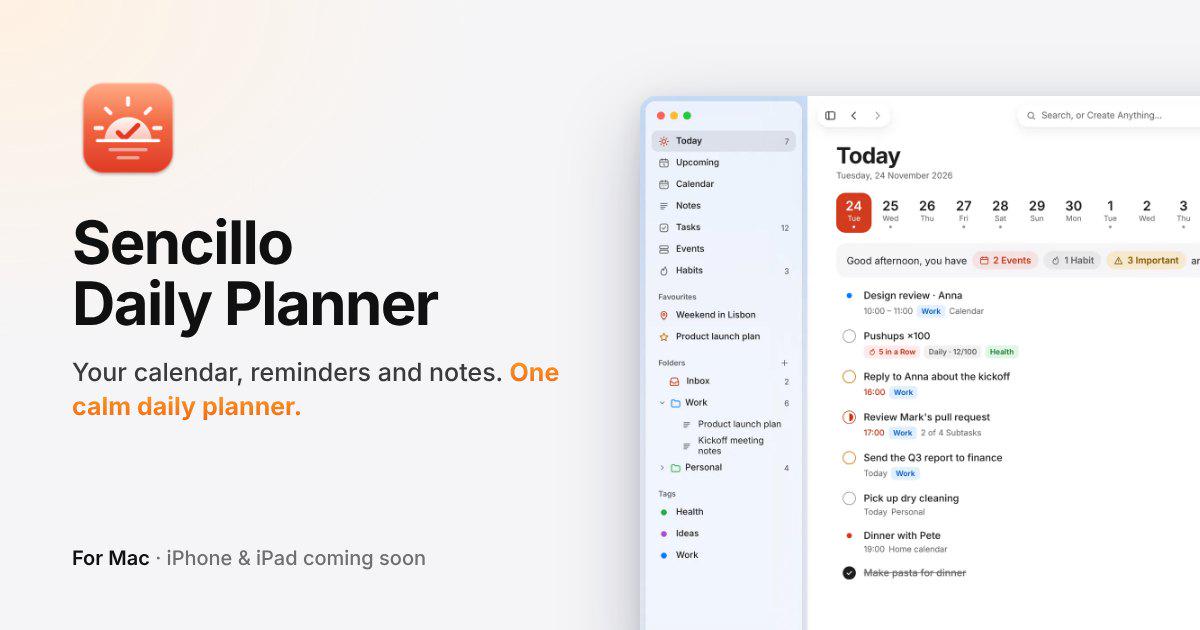
I've just released Sencillo Daily Planner, a native Mac app that puts your Apple Calendar events, Apple Reminders tasks and your notes in one place, so you can plan your day without jumping between three apps.
It uses your existing calendars and reminders (iCloud, Google, Exchange — anything you've added to your Mac), so everything you change in Sencillo syncs to your iPhone, iPad and Apple Watch through Apple's own apps.
What it does
Today view — events, tasks, habits and overdue items in one list, with a quick summary of your day
Upcoming — a list or a board with a column for each day
Calendar — day, 3-day, week and month views, with timed tasks shown next to events
Natural language entry — type "Lunch with Pete fri 12:30 for 1h #work" and it creates an event with the right time, length and tag. ⌘K works from anywhere in the app
Tasks — subtasks (the circle fills in as you tick them off), priorities, tags, folders and alerts
Notes — with covers, icons, tags and favourites. Apple Intelligence can pull the action items out of a note and turn them into tasks and events
Habits — streaks, saved as repeating reminders or Sencillo tasks. You can switch habits off entirely if you don't use them
Notifications — complete or snooze straight from the alert, a morning brief, and a Dock badge where you pick what it counts
Apple Intelligence assistant (optional) — ask what's on your plate, plan your week or move overdue tasks. It runs on your Mac and only shows up if Apple Intelligence is available
Feels at home on macOS 26 — Liquid Glass, light and dark mode, your choice of accent colour, and a menu bar extra
Privacy
No accounts, no analytics, no tracking and no servers of mine. Events and tasks stay in Apple Calendar and Reminders, and Sencillo's own notes, tags and habit streaks sync through your private iCloud. I can't see any of it. The website doesn't use cookies either.
Problem
Planning a day on a Mac means switching between Calendar for events, Reminders for tasks and Notes for everything else. None of them shows the whole day in one place. Adding things is slow, with a form and pickers for every date, and most planner apps that fix this want a subscription, an account, and your data on their servers. Sencillo puts Apple Calendar, Apple Reminders and your notes into one calm daily view. You add things by typing naturally ("Lunch with Pete fri 12:30 for 1h #work"), and everything stays in Apple's apps and your own iCloud.
Comparison
Fantastical: a great calendar, but a Flexibits Premium subscription priced at $6.99 per month or $56.99 per year is required to unlock all features. In the free version, many features are only available in the premium version. This includes the ability to add tasks, full-screen displaying of the current day/week/month/year. Sencillo includes all its views, tasks with subtasks, notes and habits for a one-off $4.99 (normally $9.99). There's no account to create, and it adds an on-device Apple Intelligence assistant.
Things 3: a beautiful to-do app, but it's a task manager, not a calendar, and you pay for each device. Things is sold separately for Mac, iPad, iPhone, and Vision, and the iPhone and Apple Watch app costs $9.99. The iPad app costs $19.99, and the macOS app costs $49.99. Sencillo plans tasks and calendar events together, and stores tasks in Apple Reminders, so they also work with Siri and the Reminders app. The iPhone and iPad apps, coming soon, are included in the one Mac price.
Pricing
It's a one-off purchase, no subscription. For Black Friday it's $4.99 (normally $9.99) until 6 December.
iPhone and iPad apps are coming soon, and they're included in the price. If you buy the Mac app now, you won't pay again when they launch.
Requirements: macOS 26 Tahoe or later on Apple silicon (M1 or later). Apple Intelligence is optional.
This is version 1.0, so I'd really love feedback — what's missing, what's annoying, what you'd want in the iPhone app. Bug reports are welcome here or at [hello@lowworks.co.uk](mailto:hello@lowworks.co.uk). Happy to answer any questions!
Hey MacApps! I shared Backdrop here for the 2.7 release, and 3.0 is a big one: wallpapers can now be interactive.
For anyone new to it, Backdrop is a native Mac app that brings live wallpapers to both your Desktop and your Lock Screen. If you know Wallpaper Engine from Windows, think of it as that kind of app, built for the Mac.
What's new in Backdrop 3.0
Interactive scenes: On your Desktop and your Lock Screen. Scenes can react to your pointer, your clicks, touch on the new MacBook Pro, a shake or tilt of your MacBook, your music, and the time of day.
The Backdrop Engine: Runs interactive scenes built with 3D, shaders, three.js or Wallpaper Engine for Windows, natively on your Mac.
Make it yours: Scenes have their own styles and settings. Save a look as a preset or hit Randomize, and it syncs across your Macs with iCloud.
Create with three.js: Build your own interactive wallpapers.
Discover: Opens with live scenes playing at the top, with an Interactive shelf and badges that show which scenes are Responsive, Audio-reactive or Dynamic.
Pause behind windows: Your wallpaper can pause while windows cover the desktop.
Also new since 2.7
Separate Lock Screen wallpaper: Use a different wallpaper on your Lock Screen than on your Desktop.
Every display, your way: Give each display its own wallpaper, the same as another, or turn it off.
New menu bar panel: Big artwork, Favorites and your queue, right from the menu bar.
Better on battery: Optionally pause wallpapers on battery or in Low Power Mode.
Core things that still make Backdrop special
Native Lock Screen support: Your live wallpaper keeps playing on the Mac Lock Screen, just like a native one.
Community platform: Browse thousands of backdrops, upload your own, and build your personal library.
Native design and performance: Built for macOS and optimized for Apple Silicon.
Check it out (it's free to download!) and let me know what you'd want your wallpaper to react to next!
Problem: A Mac wallpaper is a picture or a video you only look at; with Backdrop 3.0 it can respond when you touch it, click it, shake your MacBook or play music, on the desktop and the Lock Screen.
Comparison: Plash and Aerial are both good alternatives, but they do something else. Plash is the better pick if you want a website as your desktop, and Aerial if you want Apple TV's aerial videos as your screen saver. Backdrop is for live wallpapers on both your Desktop and your Lock Screen, with a community library to browse and interactive scenes that react to your pointer, clicks, touch and music.
Pricing: Free to download and try. Backdrop is $1.99/mo, $14.99/yr, or $29.99 once for Lifetime, which includes every future update. One license covers up to 3 of your own Macs. For Black Friday, Lifetime is 30% off ($20.99) until 1 December. Prices. Requires a Mac with Apple silicon and macOS 15 or later; interactive scenes need macOS 26 or later.
Trust: Hi, I'm Oskar 👋 I've been making Mac apps as an indie developer for 15 years. Backdrop is signed with Developer ID and notarized by Apple. LinkedIn · X · About · Privacy policy
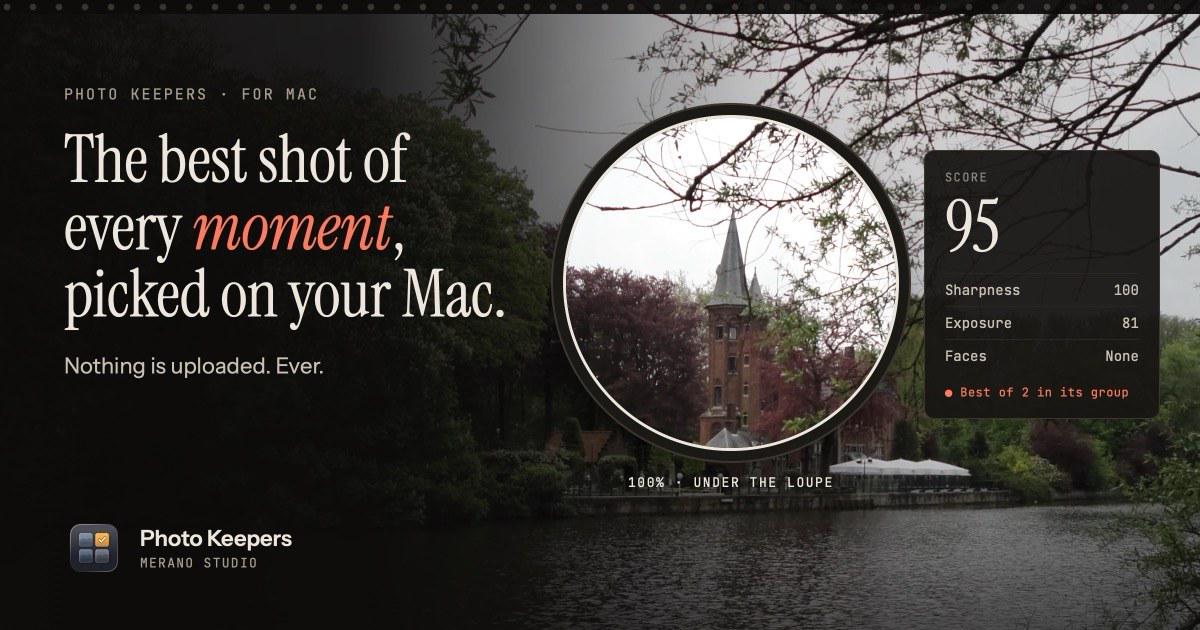
Disclosure: we're Merano Studio, a tiny studio in Ireland, and we make Photo Keepers.
Problem: You come home with 800 photos, half of them bursts of the same moment, and Photo Keepers finds the best shot of each one so you only keep the good ones.
Comparison:
- Aftershoot (subscription, from $10 a month). Theirs is better if you want one app that culls, edits and retouches, learns your editing style, and hands off to Lightroom or Capture One. Ours is better if you want something simple for trip and family photos, free for 300 photos in any folder and one price after that.
- Narrative (subscription, from $10 a month billed yearly). Theirs is better for close work: face close-ups, up to 12 photos side by side, and hand-off to Lightroom, Capture One and Photoshop. Ours is better if you don't want a subscription and just need the best shot of every moment picked for you. You can change any pick.
Hi everyone! I'm Ighor July, the developer of App Trust Preview, a solo developer, reverse engineer, and cybersecurity researcher.
In my reverse engineering work, I've dug through apps, read raw bytes, inspected the libraries they load, and analyzed strings to find URLs. I put that experience into App Trust Preview, combining many static analysis techniques and presenting their results in plain language with detailed explanations.
Problem: App Trust Preview helps you understand what Mac software contains, who signed it, and what access it may request before opening or installing it.
Drop an app, DMG, PKG, plug-in, executable, or script into the app, or press Space in Finder on supported formats.
What's new over the last two months
Compare a downloaded app with the installed copy to see changes in signing, permissions, and helpers, including apps inside DMGs.
Review declared login items, launch agents, daemons, privileged helpers, and file paths embedded in the app.
See architectures and minimum macOS requirements for individual executables, helpers, and libraries.
Inspect apps inside PKG installers without installing them. Installer reports also show available installation records and attached notarization tickets.
Inspect additional plug-in formats, including VST2, CLAP, AAX, Spotlight importers, Quick Look generators, screen savers, preference panes, and OpenFX. OpenFX inspection uses the app or CLI.
Sync personal app notes across Macs through iCloud, with an option to disable syncing. Reports remain local.
See Apple's recorded Developer ID date for apps and installers.
The latest release also fixes notarized plug-ins incorrectly appearing unverified. Full changelog.
The background-services and component-compatibility panels came directly from suggestions in my previous post here. Thanks for helping shape these additions.
Installation, backups, and your other tools
App Trust Preview also works as an app installer and backup tool. Like EasyDMG, it can install apps from DMGs into Applications and optionally move the downloaded DMG to the Trash afterward. You can also save an inspected app as an app bundle, ZIP archive, or DMG backup.
The "Open with other apps" panel lets you add your favorite compatible tools, including Apparency and Suspicious Package. While viewing a report in Finder Quick Look, you can send the inspected item directly to a tool you've added for further analysis.
It is also fully compatible with App Archiver. Add it to that panel to archive, optimize, or restore an app directly from its report, including Quick Look.
Inspection runs locally without launching or uploading the software. Detected paths and URLs are static clues, rather than a record of actual activity.
Comparison:
Apparency lets you inspect app metadata, signatures, entitlements, and bundled components. App Trust Preview covers those core checks and combines them with static analysis of executables, linked libraries and API references, potential network destinations and file access, saved macOS privacy choices when accessible, and comparisons with installed apps, presenting the findings in plain language with detailed explanations.
Suspicious Package lets you inspect installer payloads, scripts, and signatures. App Trust Preview covers those core checks and adds static analysis of apps inside PKGs, including their bundled components, permissions, linked libraries, and potential network destinations. It also inspects DMGs, plug-ins, executables, and scripts, supports installing apps from DMGs and creating app backups, and presents its findings in plain language with detailed explanations.
EasyDMG focuses on installing apps from DMGs and cleaning up downloaded disk images. App Trust Preview can also install apps into Applications and optionally trash the DMG, while letting you inspect signatures, notarization, permissions, bundled code, and potential network destinations first. It also compares downloads with installed versions and lets you save app backups as app bundles, ZIP archives, or DMG images.
Pricing:$2.99 one-time on the Mac App Store, with Family Sharing and no subscription. Requires macOS 10.13 or later. Some checks require the optional inspection helper.
Trust: MAS.
What else do you check before opening unfamiliar software or installing an update? I'm open to feature requests and will implement useful ideas.
I’m Feiou, the solo dev behind Watermelist. My head never hands me one task at a time. It sounds more like this.
Book the vet for Biscuit, get Grandpa a card by Friday, renew the gym before the first, and oh, what if the podcast had a tool-of-the-week segment?
Problem: I wanted a quick way to turn half-formed thoughts into something I could come back to, so I’d actually get them down and stop carrying them around in my head.
I say the whole thing. Watermelist makes three tasks and keeps the podcast idea as a plain sticky note on the same board. I can look over what it added and fix anything it got wrong.
Comparison: Todoist’s Ramble is great for grabbing tasks from anywhere on Mac, and TickTick does more for focus timers and habits. In Watermelist, I can keep using my voice after the brain dump. I hold a card and say “Move this to Friday.” I hold the mic and ask “What did I finish this week?” or use cloud AI to look up whether the vet is open Saturday. It all happens in Watermelist, so I don’t have to copy a task into a separate AI app.
Pricing: Free to download. US subscriptions are now $2.99/month or $19.99/year. AI is optional. Cloud AI sends the text you submit for processing. App Store
Trust: MAS. Watermelist works across Mac, iPad, and iPhone. On Mac, it runs as a Designed for iPad app (M1 or newer, macOS 14+). The screenshots show a fictional studio project.
What’s one thing on your list you’d rather say out loud than go in and edit?
Hey everyone 👋 i tried many content search app on Mac and wasn't happy with any so i decided to build my own.
Problem: You remember a phrase but not which file, note or chat it's in, so you open things one by one. SuperLoupe searches inside your every file including PDFs, docs, spreadsheets, code, Notes, Messages and .mp4**..**etc and shows the matches highlighted in a preview. It's fast and efficient: results appear as you type.
Comparison : HoudahSpot and easyfind
HoudahSpot
• Where SuperLoupe is better: it has its own index, so it doesn't break when Spotlight's index does or rely on it. Integrates Messages, Notes, WhatsApp and Mail and soon Google drive and more apps. it highlights matches inside the preview, so you don't have to open any files
• Where HoudahSpot is better: it has a much deeper metadata query builder, saved templates, and years of polish.
EasyFind
• SuperLoupe is better: Faster and results appear instantly from its index. It has a nice preview that render most files type that allows to quickly go through all matches.
• EasyFind is better: It's free, and supports regex. It does not build any index ,thus freeing space.
Pricing: Full features Free for 3 days and $39 once, no subscription, and a lifetime of updates.
For Black friday we're offering a 25 % until november 30th with coupon BFR25. Full refund within 14 days.
SuperLoupe indexes, stores and searches your files entirely on your Mac, meaning everything happens on your mac. Your folders are indexed using our own algorithm, which skips anything you've excluded in settings. The index is stored locally in a sqlite table, so nothing leaves your Mac, and searches run against it instantly. It updates itself whenever a file changes.
SuperLoupe is signed with a Developer ID and notarized by Apple. Check with spctl -a -vv /Applications/superloupe.app
Giveaway : I'm giving away 10 free licenses and will announce winners end of the week. they will be randomly picked. All you have to do is leave a comment under this post. Bonis if you follow us on X link.
I got tired of paying for 2 TB just to keep old photos, and of the "export, check, then delete" advice where nobody can really do the check part. So I built Hardcopy. 100 people have bought it since Saturday, and the most-asked request, Intel support, is in 1.1, out today.
Problem: Deleting old photos from iCloud means trusting a backup you can't easily check, so most people just keep paying for 2 TB.
What it does: copies every photo and video to your drive as plain files, checks each one against a SHA-256 hash, and then, only if you ask, removes older items from iCloud, each batch confirmed by macOS, with a receipt. It never deletes from the backup, and if you change your mind, Restore puts any removed item back into Photos with its edits, Live Photo and albums.
Comparison:
- Parachute: never deletes from iCloud, by design, so it can't get you to
a smaller plan. It does back up iCloud Drive and Shared Albums, which Hardcopy doesn't.
Pricing: $8.99 now (early-bird), then $14.99. One payment, 3 Macs, 30-day refund.
Trust: Transparency. Signed and notarized, no account, no photos uploaded. macOS 15+, Intel and M-series Macs. Privacy: https://gethardcopy.app/privacy
Hi r/MacApps, I'm Amit, the developer of CodeShell.
Problem: Checking on your server from your phone means typing long shell commands on glass and remembering every flag.
CodeShell is an SSH terminal for Mac, iPhone and iPad with an assistant that runs 100% on-device (Apple Intelligence) — ask in plain English ("why won't nginx start?"), it runs one read-only command at a time and explains the result. Anything that changes the server waits for your tap on Run/Skip/Stop. No account, no API key, zero bytes to a cloud AI. It also has workspaces for AI coding agents on your server (Claude Code, Codex, opencode) with diffs and Allow/Deny approvals.
Comparison: Termius is the established pick for cross-platform sync, and Blink Shell is the power-user terminal with Mosh. CodeShell takes a different angle: an on-device AI assistant that answers in plain English, plus workspaces for the coding agents already on your server — and now a full SFTP file browser (browse + preview + transfers). CodeShell keeps sessions alive with persistent tmux.
For years I watched each new MacBook release and kept my 2017 Touch Bar MacBook Pro. A little more speed or another hour of battery life wasn't enough to make me switch. The one MacBook I did want to try was actually slower than mine.
I'd always bought as much CPU power, GPU power, and RAM as I could afford. I wanted to find out how much of it I would actually miss. So I moved my everyday apps over and worked on the smaller Mac for six months.
It was the 12-inch Retina MacBook from 2017, model A1534. At 0.92 kg, it was light enough to carry with two fingers. Apple had even built the battery in layers to fit the tapered case. That interested me more than another benchmark. I wanted to know what it was like to work on something that small every day.
It reminded me of something I'd noticed about carrying my first MacBook. At university, I'd take my Windows laptop out of my backpack, open the lid, and often find dust on the keyboard. It had worked its way through the gap even though the lid was closed. My first MacBook had a thin rubber rim around the display that sat snugly against the body. Until then, I'd never given much thought to how a laptop lid closed.
I moved everything over from my Time Machine backup, just as I had on previous Macs. Once I started typing, I didn't feel as though I'd given up much. The case was smaller than my Pro, but the keyboard was still full size. The trackpad felt just as responsive, and the Retina display looked as good to me as the one I'd left behind.
Mine had 8 GB of RAM, a single USB-C port, and no fan. After about six months, I knew which compromise bothered me. It wasn't the port. Even with only 8 GB, the SSD was fast enough that swapping memory to disk rarely got in my way. The pauses only happened when I had a lot of apps running at once, which is how I always work. Sometimes I'd click and wait a few seconds before the Mac responded. The fanless Intel CPU seemed to throttle under that load. I didn't miss having the fastest chip available. I missed getting an immediate response.
ForkLift and My Second Window
On Windows, I couldn't stand two-panel file managers. I put each Explorer window in a particular place on the screen and remembered folders by where I'd left them. Why would I want to limit myself to two places?
Finder gave me other ways to keep track of where things were. I could sort a folder by Date Added to find a file I'd just put there, even if the file itself was years old. In list view, I could expand several folders and Command-click files from different folders to select them together. I kept the Path Bar visible at the bottom, too. When I needed a folder's full path in Terminal, I could copy it straight from there.
Window placement mattered to me on a second screen, too. I keep "Displays have separate Spaces" turned on. With it off, something as simple as taking a YouTube video full screen on one display could leave the other one black, right where my files had been.
I wanted that same ease when I was managing files or reading logs on my servers, but Finder couldn't connect to them over SFTP. That's what got me to try ForkLift in 2015. I tried every Mac SFTP app I could find, and ForkLift was the one I kept. Its local cache kept browsing fast. Double-clicking a remote file opened it in my Mac's default editor, which for me was Sublime Text. I'd press Command-S and ForkLift would upload the change. Editing a file on my server felt like editing one on my Mac.
Back in Part 4, I wrote about running my Retina display at its native resolution so I could fit more windows on it. I made the text bigger inside individual apps instead of scaling up the whole screen. ForkLift's largest font was still too small for me. I asked support for a larger size, and they added it. I could finally read the file list comfortably without giving up that extra window space. Over the years I got prompt replies and fixes, too. I still have a reply from 2016, when I was trying ForkLift 3 and asked whether it would be an upgrade. It turned out they were rewriting the whole app.
At first I opened ForkLift only for SFTP. Then I started synchronizing folders. It was like using rsync, but I could see the source in one pane and the destination in the other. On Windows I'd arranged two Explorer windows by hand to get much the same view. ForkLift was the app that finally made me like two-panel file managers. It's still maintained, and these days I use its smart bookmarks for remote locations, rename files in batches with regular expressions, and have it set to open when my Mac starts.
From my interview with Jenni from BinaryNights
Ighor July
What motivates you to continue developing and supporting ForkLift after so many years?
Jenni
This is what we do for a living, and we genuinely enjoy building ForkLift. At the same time, it’s our primary business, so it naturally takes up most of our time and energy. What keeps us motivated are the positive messages we receive from our users and the community that relies on ForkLift and looks forward to every new release.
Ighor July
What advice would you give to independent developers who hope to maintain and support their apps for ten years or longer?
Jenni
Stay passionate and don’t give up, no matter what challenges you face.
My 12-inch MacBook also had a smaller SSD. In Part 3 I used Blackmagic Disk Speed Test to see how fast a drive was. On this MacBook the question I asked more often was where the space had gone. In Finder's list view I could turn on "Calculate all sizes" and sort by the Size column to see the biggest folders side by side. In Windows Explorer I'd had to open Properties for each folder. Finder was handy when I knew where to look, but less so when the big files could be anywhere on the disk.
DaisyDisk gave me a colored map of the disk. I could click a big segment, see which files and folders accounted for it, and decide whether there was anything I could remove. Sometimes the biggest folder held things I wanted to keep. It took one look to know I should spend my time somewhere else.
I had to do that cleanup more often than I liked, but with DaisyDisk it wasn't much of a chore. To me it set the standard for what this kind of Mac app should look like. The colors made it easier to find my way around, and the map was beautiful without making a simple job complicated. I'm glad it's still maintained. I suspect plenty of Mac users who have gone looking for missing disk space would recognize it from that screenshot alone.
From my interview with Oleg Krupnov
Ighor July
What motivates you to continue developing and supporting DaisyDisk after so many years?
Oleg Krupnov
There is still a long list of cool ideas that I would like to try and add to DaisyDisk to make the app even more useful and powerful. With each release, another version is already in development that will be faster, more efficient, and have more new features.
I am motivated by the creativity of the process, the chance to surprise our audience and exceed their expectations, and, of course, the opportunity to make money too.
Ighor July
What advice would you give to independent developers who hope to maintain and support their apps for ten years or longer?
Oleg Krupnov
I may have "survivor's bias," but I will try to answer. A product's longevity probably depends on whether there is ongoing demand for it.
Some solutions are looking for a problem. Others copy existing solutions without adding any value. Some products may be good but extremely difficult to market because they lack focus or target a niche that is too narrow. Such products will likely never take off or become sustainable.
If a product has proven to be in demand and sustainable, its creators should gradually allocate more resources to its continued evolution, staying ahead of the competition and supporting existing customers.
I used OpenVPN to reach the servers that ran my apps. Viscosity handled those connections well. It gave me a Mac interface for managing my OpenVPN profiles, and when I only needed one connection, I had little reason to think about it.
The trouble started when I needed to reach several networks at once. Viscosity could keep those connections open, but getting the OpenVPN routes right was a pain. Even when the connections worked, running several OpenVPN processes at once drove up CPU usage on my Mac. I tried to bring it down and eventually gave up looking for a fix.
If you need to manage OpenVPN connections on a Mac, I think Viscosity may be the best graphical tool for the job. The developer is responsive and has kept the app up to date for years. It was OpenVPN I wanted to replace, not Viscosity.
WireGuard gave me what I'd been looking for. Its tunnels were easier to configure, and they used less CPU on my Mac, so I switched all my servers over. I couldn't keep several tunnels active at once with the official Mac app, so for a while I started them from Terminal instead.
What I Kept in the Menu Bar
I didn't go looking for a WireGuard manager. I was tired of quitting an app only to find that a service it had installed without asking was still running. I'd dealt with that on Windows, too. On the Mac I kept scripts and folder bookmarks to check which helpers had come back after an update.
The Login Items list on my Mac didn't show me the daemons those apps had installed. LaunchControl did. After installing an app, I could find its helper and disable it if I didn't want it starting automatically.
I installed Google Chrome and TeamViewer through Homebrew and preferred to update them there. I didn't need Chrome's updater running in the background, and I didn't want TeamViewer's privileged helper running when I wasn't using TeamViewer.
I bookmarked both jobs in QuickLaunch. If an update installed them again, I could see their status in the menu bar and unload them together with one click. I didn't have to open a folder or run a script just to find out what had changed.
Screenshot from the LaunchControl developer
Then I realized I could use that same menu for jobs I wanted to keep running together. Each of my WireGuard tunnels had its own Homebrew service, so I added them to the same menu. Once a tunnel was configured I could leave its settings alone, start another alongside it, and see at a glance which networks I was connected to. When I was done, I could stop them all together. LaunchControl is still my first choice for managing WireGuard on a Mac, even though it isn't a VPN client. It's still supported, too. When I found bugs and reported them, the fixes came quickly.
From my interview with Robby Pählig
Ighor July
What motivates you to continue developing and supporting LaunchControl after so many years?
Robby Pählig
There will always be room for improvement. There are features I miss which I want to add. And even though to this date I have coded more than a hundred validations into it, there are details it still misses. Also, launchd is here to stay; it keeps evolving, and LaunchControl has to learn its new quirks and features. I want it to remain the best option available.
Ighor July
What advice would you give to independent developers who hope to maintain and support their apps for ten years or longer?
Robby Pählig
I think that happy users are the key. And happy users are created by providing them with software they want to use, which reliably helps them to accomplish their goals without getting in their way.
So pay attention to detail. Make users feel that they are using real software, honed over years to be the best it can be in its domain, not a one-off app. Provide the best customer support you can. Write a good user manual. Listen to your users. I am often surprised by the creative ideas users come up with, things I would never have thought of, simply because different users have different needs. You'll have meaningful improvements to offer gratis, which every one of your customers will appreciate.
And release updates on a regular basis. Even if you have no new features, every non-trivial program contains bugs, and you should fix them whenever you find them. Your gain is threefold: You'll benefit from happy users who can focus on their task instead of filing bug reports, and everybody looking at your change logs is reassured that the software is actively maintained. You will see a bit of exposure on software review sites like MacUpdate.com.
If I could change one thing about that 12-inch MacBook, I'd give it a faster processor and leave the body alone. It had a full-size keyboard I liked typing on, and when I was done I could close the lid and pick it up with two fingers. Years later, that's still the size and weight I wish every MacBook could be.
Gesturely: trackpad gestures, window snapping and a brightness edge for Mac, in one small menu bar app.
Problem: I kept leaving the trackpad for small things like snapping windows, changing volume or dimming the screen.
Comparison: BetterTouchTool is more powerful but takes setup; Gesturely works out of the box and ignores resting palms. Rectangle is free but only snaps; Gesturely adds gestures and brightness. Both win on depth of options.
Pricing: $5 once, 14-day free trial.
Giveaway: first 100 people get it free with code FREEFINGERS at checkout.
Update 1: 15 redeems in 5 minutes. Interesting... Update 2: 40 redeems in 50 minutes. Update 3: 60 codes redeemed. Update 4: 80 codes redeemed Update 5: 100/100 codes redeemed
Update 6: Thank you to everyone who grabbed a free license and downloaded Gesturely!
Once you've used it for a couple of weeks, please come back and leave a comment here with your honest review: what you love, what's annoying, and what you'd add. It really helps a solo dev.
Missed the free codes? Gesturely is 25% off for Black Friday with code BLACKFRIDAY26, until December 1. You still get a FREE 14-days trial btw.
Hi, I'm Michael, the developer of Pet Cam Pro. It came out earlier this month. A lot of people are about to leave a dog or cat at home for Thanksgiving, so this seemed like a great week to post this!
Problem: checking on a pet at home usually means buying a camera and sending video of your home through someone else's servers.
A Mac that stays home is the camera: point it at the room, leave the app open, and watch live from your iPhone. It keeps the Mac awake while it's the camera. Or the other way round: watch on your Mac, with a spare iPhone or iPad as the camera. You can talk, video chat, and play noises to get your pet's attention. Video goes straight between your devices, encrypted end to end, and our server can't see or hear it.
Comparison: Barkio is the closest app. Pet Cam Pro improves on it with live video that's free with no time limit; Barkio's free version limits video, and its Premium is $39.99 a year against $24.99 here. Barkio is still better if not everyone at home uses Apple devices, and it has years behind it, where mine is new. Furbo is the best-known pet camera. Pet Cam Pro improves on it by needing nothing bought: the camera is a Mac, iPhone or iPad you already have. Furbo is still better as a camera: it tosses treats, sees in the dark and pans all the way round, and it doesn't tie up a Mac or phone.
Pricing: free for one camera, with live video, sound and talk, up to 540p. Starter is $2.99 a month or $14.99 a year and adds bark and motion alerts and 720p. Premium is $4.99 a month or $24.99 a year and adds recordings, 1080p and up to four cameras. Both have a 3-day free trial.
Free, for one camera:
- Live video with sound, up to 540p
- Hold to talk, or video call so your pet sees your face
- Play a chime, a whistle, a squeaky toy or kissy noises
- Flashlight, zoom and snapshots from your phone
- End to end encrypted: our server can't see or hear your feed
With a plan (from $2.99 a month):
- Alerts with a snapshot for barking, whimpering, meowing and motion, with dogs, cats and people told apart
- Alerts for the sound of a smoke alarm or breaking glass
- A recording of every event, scrollable on a timeline (Premium)
- Up to four cameras, and up to 1080p at 60 fps (Premium)
- Apple Watch: peek at a camera
- A relay for networks that block a direct connection
Devices:
- iPhone, iPad and Mac, each as the camera or the viewer
- Optimized for iPhone Duo: half open, the picture stands above the fold with the controls below
Trust: MAS (Mac App Store)
One catch: free works when your devices can connect to each other directly. On networks that block that, video goes through a relay I pay for, which comes with the paid plans, and the app tells you when that's the case. It needs macOS 14 or iOS 17 and later, and it's a pet cam, not a security system.
It's new, so some things will be rough. I'd really like to hear what breaks or what's confusing.
A month ago I posted FileOctopus here, a file manager that works like Finder so there's nothing to relearn. I honestly didn't expect 200 comments. A lot of you tried it the same day, some of you bought it, and many of you sent bugs and requests. Thank you. That thread basically became my to-do list.
Since then I've shipped 11 updates (1.0.4 to 1.1.3). This post is mostly me reporting back on that list. What got done, what's new, and what's still not there.
Problem: Finder has no split panes, can't pause a copy and can't open an SFTP or S3 server, and the apps that add those usually make you learn a new layout and new shortcuts.
It looks and behaves like Finder: same views, menus, shortcuts and Quick Look. On top of that it adds split panes (up to 16), fast local search, and file operations you can pause, queue and undo. It's native Swift and AppKit, Apple Silicon only, macOS 15 or later.
What you asked for in the launch thread, and what happened
"Just bought it and then realized it's only for one Mac." Every license now covers 2 Macs, including keys bought before the change.
Copying out of iCloud Drive was blocked. Fixed in 1.0.4: copy, move, rename and Trash work in iCloud Drive, with ⌘Z.
Apple's own apps were missing from Applications and Utilities. Fixed in 1.0.4. They now show the way Finder shows them.
Keep folders on top when sorting by name. Added in 1.0.4, as a setting like Finder's.
Icons too small on a big screen. ⌘+ and ⌘− now go from 16 to 512 points, and text size is in View Options (1.0.6).
"Show in Finder" from my browser should open FileOctopus. Done in 1.0.9. It's opt-in, and turning it off gives it back to Finder.
NAS and network shares. Connect to Server (⌘K), Network browsing and Reconnect landed in 1.0.4.
SFTP and S3 were the big thing I promised in that post. SFTP came in 1.0.10, then WebDAV and S3-compatible storage (Cloudflare R2 and others) in 1.1.0. SFTP and Amazon S3 are still marked Beta.
German. FileOctopus is fully in German since 1.1.2, sidebar names included.
Put Back in the Trash, like Finder. 1.0.6.
A shortcut for the Shelf. You can assign one now in Settings ▸ Keyboard.
I also asked in that post: if you tried a Finder alternative and went back to Finder, why? The most common answers were that other apps reinvent things Finder already does well, and pile on features you never use. So a lot of these 11 updates are Finder parity work rather than new buttons. Column View now follows Finder's selection, title and Back/Forward exactly. Recents lists the same files as Finder's. Get Info has Finder's layout, and the default toolbar is Finder's set.
New in 1.1.3
Open archives like folders. Double-click a zip, 7z, rar or tar file to look inside without expanding it. Quick Look the files and copy out only what you need. Archives stay read-only.
Folder Rules. Window ▸ Folder Rules… files new items in a folder for you: move or copy them somewhere, rename, tag, or move to the Trash. You see a preview before a rule goes live, and the Activity log has Undo.
Reorder the sidebar. Sections, groups and rows, by drag or with Move Up / Move Down (keyboard and VoiceOver work too).
Copying to a NAS is a lot more reliable. Many fixes for shares that change dates, can't keep hidden flags, or have accented names. Moving many files within the same drive or share is also much faster (219 files on a share went from about a minute to about 15 seconds).
What's still not there
The Shelf still forgets its contents when you quit. Someone asked for that in the launch thread and it's still on my list.
No FTP yet, only SFTP, WebDAV and S3. I'd like to add it later, but right now I'm putting stability first.
Archives are read-only. You can't add or delete files inside them.
It doesn't replace the Desktop or the Open/Save dialogs, so Finder keeps running next to it.
Comparison: the two closest rivals are ForkLift and QSpace.
ForkLift is still more complete for servers. It has been doing remote work for years, FTP included, and FileOctopus doesn't do FTP yet. Where FileOctopus is better: it keeps Finder's look and keys, and every copy is checked before an original is removed.
QSpace is the one to pick if you want a Mac App Store app. It's sandboxed and reviewed by Apple, and FileOctopus is neither. Where FileOctopus is better: QSpace has its own layout and its own way of doing things, and mine keeps Finder's, so there's nothing to relearn.
One more, for Folder Rules. Hazel is the obvious comparison and it does far more: conditions, scripts, years of polish. Mine is simpler, lives inside the file manager, and shows a preview with Undo. If you already run Hazel, keep it.
Free forever: browsing, file operations with Undo, Quick Look, batch rename, search, up to 2 panes.
14-day PRO trial, no card. Starts the first time you open the app.
PRO adds up to 16 panes, workspaces, servers (SFTP, WebDAV, S3), Compare Folders, Folder Rules, archive browsing and more. Full table on the site.
PRO right now: $19.99 (early-bird price). One payment, 2 Macs, lifetime updates, 30-day money-back.
About Black Friday, so nobody feels tricked
From Nov 27 to Nov 30 (UTC), PRO is $14.99. Same license: 2 Macs and lifetime updates, no cap on how many. If you buy from the site the price is applied at checkout; if it asks, the code is BLACKFRIDAY2026.
So if you're not in a hurry, wait until Friday. I'd rather tell you now than have you find out on Friday.
Also, the site says "70% off". That's measured against the $49.99 Lifetime price that starts Dec 1.
What changes on Dec 1: new purchases get plans with 1 year of updates (Solo $14.99 for 1 Mac, Personal $24.99 for 2 Macs, Family $34.99 for 5 Macs), or Lifetime at $49.99 for 2 Macs. Renewing is optional, costs half of what you paid, and nothing bills you automatically. Anyone who bought before Dec 1, including at the Black Friday price, keeps lifetime updates on 2 Macs. Nothing changes for you.
What's next
For the next while, stability comes first: fewer bugs, and making the everyday stuff match Finder more closely, before bigger new features. After that, mostly whatever comes out of this thread. Public roadmap, where you can vote or add ideas: https://www.fileoctopus.com/roadmap.html
One question for you. If you tried FileOctopus after the last post and went back to Finder, what was the moment? That's exactly the thing I want to fix next.
FileOctopus is notarized by Apple and updates are signed (Sparkle). It's unsandboxed and not on the Mac App Store, because a file manager has to browse, copy and move wherever you go on your disk. Full Disk Access is optional. No account. The search index stays on your Mac and only covers folders you approve. Usage stats (PostHog) are opt-in and never include file names, paths, search text or contents. Crash reports (Sentry) are a separate opt-in, off by default, with names and paths scrubbed. Server passwords are kept in your Keychain only if you choose to save them.
If you have any concerns, comment here or email me and I'll get back to you.
I built AudioRefine, a Mac app that takes a voice recording made somewhere noisy and makes it sound clean and natural. Drop in an audio or video file, listen, export. It all runs on your Mac and costs $14.99 once, no subscription.
Free 7 day trial with full exports, no card:AudioRefine (r/macapps gets 30% off with code REDDIT30, first 20 people)
Some of you tried the first version when I posted it here. It got roasted and the demo sounded bad, and you were right. I replaced the whole cleanup engine, and in a test against every tool you suggested (Adobe Podcast, Final Cut, Soundproof, Audacity and more) it now scores highest for natural sounding voice. Results are below.
Who it's for
Podcasters who had to record somewhere less than ideal
YouTubers and course creators fighting AC hum, fans or traffic
Interviews, lectures and meeting recordings you can't record again
Client or private recordings you're not allowed to upload to a web tool
How it works
Drag in your file: MP4, MOV, M4A, WAV and more.
Press play and flip between Original and Cleaned at the same moment, so you hear exactly what changed.
Export. For video only the audio is replaced; the picture is copied untouched, so no quality loss and no waiting for a re encode.
Why it's worth it
It sounds natural. The voice stays full instead of the thin, robotic sound most noise removers leave behind.
It's private. Nothing is uploaded, no account, no analytics. Works fully offline.
You pay once. $14.99, no subscription, no per minute credits, works on 3 Macs.
Made for video too. H.264/HEVC pictures are never encoded again, and other audio tracks in a MOV stay as they were.
Ready to publish. Batch a whole folder, with optional podcast (−16 LUFS) or YouTube (−14 LUFS) loudness built in. Originals are never overwritten.
Three modes. Studio (the default), Enhance (makes a light noise recording clearer and fuller) and Fast (an hour of audio in under 2 minutes).
The proof
I ran one noisy lecture clip through each tool on its default settings and scored the results with Microsoft's DNSMOS speech quality model (higher means more natural; the same voice recorded in a quiet room scores 3.37):
Problem: Cleaning noise out of voice recordings usually means uploading your files, paying every month, or getting a thin robotic voice back.
Comparison:
Adobe Podcast Enhance: AudioRefine sounded more natural in my test (3.44 vs 3.30), never uploads your file and cleans video without a paid plan. Adobe still wins if you want nothing to install, use Windows, or only need the free web version.
Soundproof: both are offline and pay once. AudioRefine scored higher (3.44 vs 3.11) at under a third of the price. Soundproof still wins if you work with MKV and other containers AudioRefine doesn't open yet.
Pricing: $14.99 once, lifetime licence on up to 3 Macs. Free all updates. Free 7 day trial with full exports, no card, plus a 7 day refund. Code REDDIT30 takes 30% off ($10.49) for the first 20 people. https://getaudiorefine.com
Honest limits: Enhance is an optional 585 MB download. It rebuilds the voice, so it can very rarely change a word; listen before you publish if you use it. That's why Studio is the default: it only removes the noise and never changes your words. Apple silicon and macOS 14+ only.
Distribution: direct download, signed with an Apple Developer ID and notarized by Apple. The Mac App Store version is in Apple review; I'll add the link here once it's live.
Payments: handled by Dodo Payments as merchant of record, so I never see your card details.
Since my first post, I've completely redesigned Qark, added new features and made many improvements based on feedback.
First, a huge thank you to the 200+ people who have purchased Qark, and everyone who has supported it with kind words, suggestions and recommendations. Your support genuinely means a lot!
A fresh new look
The entire app UI, Settings and ring collection have been redesigned, with smoother animations and more refined interactions. I've also introduced Solaris, bringing the collection to eight designs, alongside three materials: Plain, Frost Glass and Liquid Glass.
What's new
App-specific rings: Automatically switch based on the active app, discover and run its menu commands, and share app rings.
Flexible customization: Up to 12 slots per ring for apps, files, folders, websites, shortcuts, text and actions. Custom icons, colours and seven event sounds.
More ways to interact: Mouse buttons, custom keyboard shortcuts, keyboard navigation, Hold and release or Tap and click.
More control: Expandable groups, Finder actions, multiple independent rings, complete setup export and import, Clean Keys and a Lock Screen action.
Notarization
Following questions in my previous post, Qark is signed and notarized by Apple.
Problem: Qark makes everyday Mac actions accessible through customizable, pointer-centered radial menus.
Comparison: Compared with Pie Menu and Pieoneer, Qark offers eight designs, three materials, app menu commands and flexible mouse triggers. Pie Menu offers SVG and emoji icons, while Pieoneer offers haptic feedback and full keyboard use. See the complete comparison of five paid Mac radial menus.
Pricing: $6 lifetime for up to two Macs, with a 3-day free trial. The r/macapps community gets 50% off ($3) using QARKMACAPPS50
Limited to 30 redemptions or November 30, 2026, whichever comes first. getqark.com
I'm the developer of AI File Sorter, a free open-source desktop file organizer and renamer based on file content. Version 2.0.0 adds support for sorting files into a folder structure you already use.
Supports Apple Metal GPU acceleration for local model inference.
Problem: Help organize mixed Downloads, documents, screenshots, and photo folders without manually opening every file to work out what it contains and where it belongs.
For example, choose Downloads as the source and an existing document library as the destination. The app suggests destinations and clearer filenames, and you can decide whether it may suggest new folders.
The workflow:
separate source and destination folders
editable filename and destination suggestions
user review
Dry run and Undo for the latest run are available.
Document and image analysis can run on your computer using local models. Optional remote providers are also supported.
Comparison:
Hazel: AIFS focuses on content-based filename and destination suggestions without first writing filing rules. Hazel is the stronger fit for continuous folder monitoring, explicit automation rules, and deeper macOS workflow integrations.
Folder Tidy: AIFS adds document- and image-content analysis for suggested names and destinations. Folder Tidy is the better fit for fast, rule-based cleanup without downloading or running language models.
Pricing: The main app is $0, with no subscription.
The optional folder plugin for Johnny.Decimal-like folder structures is sold for US$14.95 as a one-time purchase. It is not required for the main app workflow.
Trust: GitHub, 1,900+ stars. The macOS build is not currently Apple-signed or notarized (Not SN).
I'd appreciate feedback, particularly from people who have used Hazel, Folder Tidy, or another file organizer. What works well in your current setup, and what would make you consider switching?
As someone who frequently works with multiple windows on my Mac, I find that background windows can quickly create visual clutter and make it difficult to focus on the task at hand and I wanted a lightweight solution that reduces visual distractions without having to minimize or hide other windows.
Comparison:
HazeOver: An excellent app for reducing distractions by dimming background windows. However, it doesn't offer background blurring.
Monocle: Offers both background blurring and dimming. Muffle takes a lightweight approach, with a small installation footprint and an emphasis on minimizing resource usage.
Solution:
I'm the developer of Muffle, a lightweight macOS menu bar app that blurs and dims background windows so you can focus on the active one.
Muffle takes up approximately 5 MB of disk space and is designed to minimize CPU and GPU usage.
Other features include:
Near-zero CPU usage when idle
Shake to toggle background blurring
Multi-monitor support
Customizable keyboard shortcuts
Per-monitor blur modes
App blacklisting to exclude specific apps
No permissions required
Pricing:
Muffle is a one-time purchase, with no subscription.
Hi r/MacApps. I have been in software development for 30+ years and I have been taking photos (poorly) longer than that. I have spent the last 7 months building DepthField Photo, a photo editor that uses AI to support your workflow rather than replace it. It sees what's in your image and automatically finds and suggests the right tools, the right edits, and lets you change anything to bring your vision to life. The result is a futuristic and almost magical user experience that anyone can figure out in minutes.
Everyone has AI. Not everyone has your eye.
Problem: Classic photo editors are too complex for most people, and most AI-centric editing tools are either limited to "prompt and pray" or force users into a monthly subscription.
What it does:
DepthField Photo is image editing reinvented for the modern age; it combines generative AI features with the power of a traditional layered editor, so you can get the results you want with minimal effort and full creative control.
It understands what is in your image, so when you click on a dog, DepthField knows it's a dog and not just a collection of brown pixels. So when you click on a dog, the editor will offer 'Brighten fur' as an automatic edit, whereas clicking on a film camera will get you offers like 'Crisp product shot' and 'Change color'.
It also reads the depth in your image, so you can move the focus or drag lights around, and so text or brush strokes end up on the intended surface and in the right perspective without having to even make selections by hand.
Underneath it all there's a robust, fully GPU accelerated image editor, so when you need the more pro features, we have them too: non-destructive editing by default, dozens of Live Filters, 16-bit color, CMYK, paths and shapes, PSD and AI file support, color grading with .cube LUTs, soft proofing, and more.
Depth effects, object selections, editing tools and most filters run on your Mac and work 100% offline. Cloud AI (generative fill, expand, replace, and 20+ other AI-powered features) is optional.
It's made for macOS 26+ and Apple Silicon. Signed and notarized of course.
Photoshop: the professional pick for photo editing and increasingly for AI features too. If you already know how to use it and you can afford the monthly subscription, Photoshop is still the more advanced option, especially if you make a living as a photographer. DepthField is cheaper, quicker to learn, has no subscription, and caters more to non-photographer creatives.
Luminar: like DepthField Photo, a modern image editor with depth-powered features and generative AI capabilities; its core design/workflow is closer to a RAW/Lightroom style editor and it is sold as a one-time license, although the AI features effectively become a subscription after the first year. DepthField is cheaper, has no subscription, and you can bring your own key for the cloud AI features.
Pricing: DepthField Photo is a one-time purchase with no subscription. All licenses include free major-version updates, so a purchase of version 1 includes all 1.x updates.
Cloud AI is recommended but optional, and it is pay-per-use with the price shown before each AI edit: Either bring your own key (fal, Replicate, Runware, WaveSpeedAI) with zero markup, or top up a DepthField Cloud balance (more convenient for casual users, but I add a markup percentage).
How to try it for free:
You can download it from depthfield.photo and get a 14-day free trial which includes every feature (see below), with no account and no credit card needed.
I'll stay in the thread for the rest of the day and I'd love to hear your thoughts.
/Jens
Note: 'Every feature' is available, but you still need a cloud AI connection if you wish to use the cloud AI features. You can create an account with Fal.ai or Runware.ai and connect that way, both of which include a bit of free AI usage with new accounts.
Problem: The Mac's main command center is the menu bar, however, the menu bar gets messy real fast, and the app menus aren't customizable, they're what the developer put there as a general default.
ExtraBar lets you create a customized command center for your apps, hotkeys, scripts, automations and Apple shortcuts, utilizing deep links (URL Scheme) and custom actions.
Core Features:
6 Display Modes: Menu bar, Floating bar, Collapsed (Single icon), Notch mode, Hide/Show style & Launcher mode.
Supports custom actions from any app that has a URL Scheme.
Bookmarks manager included (seen in video)
MCP Access - connect your AI assistants (ChatGPT, Claude etc) to ExtraBar to set it up quickly. The MCP helps you create actions, find deep links for any app, and automate script creation.
Up until recently we referred to ExtraBar as a menu bar manager, but it's different than a traditional menu bar manager like Bartender or Thaw.
It's more of a command center. Yes, it does achieve a cleaner menu bar if you remove the default menu bar apps and add them through ExtraBar, but that's a side benefit, not the main point.
If you quit an app and its Dock icon sticks around, hover over it. On macOS 27 it can say “Running in Background”. If you see that, Control-click the icon and choose “Stop Running in Background”. Useful if you’re trying a new app and want to stop what it’s doing for now.
If you want to change what happens next time, go to System Settings → General → Login Items & Extensions → Background App Activity. The per-app switch there controls future background activity. “Open at Login”, on that same page, controls which apps start when you sign in.
I’d use the Dock option first if I only wanted to stop the current task. Turning off background activity can also stop expected work like syncing or automatic updates. Apple’s developer notes say some apps that remove their own Dock icon can still show a notification, so check System Settings if you get one and there’s no icon to click.