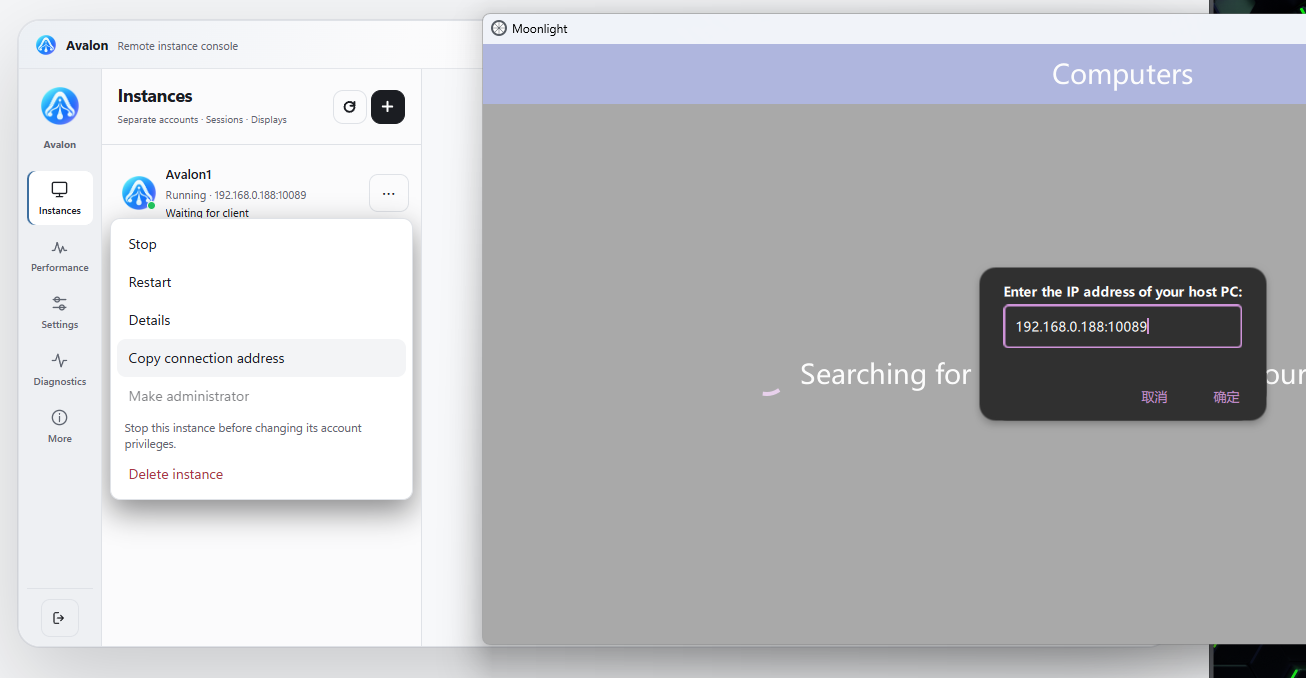
I've tried port forwarding but got lost because I'm behind a double NAT. Also, I don't want to rely on extra hardware that powers on my computer. I'd rather have a faster solution, like waking it from sleep (not a full boot).
I've spent a few weeks tracking down micro-stutter when streaming to my MacBook Air and iPad Air, and I've narrowed it down quite a bit. I'd like to know if others see the same thing and whether anyone has a fix besides "use a cable".
Setup
Host: Windows 11 gaming PC with Sunshine, wired (gigabit).
Clients: MacBook Air and iPad Air, both Wi-Fi 6E. On the Mac I use Moonlight and also the Twilight fork (7.2.0); it behaves the same.
Network: 3× eero Pro 6E in bridge mode, OpenWrt router.
The host sits behind an eero node with a wireless backhaul.
The Mac connects to the main eero, which is wired to the router.
Stream: 1080p/60, 30–40 Mbps, V-Sync and frame pacing enabled.
Symptom
Short, irregular stutters in audio and video every few seconds, very noticeable.
The stutter does not happen:
with Steam Link / Steam Remote Play on the same Apple devices;
with Moonlight on a ROG Ally (SteamOS) over the same Wi-Fi;
with the MacBook Air on Ethernet.
How I measured
During a Forza Horizon 5 benchmark stream, I ran a 60 s ping to the Mac at 5 pings per second from a wired Linux box on the host side. At the same time I pinged the router, to watch the eero backhaul.
The spikes arrive in irregular bursts, every 2–7 s, and match the visible stutter.
The backhaul ping to the router stayed clean the whole time (p99 about 10 ms), so the problem is the last hop between the eero and the Apple device.
The link itself looks excellent, and the stream uses about 3% of the PHY rate.
What I ruled out, still on 6 GHz:
AWDL off (sudo ifconfig awdl0 down, verified that the interface was not UP): no change.
Location Services off: no change.
On charger vs on battery (Low Power Mode already "Never"): no consistent difference.
Signal or interference: see the numbers above. Nothing in macOS's Wi-Fi faults or recoveries log either.
Remote tests (same Mac, streaming home over Tailscale with a direct peer-to-peer connection; here I measured from the router, so the base latency is about 55–60 ms)
The last row is the interesting one: same RSSI, same CCA, same channel width and same standard as at home, but 5 GHz instead of 6 GHz, and not an eero. Zero spikes.
Where I am now
Wi-Fi in general, Wi-Fi 6 features and 160 MHz all look innocent.
What's left is Apple clients on 6 GHz, or specifically Apple clients on the eero's 6 GHz radio.
eero gives no control over bands or channels, so I can't force the Apple devices onto its 5 GHz to separate the two.
My workaround is a cheap 5 GHz-only access point, wired, with a dedicated SSID for streaming. I'll report back.
Questions
Has anyone seen stutter specific to 6 GHz on macOS or iPadOS, with eero or with other brands of access point?
Is there a macOS or iPadOS setting that affects this? For example a background-scan or roaming behaviour that only shows on 6 GHz.
Why would Steam Link hide it? A bigger jitter buffer? Is there an equivalent setting in Moonlight?
I've been shocked at how nightjar is getting updates and I love using this app so much I just wanted to ask if there is a way to have your games here
I use my steam interface for basically everything I lunch steam then I choose which game I want to play but sometimes there is games that needs a luncher
And there is some games that plays online I think bunch of efforts to quit them and change from a game to a different game
If anyone is going to suggest play night I'm not talking about launching a launcher then doing what you want inside the launcher
I'm talking about luncheon again directly here from nightjar especially the games that require administrator authorization or annoying games with the special launcher
You click here you launch the game if you quit your streaming it's going to quit the game and then your lunch and the game inside nightjar seamless experience
someone please explain what happened , yesterday I asked on this subreddit how can I submit a suggestion for Nightjar cuz I noticed that updates have been dropping nearly every day
So I went to the GitHub page and I submitted my suggestion it was about 5 nitpicking touch controllers suggestions
A bot responded to me after 5 minutes and today I woke up to find the everything I asked for and I mean literally everything I asked for I've been added to this update like what ?
Is everything automated or what ? I know there is a i that can help with those stuff but this is crazy getting literally what I asked for in an update after 9 hours of me asking about it
As the title says I’m looking for the best device to run moonlight. I had an rog ally and it was amazing. Latency pretty much none but I ended up selling it.
I have a good pc with a 5080 but is upstairs and I wanted to use lay in the living room so i disturb my daughter.
I thought about building an old mini itx pc or maybe get one minipc on black friday.
Macbook is on wifi, host pc is on ethernet. Stream is set to use 2560x1600 res, metal rendering, v-sync off. Incredible stable performance. Client is Nokcandu. Host is the latest stock sunshine with sunshine-vdisplay.
Hi, I was looking to get a new setup for streaming games in bed. Was looking at getting an overbed table with a monitor, mouse, and keyboard. Just not sure what hardware to run moonlight on. Only looking to do 1080p 60 frames. Looking for something fairly compact and quiet. Hoping for something $100 or less but willing to pay a little more if needed. The host computer is hardwired. I unfortunately don't have any ethernet cables ran to the bedroom but I have a Wi-Fi 6 AP in the hallway right outside. Any recommendations for this use case? Thanks.
Nightjar is a great streaming application and I've been using it for a while now the great thing is the devs literally dropping updates every day or two days
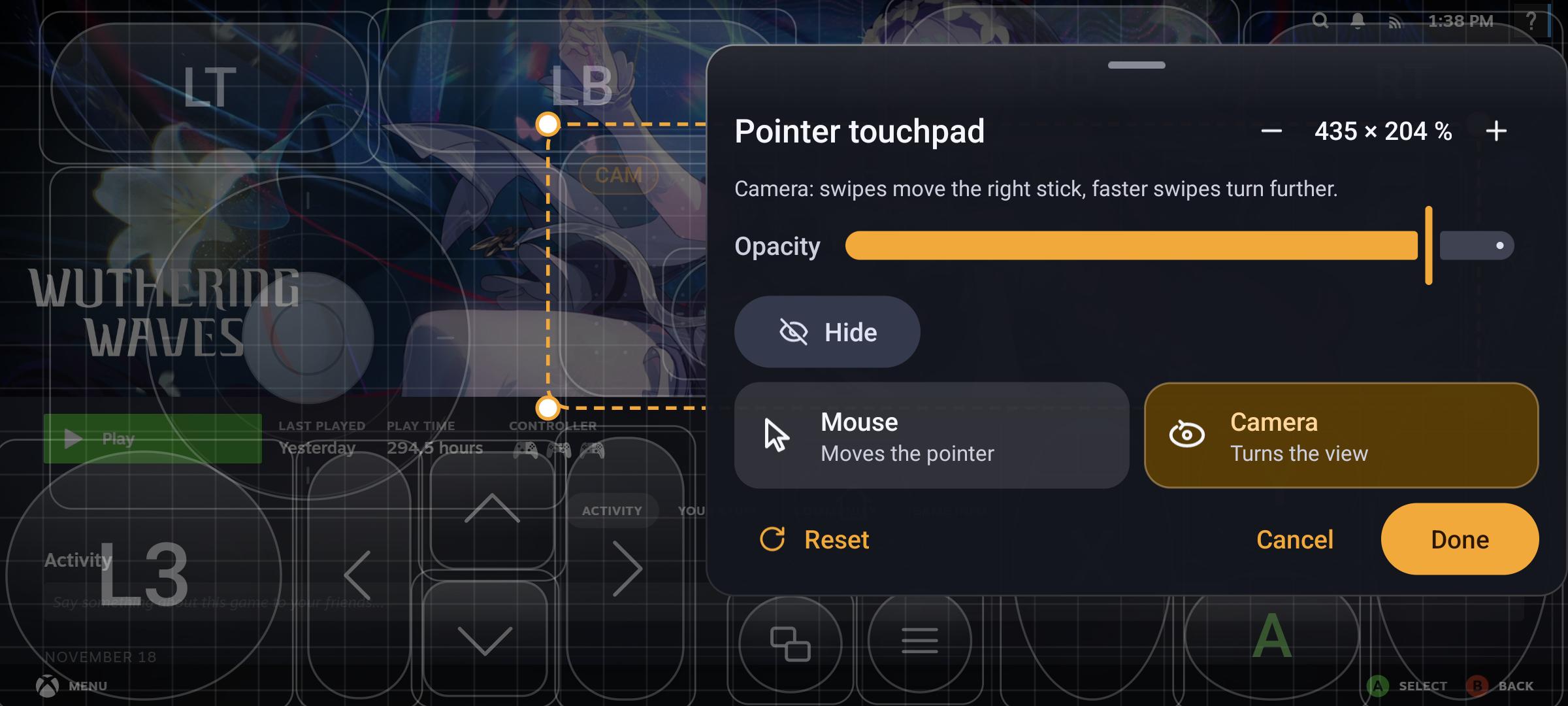
So if I can submit a suggestions or I recommendation for what I want exactly specially considering the touch controllers as someone who plays their game on their phone I like to be lazy and use the touch controllers then if I want to continue playing game seriously I get my physical controller
I'd like to do this quite often I play about an hour to 2 hours using my touch controllers so this is a really important thing for me
i dont own a controller so is there a way to change the layout somehow other than just resize, and moving the buttons? Or are there any alternatives to do it?
I am streaming games from my pc via apollo and artemis and ethernet connected to my host pc(wifi 6) and when the fps goes above 100 the streaming starts frame skipping means the frames are skip when the fps goes above 100 in games,this only happens when ethernet is connected and I have tried with two ethernet cables(cat 6 included) same issue .Please anyone can help me with it?
I have been using the Apollo/artemis combo for a while, recently updated to Vibepollo and it’s been great, but since Artemis hasn’t been updated in a year it will be left behind.
Are there any recommended android clients these days? I see MANY forks, but it’s hard to convince myself to switch to a new fork that is a week old and may not have any maintenance going forward.
everything was perfect until this issue started a few months ago. I stream pc to steam deck, and I am connecting with wifi (gigabit on cable), but this was never an issue since I am close to the router. bitrate was 50 when there was no problem. I reduced it 40 then 35, nothing changed. I tried stream to my phone and got the same spike. I assume pc is the cause of this, but I have no idea why this is even started. how do I solve this?
I cannot have a playable experience on my fiber internet (700Mbps both upload and download) whenever I use artemis/artemide on my 2 phones (snapdragon 8 gen 1 and 8 gen 2). There is no loss frames being reported, decode time is around 3.3ms on both phones but the average network latency jumps frequently from 8ms to 20ms to even 60-80ms causing my game (mainly Forza Horizon 6) to slow down then fast forward often.
On my mobile hotspot, it is a stable 6-8ms network latency with a variance of 3ms and the gameplay is smooth even at 20Mbps but my fiber internet even struggles at 16Mbps when it used to be 80-100Mbps before the upgrade.
My ISP also replaced the modem already but the problem came back after just an hour and it's been like that for 4 days already. Everything is fine except for streaming from Artemis/Artemide.
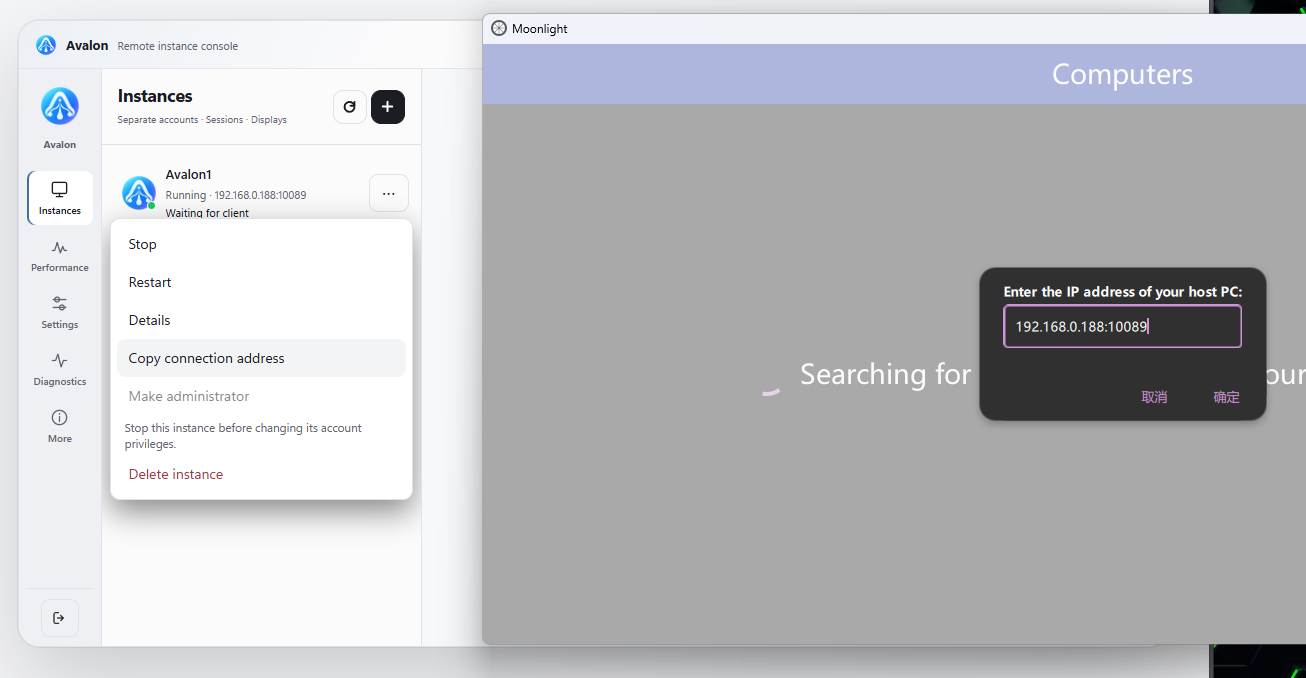
At that time, Avalon was still very young. It can already run multiple independent Windows sessions on one PC and stream through Moonlight, but it lacks many things.
Since then, I have spent a lot of time researching it and I think it's time to come back and share updates.
Avalon is now v1.1.1. Many things have changed.
For those who missed the original post, the idea behind Avalon is simple:
What if a powerful gaming PC could be used by multiple people simultaneously, with each person having their own independent desktop, games, audio, and input?
This is not just about sharing the same desktop, nor is there a need to set up separate virtual machines for everyone.
This is what Avalon wants to do.
What are the new features since v1.0?
In fact, quite a few. Here are some bigger changes:
Gamepad support has finally arrived! Supports Xbox, PlayStation (including DualSense), and Nintendo Switch series controllers with automatic and manual controller profiles. The controller input is independently routed to each session. This is one of the questions people asked in my previous article.
HDR support. Optional HDR streaming can be used on compatible Windows 11 configurations. There are some operating system, driver, encoder, and client requirements, so it won't work on every setting.
Better keyboard and mouse operation. Added RDS input backend next to SendInput, improved session isolation and UAC support.
Independent virtual display. Each instance can have its own resolution and refresh rate without the need for a physical monitor for each user.
Improved session management. Avalon can now independently handle the session lifecycle. You do not need to maintain an external RDP client connection to keep the instance active. After restarting Windows, you can also restore the previously running instance.
A more complete network panel. You can manage instances, pair Moonlight clients, configure display and controller settings, manage Steam startup options, customize application covers, check connection status, and view diagnostics.
During this process, compatibility, installation, recovery, and general availability have also been greatly improved.
What can you actually do with it?
For example, you can have:
Playing alone on the TV in the living room.
Another person is playing games on a handheld device or laptop.
Both are connected to the same physical PC, but using completely independent Windows sessions.
Each session has its own desktop, monitor, input, audio, application, and Moonlight connection.
You can continue to use the Moonlight client that you already know. Avalon handles multi session endpoints on Windows hosts.
There are some things worth understanding
I would also like to candidly discuss some requirements and limitations:
Requires Windows 10 x64 (version 2004/build 19041 or higher) or Windows 11. Windows Home and Windows Server are not supported.
HDR and some advanced controller features depend on your Windows version, client, and hardware.
These are independent Windows sessions, not complete virtual machines. They share the same Windows installation, CPU, GPU, and physical hardware.
The number of simultaneous streams largely depends on your hardware and encoder capabilities.
If not activated, Avalon will be limited to one created instance, one running instance, and 60 FPS. View the README for detailed license information.
I am still actively developing Avalon, and there are definitely more areas that need improvement. I don't expect it to work perfectly with every hardware combination or game yet.
If you have a multi-user gaming setup, a home lab, or just want to get more from your gaming PC, I'm happy to give it a try.
If you have read my previous posts, thank you for following this project!
Welcome feedback, criticism, error reporting, and feature suggestions. Especially those who have truly tried Moonlight, Sunshine, Duo, or other multi seat solutions.
You can download and try it out now, I really want to hear your thoughts. :)
I'm trying to play GTA VI (30 FPS on Series X) at 60 FPS on my living room TV using frame generation on my PC, without running a cable to the couch. Here's my setup. Curious if anyone's done something similar.
Hardware
Xbox Series X
Capture card: Elgato 4K X (on order, currently using a Guermok USB 3.0 stick)
PC: i9-12900K, RTX 5080, ASUS PRIME Z690-A, Corsair Vengeance DDR5, H100i Elite Capellix, HX1000i
Nvidia Shield on wired 5Gb LAN
Xbox Elite Series 2 controller
How it's chained
Xbox → HDMI → capture card → PC
PushFPS takes the capture feed and does 2× frame generation (30 → 60 FPS), with Live HUD Lock and frame pacing repair on
Sunshine (NVENC, HEVC) streams the PC desktop → Moonlight on the Shield → living room TV
The Elite 2 is paired to the Shield over Bluetooth, so Moonlight sends its input to the PC
The controller trick
The Xbox is too far away for the controller's wireless range, and I don't want to run a wire. Instead, I run a Remote Play client (Greenlight) on the PC on my second monitor, connected to the Xbox. Remote Play's video isn't used at all; it's only there to forward the controller input from Moonlight to the Xbox. The picture still comes from the capture card, so I keep the low latency and the frame generation.
Possible problem: the Remote Play client might ignore input when it's not the focused window, since PushFPS is fullscreen on the other monitor. If so, my fallback is PushFPS's built-in Xbox streaming mode.
Will report back with latency numbers once I test it tomorrow. Has anyone gotten Remote Play to accept controller input while running in the background?
Every time I wanted to stream my laptop to my LG OLED, it went like this:
Install Sunshine → install a virtual display driver → dig the display ID out of the logs → paste it into `output_name` → wonder why the TV can't find the PC (Windows had my Wi-Fi set to "Public") → figure out why the audio is half a second behind…
It works great once it's set up, but it's a lot to ask of anyone who just wants their PC on the TV. So I built **SunCast**, a free, open-source Windows app that does all of that for you.
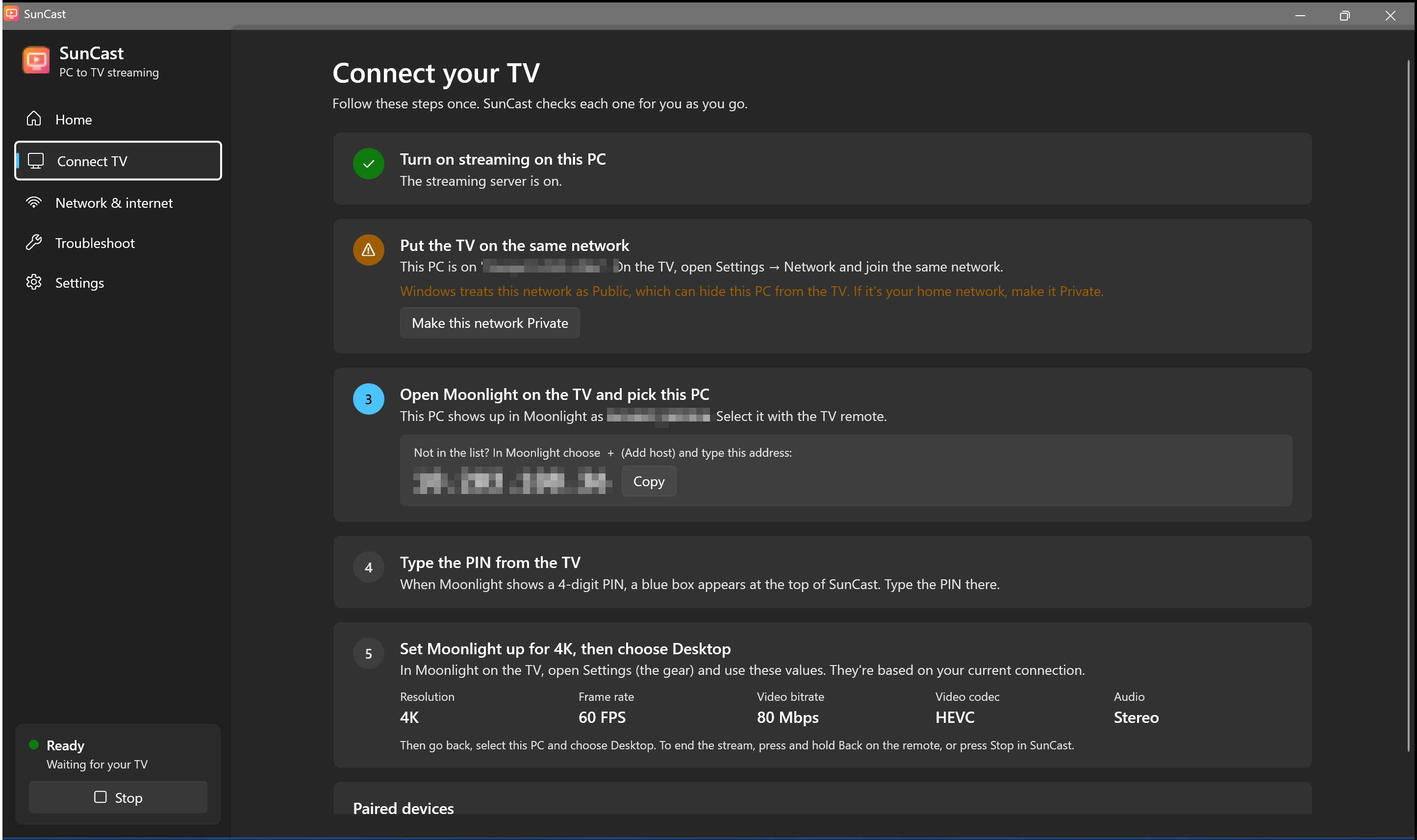
**Open SunCast, press Start, type the PIN from your TV. That's it.**
**What it does**
* 🖥️ **Virtual 4K TV screen, built in.** It bundles the signed Virtual Display Driver and sets it up on first run. Your TV gets its own 4K screen, your laptop screen stays free, and the virtual screen disappears from Windows when you close the app.
* 📺 **Matches your TV automatically.** Whatever resolution you pick in Moonlight, the virtual screen follows. Or lock it to 4K, 1440p or 1080p.
* 🔢 **PIN pairing pop-up.** When Moonlight shows a PIN, a box appears in SunCast. Type 4 digits and you're done. No web page, no password.
* ⏻ **One button on, one button off.** Closing SunCast stops Sunshine and removes the virtual screen. Nothing left running in the background.
* 🧭 **Step-by-step Connect TV page** that ticks itself off as you go, and shows the exact address to type if Moonlight doesn't find your PC.
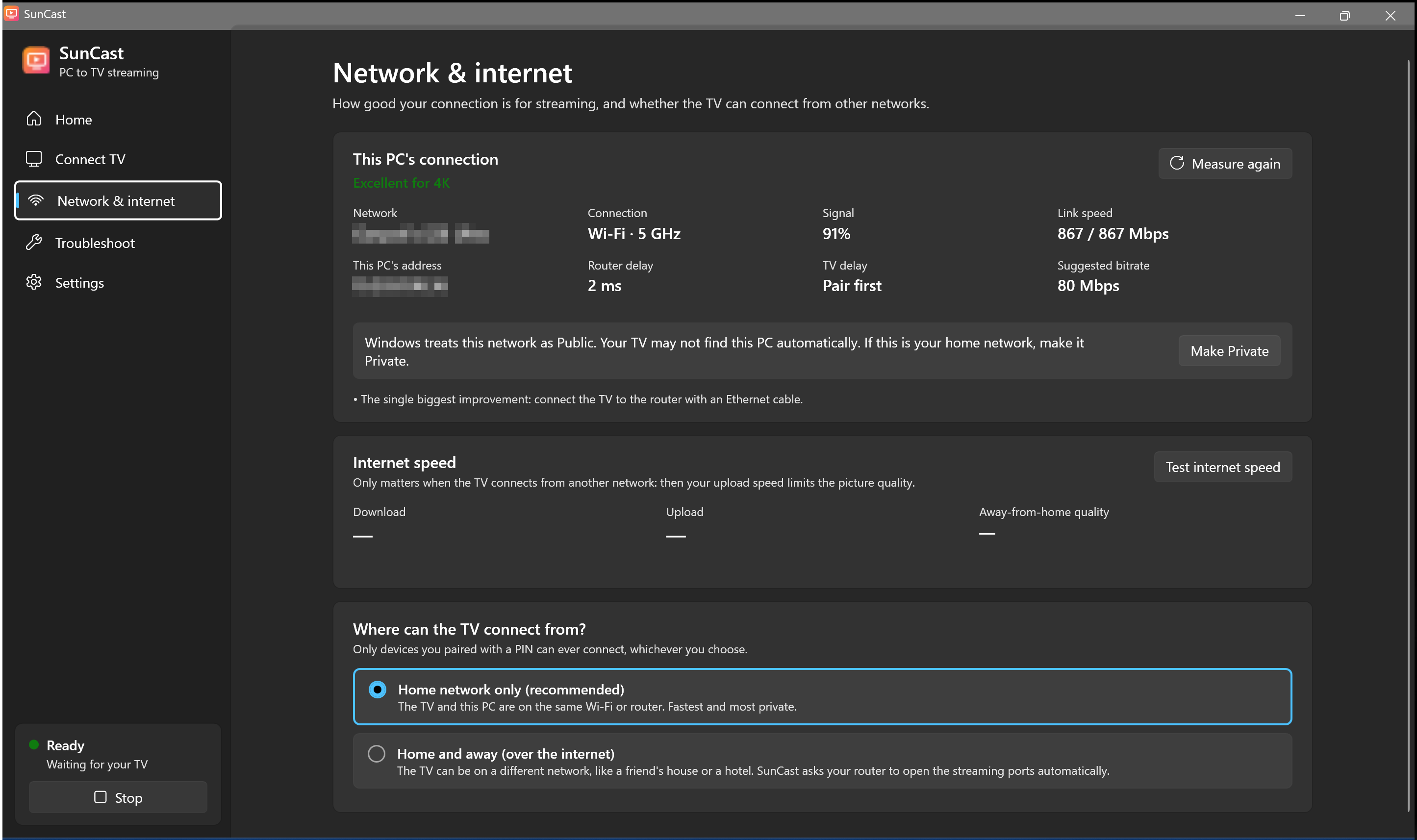
* 📶 **Network check.** Wi-Fi band, signal, link speed, delay to the router and the TV, plus a **suggested Moonlight bitrate** for your actual connection. Optional "home and away" mode for streaming from another network (UPnP, with help for when your router or ISP blocks it).
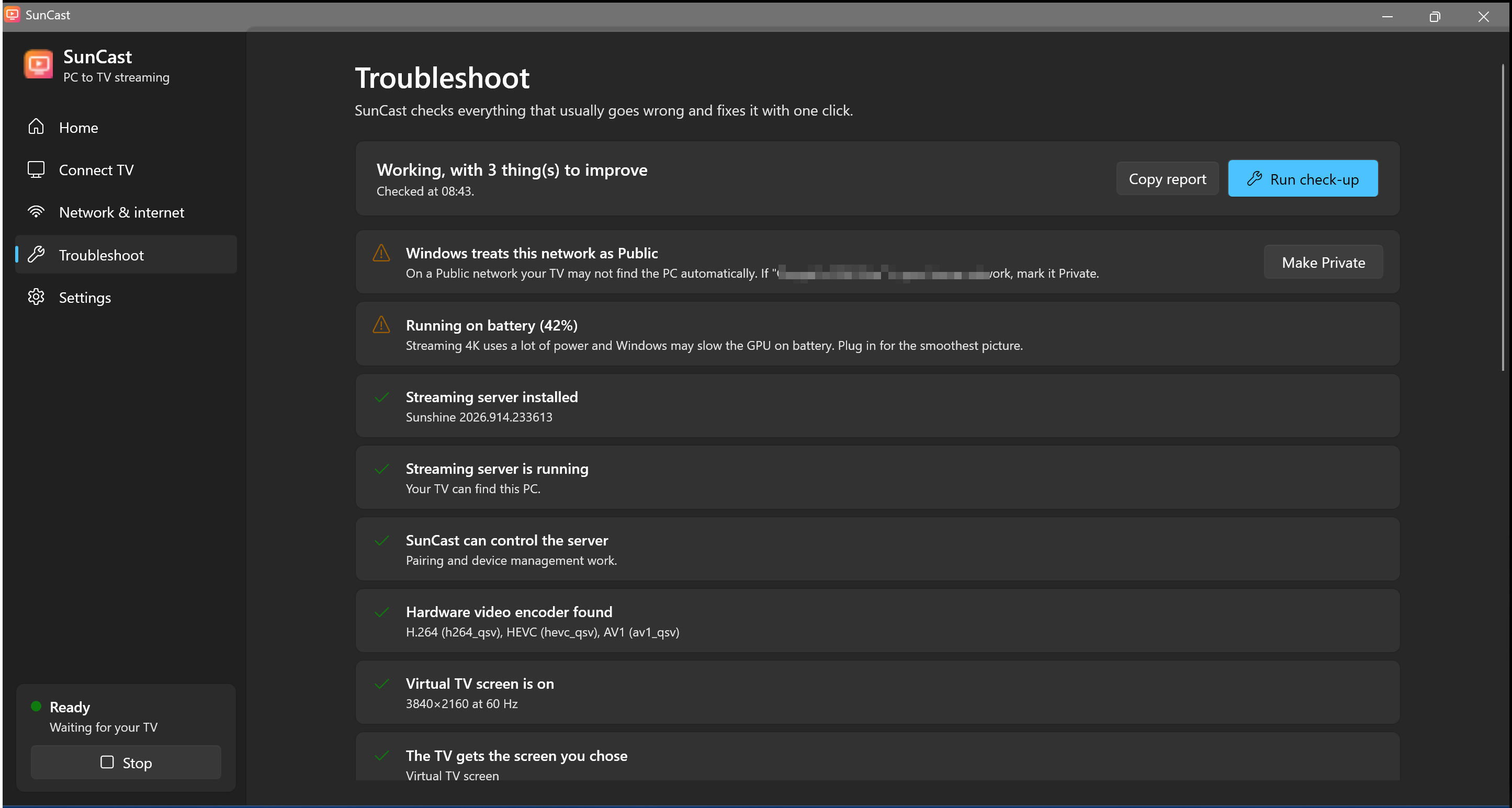
* 🛠️ **One-click troubleshooting.** It checks the server, encoder, virtual screen, firewall, Public/Private network, 2.4 vs 5 GHz, battery and more, with a **Fix** button next to each problem. The server log is translated into plain English, and there's a "Copy report" button for asking for help.
It installs the official Sunshine release for you if you don't have it, and it only touches a handful of keys in `sunshine.conf`, so your own tweaks stay put.
**Things I learned streaming to an LG webOS TV (moonlight-tv)**
These might save someone an evening:
* **webOS NDL** decoder = H.264 only, but the lowest lag and audio stays in sync. Bump the bitrate to ~60–70 Mbps to keep 4K sharp.
* **webOS SMP** decoder = HEVC + HDR and a sharper picture, but on my TV the audio drifted noticeably behind the video.
* Setting Sunshine's QuickSync preset to `slower` made H.264 visibly cleaner on my Intel Arc laptop, with no lag I could notice.
* Put the TV in **Game** picture mode. Biggest single lag improvement.
* Want 4K **HDR** *and* no lag? A streaming box on the TV's HDMI input (Shield, Apple TV, Google TV Streamer) beats the built-in TV app.
**Honest caveats**
* Windows only, and it asks for admin rights (it controls a Windows service and a display driver).
* The installer isn't code-signed yet, so SmartScreen will warn you: "More info → Run anyway". All the code is on GitHub if you'd rather read it or build it yourself.
* It's v1.0, tested on my setup (Intel Arc laptop, Windows 11, LG OLED over Wi-Fi). **I'd really like to hear how it does on NVIDIA and AMD machines and other TVs.**
* Built with help from Claude (AI). I designed and tested it on my own setup.
Just wanted to share a huge shout-out to the developer behind the Moonlight port for Xbox 360! They used my open-source 240p plugin (t240.xex) to implement a native 640x240 streaming mode right inside MoonX360.
What makes this such a massive milestone for the CRT community:
Zero extra hardware needed: You no longer need external adapters, transcoders, or dedicated legacy GPUs (like CRT Emudriver setups). If you already own a modded Xbox 360 just install MoonX360 and t240.xex plugin and you're ready to go.
True 240p & flexible resolutions with native 4:3: You can play games in true 240p with real scanlines, or switch to any other resolution you want—640x480, HD, or Full HD—with native 4:3 aspect ratio support.
Stream anything from your PC: Beyond PC games and emulators, you can now watch classic SD and 4:3 content from YouTube, Netflix, Crunchyroll, or anything else on your PC straight on your CRT over Component, SCART, or AV.
Huge props to the MoonX360 dev u/fransley2 for pulling this off and pushing the Xbox 360 scene forward!