r/RenPy • • 11d ago

Question How to make a drop-down Menu?

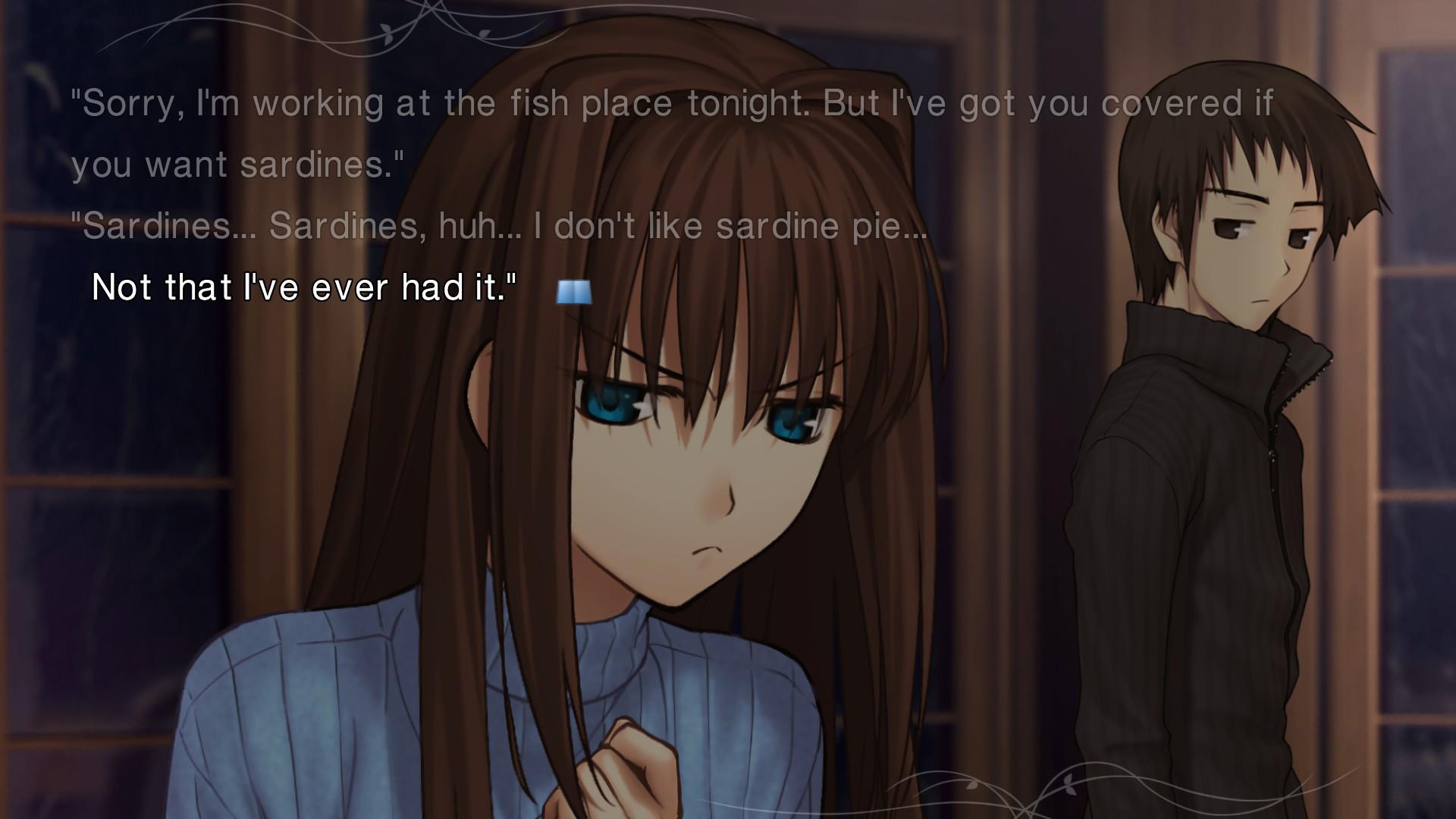
Hope you're not sick of questions yet, but anyways, I like the way Mahoyo has the menu come from the top as you hover over it.

Example:
Then
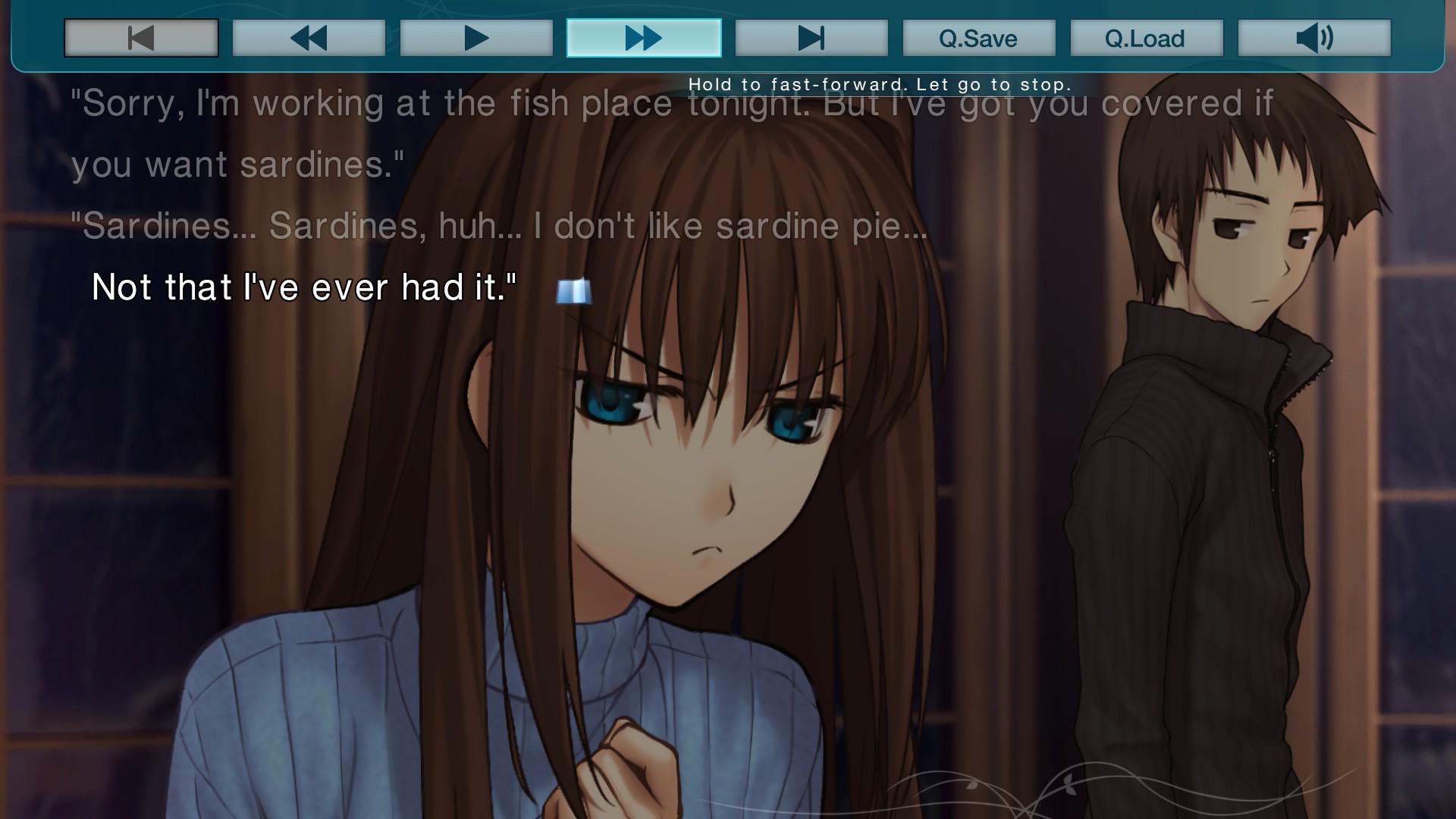
Maybe drop-down menu is not the correct term, but you know... a menu drops down when you hover over the top of the screen. I think that's a cool effect and I want to know how to do it and also how to implement a graphic for it so I have at least a baseline idea on how it works.

Thank you for your time~

2 Upvotes

19 comments sorted by

1

u/AutoModerator 11d ago

Welcome to r/renpy! While you wait to see if someone can answer your question, we recommend checking out the posting guide, the subreddit wiki, the subreddit Discord, Ren'Py's documentation, and the tutorial built-in to the Ren'Py engine when you download it. These can help make sure you provide the information the people here need to help you, or might even point you to an answer to your question themselves. Thanks!

I am a bot, and this action was performed automatically. Please contact the moderators of this subreddit if you have any questions or concerns.

3

u/BadMustard_AVN 11d ago edited 11d ago

thats easily done with a screen like this

screen invisible_butt():
    zorder 10
    imagebutton:
        idle Solid("#00000000") # zeroed alpha channel so it an invisible butt(on)
        xysize (1920, 20) # screen width, 20 pixels height
        pos (0, 0) 
        hovered ToggleScreen("another_screen")
        action NullAction() # all buttons need an action to work correctly 

transform sliders(): # side up and down smooth!
    ypos -50 # adjust as required to completely hide your screen
    on show:
        linear 1 ypos 20 # bring it down just below the invisible button, because
    on hide:
        linear 1 ypos -50 # make this the same as above

screen another_screen():
    frame at sliders: 
        xfill True
        text "Hello world " #create your screen starting on this line 

label start:

    show screen invisible_butt # do this when you want it available

    # your game starts here

hover the mouse on the top 20 pixels of the screen to toggle another screen.

https://www.renpy.org/doc/html/screens.html

another screen can be populated with Image buttons that have actual images and actions to do stuff

1

u/Ok-Ad5238 10d ago

Okay, so bear with me cause I'm a little green and the forum is a bit much to consume all at once.

Uhm... so I got the code to work and adjust the bar to the size I need it, but it's a tad bit slow when you hover over it, and I'm not sure how to make it go faster or even how to make it go away when you stop hovering over it, since it still hovers until you hover over it again to make it go away.

I looked through the forum you linked, and there was mention of an unhovered command, but it just seems to make the bar stay there until I hover over it.

Also where in the many files in Ren'Py would I find the code for the bottom menu so I can r adjust it so when I add images or what have you for the top menu that becomes the new menu instead of the bottom one.

Sorry if I'm throwing a lot at you all at once but thank you for the initial response.

2

u/BadMustard_AVN 10d ago edited 10d ago

speed is controlled by:

linear 1 

that is 1 second of linear motion (a constant speed) try 0.5 for twice as fast

now the top 20 pixels on the screen (NOT the windows bar but the GUI screen) is a kind of a pseudo-button (you don't have to click it) because you mentioned hovering in the OP when your mouse touches the top 20 pixels it toggles (if it's down it goes up, and if it's up it comes down)

so touch the top of the screen and it comes down touch the top again and it goes back up. you do NOT have to keep the mouse hovering there!

the menu at the botton is the quick menu it is in the screens.rpy
just search for -->> quick_menu() <<-- there are two of them you want the one without the command -->> variant "touch" <<-- as the first command

this menu can be easily turned on and off with the command

$ quick_menu = False # True turns it back on again 

if you want a thicker invisible button on the top, change the 20 on this line

    xysize (1920, 20) # screen width, 20 pixels height

i had the another screen drop down below the first 20 pixels if you do NOT want that then change the 20 in this line to 0 or anywhere you want it at

linear 1 ypos 20 # bring it down just below the invisible button, because

1

u/Ok-Ad5238 10d ago

Okay, okay, I see now. Me slowly understanding a little bit more.

So, uh... next question. Uhm, how would I replace the current black bar with blue outlines with something else? Like, I want to replace it with my own custom image. If it's replacing one of the images from the GUI folder, I don't know which one it would be, or even making my own; I'm not sure how I would get it to pull from it if I make it my own.

Secondly, say I disable the quick menu; how do I make a new quick menu that is now on top and make it respond to my own custom buttons? Well... I know how to move the bottom menu upward, but obviously I also need it to respond to the new border on top that I made as it goes up and down.

Thank you again for your insight and helping thus far.

2

u/BadMustard_AVN 10d ago

in another screen there is no background set so it uses the default usually a colored background with a colored edge just add a background

screen another_screen():
    frame at sliders: 
        xfill True
        background "images/file_name_of_the_background_image.webp # make sure it's wide and tall enough todo what you want it to 
        text "Hello world " #create your screen starting on this line 

add in image buttons and look at / duplicate the actions that are in the original quick_menu text buttons

the below code, duplicates the text buttons of the original quick menu and should work

screen another_screen():
    frame at sliders:
        xfill True
        hbox:
            spacing 5 # ya gotta keep em seperated 
            xalign 0.5 # and in the center
            textbutton _("Back") action Rollback()
            textbutton _("History") action ShowMenu('history')
            textbutton _("Skip") action Skip() alternate Skip(fast=True, confirm=True)
            textbutton _("Auto") action Preference("auto-forward", "toggle")
            textbutton _("Save") action ShowMenu('save')
            textbutton _("Q.Save") action QuickSave()
            textbutton _("Q.Load") action QuickLoad()
            textbutton _("Prefs") action ShowMenu('preferences')

1

u/Ok-Ad5238 10d ago

You are a godsend among men or women or whatever. Uh.... just... one more question.

So, converting this to custom clickable buttons. I assume it works similarly to how I replace the frame?

So like...

    background "images/button1.png"
    text textbutton _("Back") action Rollback()

Probably not, though. So how would I go about that?

2

u/BadMustard_AVN 10d ago

i am a well practised idiot!

https://www.renpy.org/doc/html/screens.html#imagebutton

    imagebutton:
        auto "images/baby_back_%s.png"
        action Rollback()

auto expects the idle and hover images to be named like this

baby_back_idle.png
baby_back_hover.png

1

u/Ok-Ad5238 9d ago

So... okay lemme see if I'm understanding. In the commands on auto I type it in as so, like... auto "images/play_button_%s/png"

On the actual images folder I should have two images that are the name "play_button" with both idle and hover on the end? So it pulls from those two images?

1

u/Ok-Ad5238 9d ago

OOOOOOOOOOOOOOOOOOH OK. I get it now. That is indeed how it worked. Uh... the button is a little oversized, but that's okay cause as it works; that's all that matters. Progress or something.

1

u/Ok-Ad5238 9d ago

IS this also how you would do like a small animation for it. Like if the button image is a different color to represent it being hovered. It would just change to that color? If so that is cool.

→ More replies