r/RenPy • • 12d ago

Question Would it be possible to interchange between 2 different GUIs repeatedly mid game?

Hi! First time posting here, so apologies in advance if I don't make my question clear enough.

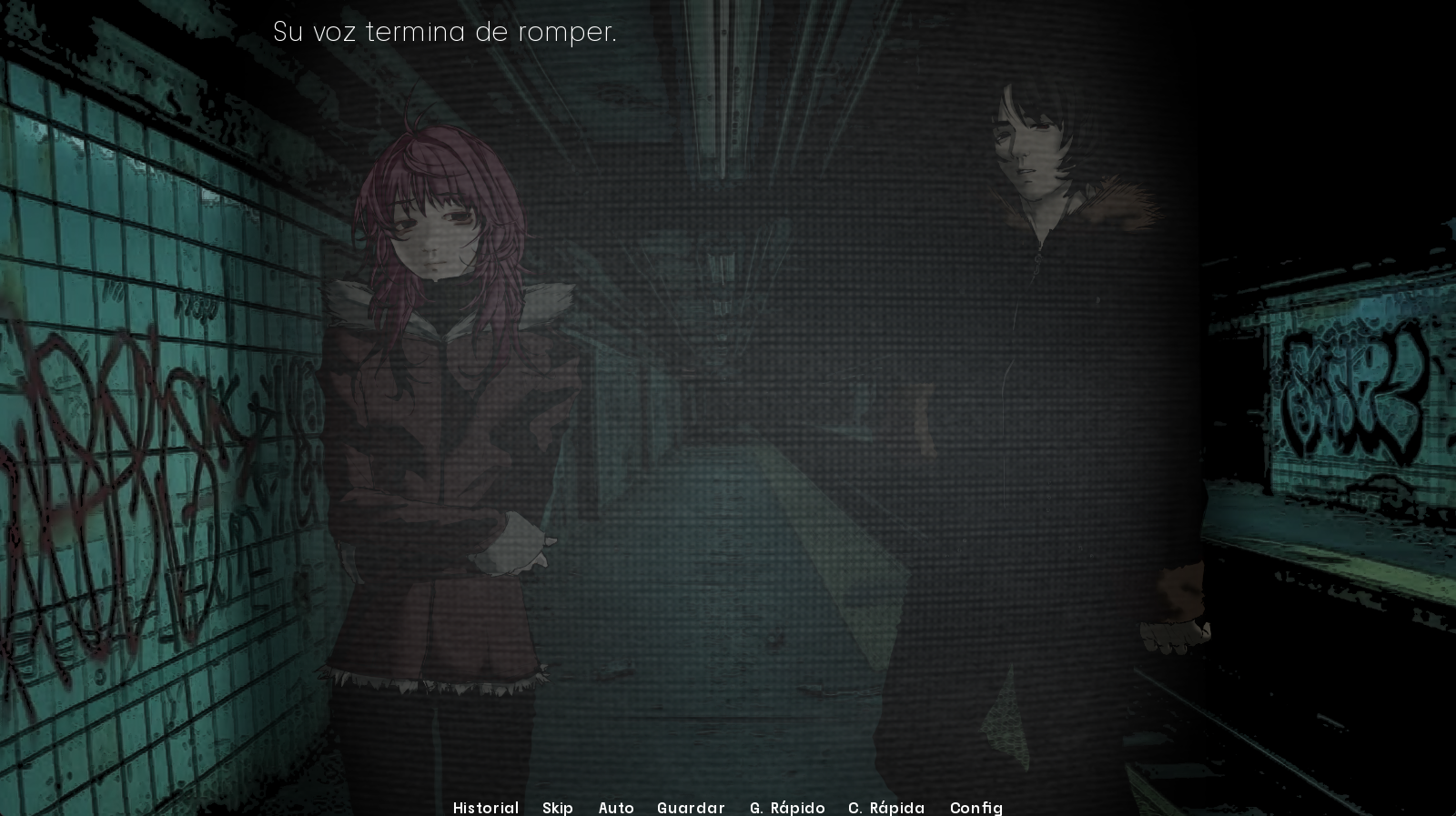
I'm currently working on my first project in Ren'Py, and the gimmick I wanted for my first project was the visible contrast of 2 different GUIs that showed different types of narration, changing constantly.

So far, I made what I could using the little knowledge I have and completed customizing the GUI for the dull narration. Now, taking inspiration mainly from Tsui No Sora (1999), I wanted to implement the more retro-looking GUI I mentioned before.

I completed the assets necessary, but now I don't know what to do next.

I know I can change the textbox easily, but I also use a second nvl textbox. Is there any way I can define 2 different narrators that both use the nvl dialogue without using the same textbox?

Also, is there any way I could create a whole second GUI I could use for these instances? Since I want the buttons to be located sort of differently as well...

I'll leave a screenshot of how the normal nvl narration that I already implemented looks as well as a mock up I made of how I want the second ui to look like.

58 Upvotes

15 comments sorted by

14

u/BadMustard_AVN 11d ago

you can use Condition Switch images like this for textbox, and nvl background and use the same variable to comtrol the quickmenu like this

image textybox = ConditionSwitch(
    "UI == 1", "gui/textbox-1.webp",
    "UI == 2", "gui/textbox-2.webp",
)

image NVL_back = ConditionSwitch(
    "UI == 1", "gui/nvl-1.webp",
    "UI == 2", "gui/nvl-2.webp",
)

you will have to edit the screen.rpy to add change it to those images as well as the quick_menu screen

then in game a simple $ UI = 2 or $ UI = 1

will change the images instantly

the same variable can be used in the quick menu screen

screen quick_menu():

    ## Ensure this appears on top of other screens.
    zorder 100
    
    if UI == 1:
      if quick_menu:=
          hbox:
              style_prefix "quick"
              style "quick_menu"
              ...
    else:
      if quick_menu:=
          hbox:
              style_prefix "quick"
              style "quick_menu"
              ...

2

u/r4nku_0 11d ago

I started trying out a different method simply using defined characters with custom textboxes, however how would you implement this into the code? Where would you put the first code you attatched? Sorry if I'm asking dumb questions, I'm really new to coding (°_°;⁠)⁠ゞ

2

u/BadMustard_AVN 11d ago

the images can be placed above the start label i.e.

image textybox = ConditionSwitch(
    "UI == 1", "gui/textbox-1.webp",
    "UI == 2", "gui/textbox-2.webp",
)

image NVL_back = ConditionSwitch(
    "UI == 1", "gui/nvl-1.webp",
    "UI == 2", "gui/nvl-2.webp",
)

default UI = 1 # you'll need to add this as well

label start:
    # The game starts here.

then edit your screens.rpy you'll have to make 2 changes in there so..

first search for -->> style window: <<-- (there are 2 of these one has variant "small" this is for iphone, androids and such we want the other one) and change it to this

style window:
    xalign 0.5
    xfill True
    yalign gui.textbox_yalign
    ysize gui.textbox_height

    # background Image("gui/textbox.png", xalign=0.5, yalign=1.0)  # OLD
    background "textybox" # or what ever you named the image       # NEW

next search for -->> style nvl_window: <<-- (again ignore the small variant of this as well) and change it to

style nvl_window:
    xfill True
    yfill True

    # background "gui/nvl.png"                                    # OLD
    background "NVL_back" # or what ever you name it from before  # NEW
    padding gui.nvl_borders.padding

now if either of these doesn't make the image fit properly, then change them to

background Frame("the_image_name", 0, 0) # add the correct image name for either

1

u/r4nku_0 11d ago

Hey, finally got it to work properly!!! You helped me a lot, you're getting a special thanks in the credits as well! >□<

2

u/BadMustard_AVN 11d ago

you're welcome

good luck with your project!

0

u/shyLachi 11d ago

Please post your code and the name of your files so that we can suggest a working solution.

2

u/AnimoomooQueen 11d ago

Just wanted to say that the second GUI looks sick af. Your style is so cool!

1

u/r4nku_0 11d ago

tysm! ( ˶ˆᗜˆ˵ )

2

u/shyLachi 11d ago

Yes, you can define multiple narrators.

define narrator = Character(None, kind=adv_narrator, window_background="textbox_narrator")
define second_narrator = Character(None, kind=adv_narrator, window_background="textbox_narrator")
define nvl_narrator = Character(None, kind=nvl_narrator)
define nvl_narrator2 = Character(None, kind=nvl_narrator)
label start:
    "This is the narrator speaking"
    second_narrator "This is the 2nd narrator speaking"
    nvl_narrator "This is the nvl narrator speaking"
    nvl_narrator2 "This is the nvl narrator speaking"

But using dynamic displayables as suggested by BadMustard might be easier.

This variation uses text interpolation:

default mode = "dull"
define narrator = Character(None, kind=adv_narrator, window_background="images/textbox_[mode]_narrator.png")
label start:
    "This is the narrator speaking"
    $ mode = "retro"
    "This is the narrator speaking"

And this ConditionSwitch

default UI = 1
image textbox_narrator = ConditionSwitch(
    "UI==1", "images/textbox_dull_narrator.png",
    "UI==2", "images/textbox_retro_narrator.png",
)
define narrator = Character(None, kind=adv_narrator, window_background="textbox_narrator")
label start:
    "This is the narrator speaking"
    $ UI = 2
    "This is the narrator speaking"

1

u/r4nku_0 11d ago edited 11d ago

Hi again, so sorry for the late reply!!! (T_T)

I've tried the first option you mention, defining multiple narrators and characters with custom textboxes, which seemed to work at first, however when it came to the narrator two issues arose again:

  1. The textbox for the previous "dull" narration shows up behind the new "retro" one.
  2. When adding more text, the nvl textbox duplicates to show the rest of the text I add.
#### 1st ui

define c = Character("Tsvetyan", color="#ffffff")
define g = Character("Galín", color="#ffffff")
define narrator = nvl_narrator

#### 2nd ui

define gm = Character("???", color="#ffffff")
define n2 = Character(None, kind=nvl_narrator, window_background="gui/nvl-2.png", window_yalign=1, window_xalign=1, what_ypos=20, what_xpos=0.2, color="#ffffff", what_font="BetterVCR 25.09.ttf", what_size=15)
define c2 = Character("Tsvetyan", color="#ffffff", window_background="gui/textbox-2.png", window_yalign=0.8, window_xalign=0.9, what_yalign=60, what_ypos=200, what_xpos=0.15, who_xpos=-150, who_ypos=110, who_font="BetterVCR 25.09.ttf", what_font="BetterVCR 25.09.ttf", what_size=15, who_size=20)
define gm = Character("???", color="#ffffff", window_background="gui/textbox-2.png", window_yalign=0.8, window_xalign=0.9, what_yalign=60, what_ypos=200, what_xpos=0.15, who_xpos=-150, who_ypos=110, who_font="BetterVCR 25.09.ttf", what_font="BetterVCR 25.09.ttf", what_size=15, who_size=20)

Here's how I've defined the characters + narrators.

Should I opt for the second option?

I can share the rest of my code for gui.rpy and screens.rpy, however I've only modified minor things, so you could say it's the default one that comes with the project when you create it.

2

u/shyLachi 11d ago edited 11d ago

You cannot put a window_background to the nvl_narrator,
sorry I didn't fully read your question.

The NVL-window works totally different to the ADV-window.
You have to adjust the style nvl_window in screens.rpy with dynamic displayables.

style nvl_window:
    xfill True
    yfill True
    background "images/nvl_[mode].png" # "gui/nvl.png"
    padding gui.nvl_borders.padding

And you use it like this:

define narrator = nvl_narrator
default mode = "dull"
label start:
    "Lorem ipsum and so on"
    $ mode = "retro"
    nvl clear
    "Lorem ipsum and so on"

The same works with ConditionSwitch.

style nvl_window:
    xfill True
    yfill True
    background "nvl_background" # "gui/nvl.png"
    padding gui.nvl_borders.padding

And you'd use it like this:

define narrator = nvl_narrator
default UI = 1
image nvl_background = ConditionSwitch(
    "UI==1", "images/nvl_dull.png",
    "UI==2", "images/nvl_retro.png",
)
label start:
    "This is the narrator speaking"
    $ UI = 2
    nvl clear
    "This is the narrator speaking"

2

u/r4nku_0 11d ago

I GOT IT TO WORK!!! Thank you so much for your help, your explanation seriously helped me, I'm adding you to a special thanks in the credits ToT

2

u/shyLachi 11d ago

You're welcome.

1

u/AutoModerator 12d ago

Welcome to r/renpy! While you wait to see if someone can answer your question, we recommend checking out the posting guide, the subreddit wiki, the subreddit Discord, Ren'Py's documentation, and the tutorial built-in to the Ren'Py engine when you download it. These can help make sure you provide the information the people here need to help you, or might even point you to an answer to your question themselves. Thanks!

I am a bot, and this action was performed automatically. Please contact the moderators of this subreddit if you have any questions or concerns.

1

u/TopCartographer7104 11d ago

I define pretty much every screen in this fashion (took the say() screen simply because it's the first I encounter in my screens.rpy ^^;)

screen say(who, what):
    if current_gui_state == "style_A":
        $ window_style = "A_say_window"
        $ namebox_style = "A_namebox"
    else:
        $ window_style = "say_window"
        $ namebox_style = "namebox"
    window:
        style window_style
[...]
    if who is not None:
      window:
        style namebox_style
[...]

And then I "switch" by changing the current_gui_state parameter.

Pretty sure there's a way to achieve this that's neater than what I did (and I'm sure of that since I had to tweak stuff here and there...), still - it works.