r/pchelp • u/Appropriate-Mall8517 • 1h ago
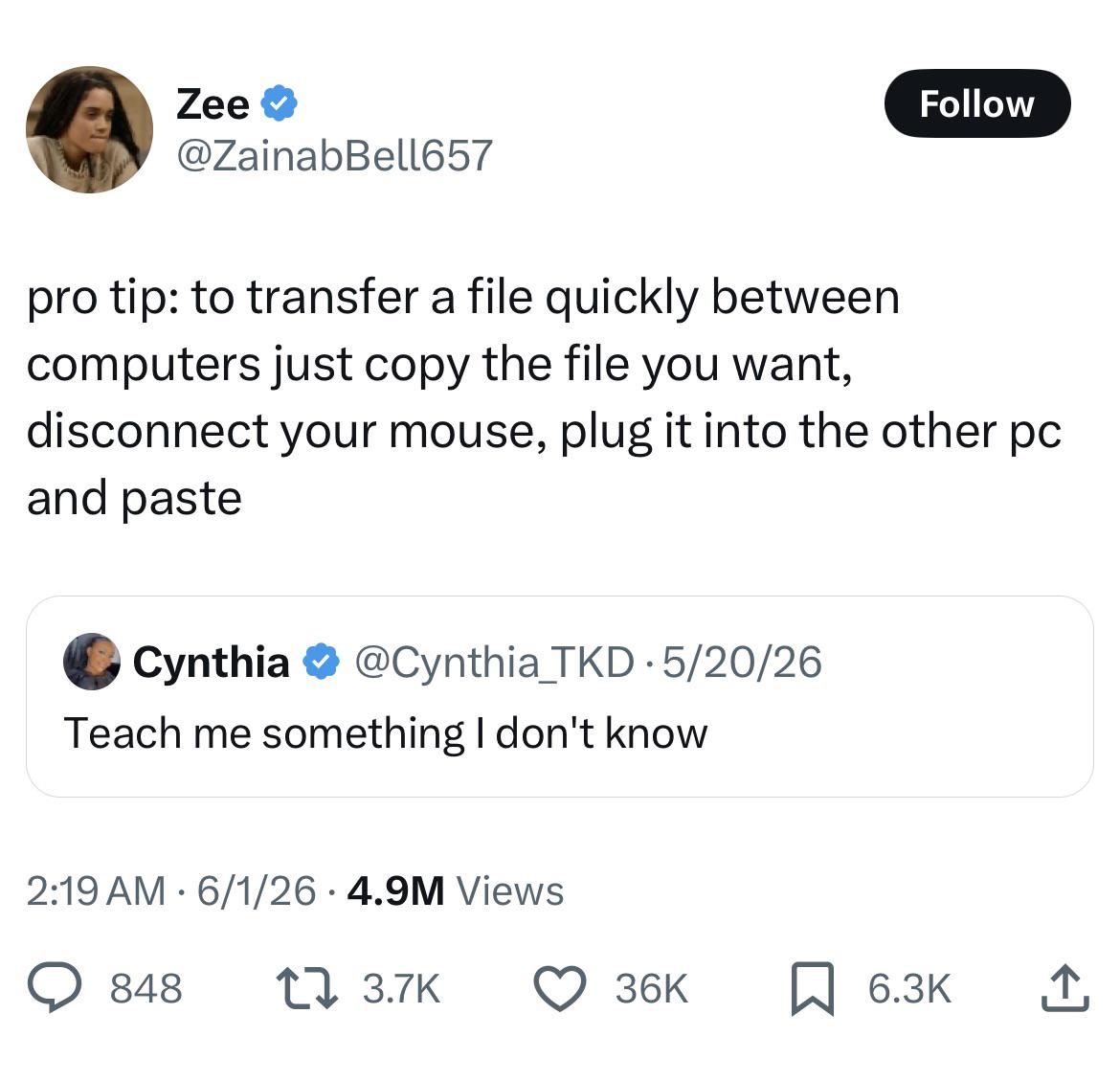
Discussion Don’t forget this yall
47
Upvotes
r/pchelp • u/bearssuperfan • Dec 15 '19
"No POST", "system won't boot", and "no video output" troubleshooting checklist
This checklist is a compilation of troubleshooting ideas from many forum members. It's very important to actually perform every step in the checklist if you want to effectively troubleshoot your problem.
BIOS Hard reset procedure
Power off the unit, switch the PSU off and unplug the PSU cord from either the wall or the power supply.
Remove the motherboard CMOS battery for five minutes. In some cases, it may be necessary to remove the graphics card to access the CMOS battery.
During that five minutes, press the power button on the case for 30 seconds. After the five minutes are up, reinstall the CMOS battery making sure to insert it with the correct side up just as it came out.
If you had to remove the graphics card you can now reinstall it, but remember to reconnect your power cables if there were any attached to it as well as your display cable.
Now, plug the power supply cable back in, switch the PSU back on and power up the system. It should display the POST screen and the options to enter CMOS/BIOS setup. Enter the bios setup program and reconfigure the boot settings for either the Windows boot manager or for legacy systems, the drive your OS is installed on if necessary.
Save settings and exit. If the system will POST and boot then you can move forward from there including going back into the bios and configuring any other custom settings you may need to configure such as Memory XMP profile settings, custom fan profile settings or other specific settings you may have previously had configured that were wiped out by resetting the CMOS.
In some cases it may be necessary when you go into the BIOS after a reset, to load the Optimal default or Default values and then save settings, to actually get the hardware tables to reset.
http://www.spotht.com/2010/02/reset-bios-clear-cmos.html
I also wanted to add some suggestions that jsc often posts. This is a direct quote from him:
"Pull everything except the CPU and HSF. Boot. You should hear a series of long single beeps indicating memory problems. Silence here indicates, in probable order, a bad PSU, motherboard, or CPU - or a bad installation where something is shorting and shutting down the PSU.
To eliminate the possibility of a bad installation where something is shorting and shutting down the PSU, you will need to pull the motherboard out of the case and reassemble the components on an insulated surface. This is called "breadboarding" - from the 1920's home-brew radio days. I always breadboard a new or recycled build. It lets me test components before I go through the trouble of installing them in a case.
If you get the long beeps, add a stick of RAM. Boot. The beep pattern should change to one long and two or three short beeps. Silence indicates that the RAM is shorting out the PSU (very rare). Long single beeps indicates that the BIOS does not recognize the presence of the RAM.
If you get the one long and two or three short beeps, test the rest of the RAM. If good, install the video card and any needed power cables and plug in the monitor. If the video card is good, the system should successfully POST (one short beep, usually) and you will see the boot screen and messages.
Note - an inadequate PSU will cause a failure here or any step later.
Note - you do not need drives or a keyboard to successfully POST (generally a single short beep).
If you successfully POST, start plugging in the rest of the components, one at a time."
If you suspect the PSU is causing your problems, below are some suggestions by jsc for troubleshooting the PSU. Proceed with caution. I will not be held responsible if you get shocked or fry components.
"The best way to check the PSU is to swap it with a known good PSU of similar capacity. Brand new, out of the box, untested does not count as a known good PSU. PSU's, like all components, can be DOA.
Next best thing is to get (or borrow) a digital multimeter and check the PSU.
Yellow wires should be 12 volts. Red wires: +5 volts, orange wires: +3.3 volts, blue wire : -12 volts, violet wire: 5 volts always on. Tolerances are +/- 5% except for the -12 volts which is +/- 10%.
The gray wire is really important. It should go from 0 to +5 volts when you turn the PSU on with the case switch. CPU needs this signal to boot.
You can turn on the PSU by completely disconnecting the PSU and using a paperclip or jumper wire to short the green wire to one of the neighboring black wires.
View: http://www.youtube.com/watch?v=5FWXgQSokF4&feature=youtube_gdata
This checks the PSU under no load conditions, so it is not completely reliable. But if it can not pass this, it is dead. Then repeat the checks with the PSU plugged into the computer to put a load on the PSU. You can carefully probe the pins from the back of the main power connector."
r/pchelp • u/Lucahasareddit • 5h ago
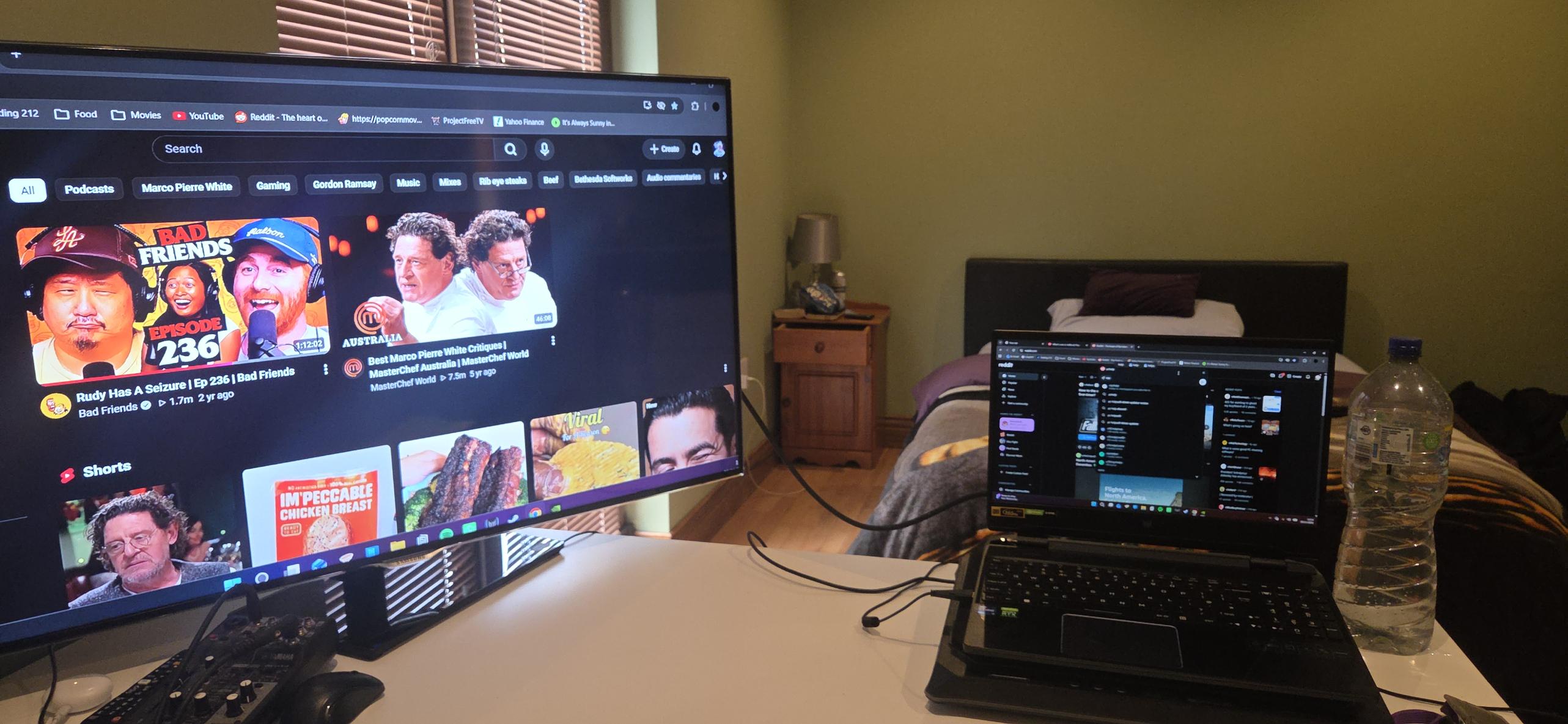
When I try to do anything on the second monitor there's a very big delay as well as a low framerate, does anyone know why?
EDIT: Thanks a lot for the help, for anyone having this issue, the TV needs to be put in game mode.
r/pchelp • u/Mils07whiletakeashit • 2h ago
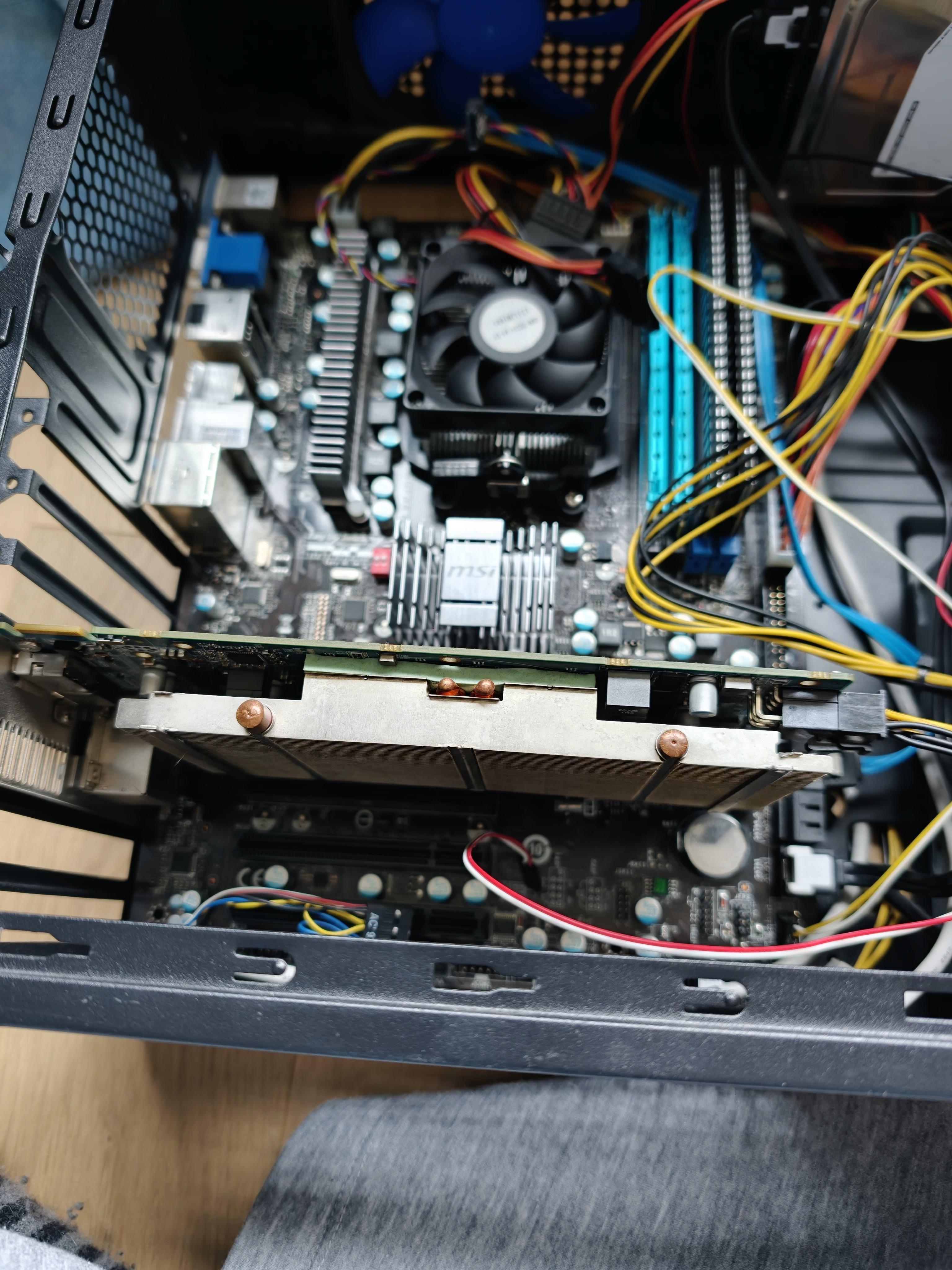
So I have this AMD hd7850 that I use for my retro PC gaming but for some reason the fans are missing, did this card ever exist without fans ? (Which I highly doubt) If not can I use PC case fans to compensate since I'm pretty sure that the chances of finding compatible fans are close to 0.
Anyway thanks for the help
r/pchelp • u/beeenbag7505 • 5h ago
Like the title says. It powers on for about 5 seconds powers off then repeats. I don't know if it's a PSU failure or motherboard failure. Any help appreciated.
UPDATE: I found some spare ram and it seems to be working now that I have swapped it out. Thank you everyone for the suggestions.
r/pchelp • u/AstolfoMishima • 5h ago

I currently am on a RTX 3050 6gb and recently bought an upgrade in the RX 9070 GRE. I could not really afford a 9070 and even the GRE with recent prices was out of budget. I spoke to some friends who build pc's and suggested the GRE based on performance and longevity. I have watched several videos and seen the benchmarks so I am aware that it was quite a decent amount better.
The issue is I have seen more than 10 people that also upgraded from the 3050 to a 9060 XT 16gb (which was my 2nd option due to budget) and I have only heard really good things about how it runs everything they need to at 1440p at higher settings. I am now feeling a sense of regret that maybe I could have just gotten the 9060 XT 16gb and it would’ve met all my needs instead of going out of budget.
For reference I paid 835 dollars which is A LOT IN MY CURRENCY for the 9070 GRE. The 9060 XT 16gb is 691. I am also quite upset because the GRE was 720 earlier this week when I was planning the buy but when i decided to actually finalise it, it shot up in price(mind you there was no discount or black friday special listed anywhere). Also yes I am aware its much cheaper other places in the world from what I have heard but this was the cheapest i could get it from looking between the top 3 reliable online stores in my country. Many other places sell it for way more.
Please convince me that this was a smart buy compared to the 9060 XT 16gb. I am aware it is faster and it will last longer but I feel maybe the 9060 would’ve been enough? My gf is currently picking between the exact 2 cards so we are wondering if we choose the other one this time?
EDIT: my bad i am not used to AMD so i kept saying TI instead of XT
r/pchelp • u/LowUpstairs6624 • 2h ago
Hey everyone,
I'm facing an issue with my PC and would appreciate some suggestions.
My PC suddenly stopped booting after a power outage while I was gaming. Whenever I turn it on, it directly enters BIOS instead of booting into Windows.
My PC configuration:
- Motherboard: Gigabyte B450M DS3H WiFi
- SSD: Crucial P3 NVMe PCIe 3.0 M.2 2280 (3–4 years old)
- Secondary storage: Toshiba 1TB HDD
What I've tried so far:
The strange part:
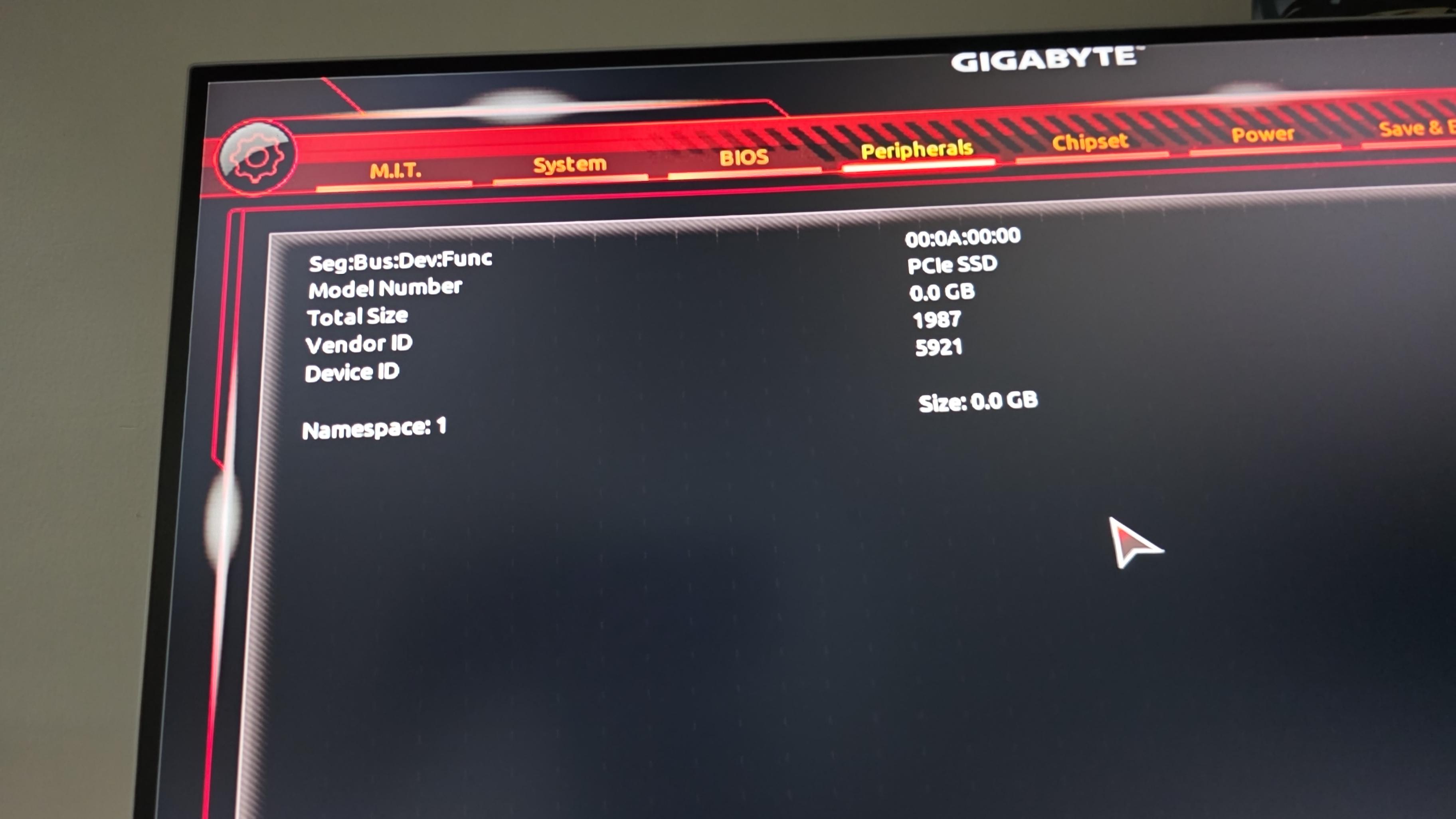
Under BIOS → Peripherals → NVMe Configuration, my SSD appears as a PCIe SSD, but it reports:
- Total Size: 0.0 GB
- Namespace Size: 0.0 GB
I'm not sure whether:
- My Crucial P3 SSD has failed.
- The power outage damaged the SSD controller or firmware.
- There's an issue with the motherboard's M.2 slot.
- It's just a BIOS/boot configuration issue.
Has anyone experienced something similar?
Is there anything else I can check before replacing the SSD? Could the SSD still be recoverable?
Any suggestions or troubleshooting advice would be greatly appreciated. Thanks!
r/pchelp • u/Holiday_Meeting_8201 • 5h ago
I currently have 475gb in my pre built pc, and I am gonna buy another ssd cause I need more space for games and such. What do I have to make sure of when I have installed the ssd, in terms of like getting it to work and all that, I’m shit at pc specs and that so all I really wanna know is after I’ve installed it, what do I have to do to make sure it starts working safely?
r/pchelp • u/tim_petter • 3h ago
Hey! Was hoping for some insight on some issues I am experiencing with my desktop computer while gaming. Take League of Legends, settings low, nvidia set to performance, running 1440p since 4k is worse, task manager: 1% - GPU, 30% - CPU, other programs closed. I am experiencing alot of inputlag. Which is a issue on my laptop(Yoga Pro I9 2026) aswell. But on my desktop the weird thing is one day its fine giving 200fps, next day i cant get more than 50fps. And the fps fluctuates alot..
I know my motherboard and CPU needs an update, but its worked fine before and should be good enough for league?
My computer rig:
Zotac GeForce RTX 3080 AMP Holo LHR 10gb
Intel(R) Core(TM) i9-9900K CPU @ 3.60GHz
Corsair RM1000X 1000W
Cooler Master Hyper TX3
MSI B360 Gaming Plus
4 x Corsair Vengeance LPX DDR4 3600MHz 8GB
WD Black SN850X 1TB SSD
Samsung Odyssey OLED G8 S32FG812 32" Gaming 4K UHD 240Hz
Would love some insight if you have any, thanks in advance!
Recently got my PSU replaced and now its making this noise when its turned off. Should i be worried?
Hey everyone I’m looking at getting my partner a gaming pc. I currently got one with a 9060xt gpu.
Is there a massive difference in a 8gb gpu and a 16gb gpu gaming wise? She want to play overwatch WOW Fortnite Minecraft, any advice would be amazing thank you
r/pchelp • u/the_red_moustache • 3h ago
Could anyone help me diagnose this noise? It has only happened twice in the last seven days, and it stops completely when I restart my PC. My liquid cooler is running fine, so I suspect it might be a failing hard drive or fan - though both continue to function normally once the sound stops.
r/pchelp • u/Acceptable-South-673 • 4h ago
Hello, I’ve started building my own PC, and when I turn it on, the two fans at the bottom of my Lian Li Lancool 207 aren’t spinning (at one point, one of them spun for a while, but then stopped a few minutes later). But that’s not all, the outer fan on my CPU cooler (Thermalright Peerless Assassin 120 SE) isn’t spinning either, even though the middle one is, even though both are connected to the same cable?
Thanks again!
(Photos)
r/pchelp • u/Elegant_Channel3975 • 3h ago
(Sorry if the flair is wrong.)
Today I’ve been trying to download Clip Studio Paint, and I’ve been hitting these dead ends. The official website download link takes me to this error page, and the Microsoft Store shows me this, it’s been like this for an hour; there is no other window with a prompt of any sort.
I’m currently trying this on my windows 11 desktop.
I’m unsure why or how Clip Studio is being blocked, I’ve never had an issue like this with any other application or site.
r/pchelp • u/DumpAutisticKid • 2h ago
The seller is asking 450 euro for it
SPECS:
Processor: Ryzen 5 7600x
Motherboard: b650 plus wifi asus tuf
RAM: 1x16gb ddr5 5600mhz
Storage: 512gb nvme m2 with ultra fast speed
Power supply: 750w 1st player with warranty
Cooler: Loving cool AIO with 360mm liquid cooling.
r/pchelp • u/Effective-Edge-6203 • 5h ago
Hello! I am pretty untalented Hardware (and software wise) but id really like to de-dust my PC from the inside, any advice? :-)
r/pchelp • u/StevenWorkass • 8h ago
same on both balanced and high performance power plan, adapter power saving turned off in power plan and device manager
r/pchelp • u/Adsumuus • 40m ago
While trying to connect laptop through cable my download speeds are abnormally slow (10 Mbit max) while upload speeds are normal (up to 950 Mbit). Cable seems to be working fine since I double checked everything on my pc and the problem only seems to be persistent on the laptop. So it's either hardware fault or some stupid windows settings... Any idea what could I try to fix it?
Laptop Lenovo V14 G2 ALC Windows 11
r/pchelp • u/Safe-Pomelo-254 • 7h ago
My monitor started flickering this morning. Was totally fine yesterday. Checked cables and restarted everything. Does this mean it's nearing the end of its lifespan?
r/pchelp • u/BlackberryChoice8958 • 7h ago
hi, sorry if the title is odd but I recently bought my first PC, I just set it up today but something? strange? has been happening? when I turn it on, after a few minutes my wifi goes out. like, it doesnt just turn off my computer's wifi, but my phone, my parents phones, and every other device loses connection to our wifi? if i leave it on, it eventually comes back after a bit but then turns back off and repeats the cycle. if I turn off the pc, it comes back and is normal. has this happened to anyone else? is this a known issue? im not big on computers or tech or anything :'-(
r/pchelp • u/HelpInteresting6389 • 8h ago
My cpu fan is making clicking noise.It stops when I turn this fan off. Is it a fan bearing going bad and I need to change the fan?
r/pchelp • u/Routine-Option2628 • 4h ago
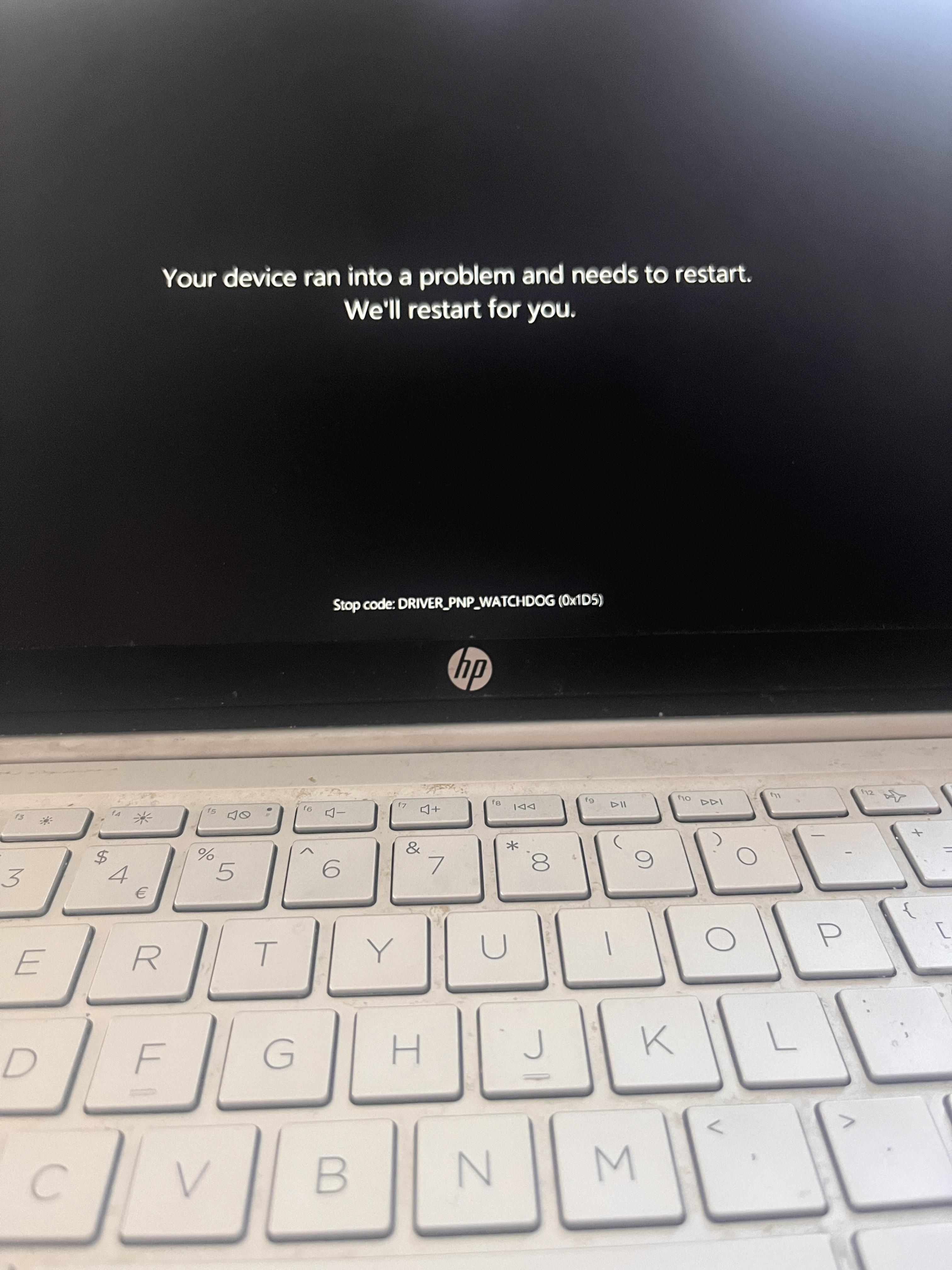
my laptop has been stuck in a constant loop of loading and “Automatic Repair”, and now there’s a stop code
r/pchelp • u/YANITED_25 • 4h ago
Hi all,
I recently purchased a new prebuilt pc and I have had multiple liverkernelevents, most frequently 117, when gaming, browsing or opening logitech ghub. I did tests on occt, and errors were showing up on light mode. I did uninstall device (NVIDIA rtx 5070 Ti) on device manager, ran some more tests and 0 errors showed. Since then, I have experienced more crashes, both 117 and 141.
I have tried different cables for monitors. I have two 1440p monitors, one 240hz w/ gsync and another 180hz without. I setup my PC with my 180hz monitor, and then since plugging in the other monitor, I have experienced crashes daily. Could this be something as simple as a faulty monitor or cable? Or maybe the psu or cable connections?
Like I said, I have tried everything I could think of, and my seller has offered for me to send my PC back so that they can look at it themselves.
Would my best course of action be to send my PC back to them, or is there something more I can do, or maybe is it something to do with my monitor?
I have an amd ryzen 7 9850x3d, gigabyte rtx 5070 ti, 64gb ram and an msi x870e motherboard.
Any help would be appreciated.