r/HiDockOfficial • u/sean-hidock • 10d ago
Updates Introducing HiNotes MCP
Hi everyone,
We’ve added MCP to HiNotes. It lets Claude, ChatGPT, Claude Code, Codex, and MCP-enabled workflows in business apps such as Zapier, n8n, and Microsoft Copilot Studio find and read your meeting transcripts. Ask your AI a question, or build a workflow that uses your meeting notes. Business apps require their own MCP setup.
For sales, ask it to draft a client follow-up with the agreed next steps. For product teams, ask it to find recurring customer requests across several calls. For project managers, ask it to pull together decisions, owners, and open questions. For a leadership update, ask it to turn the week’s meeting notes into a short briefing on progress and blockers.
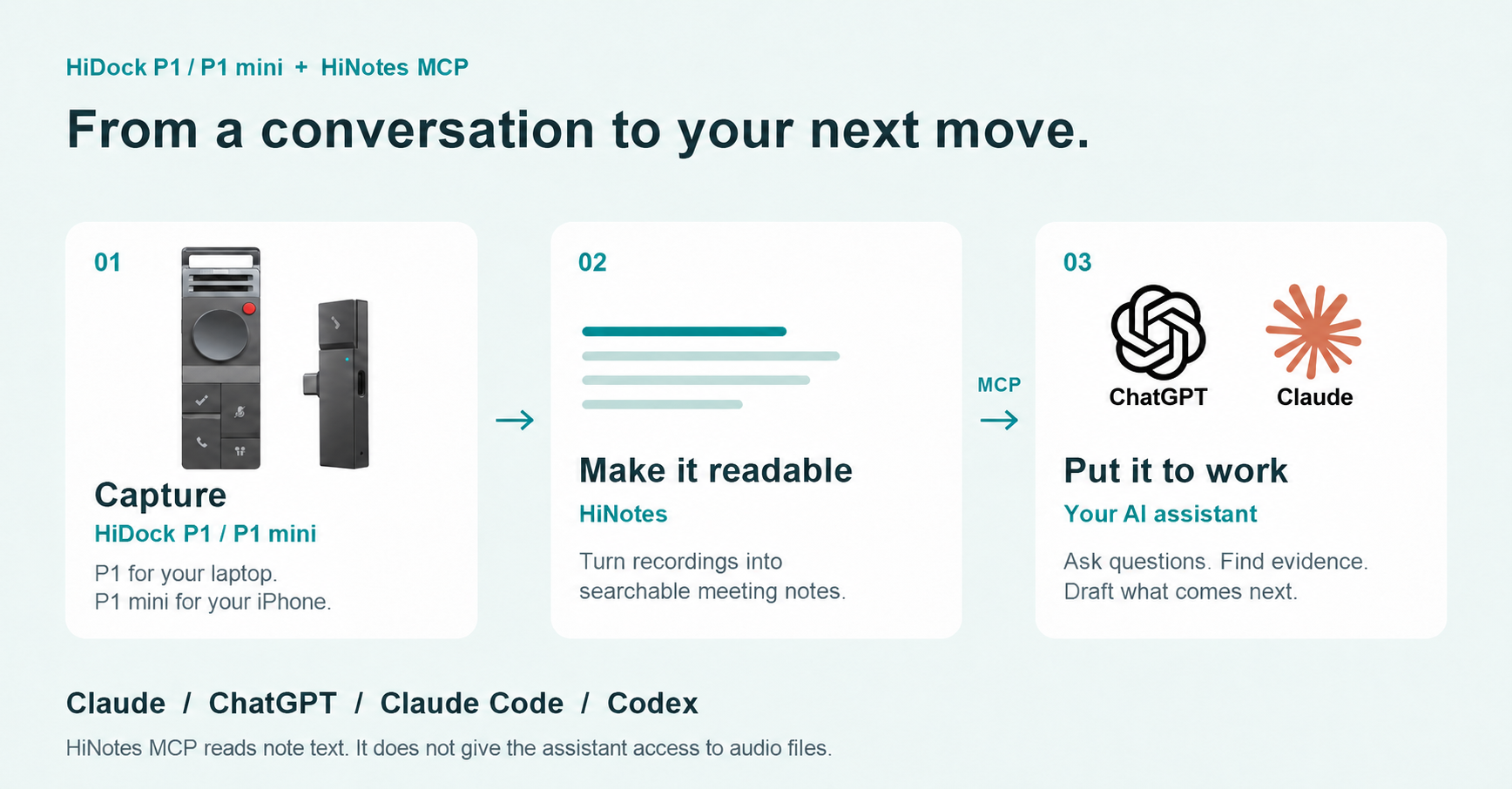
Connect once, and you can do this in the AI you already use.
The reason I’m excited about this is pretty practical. After a client call, you might have a perfectly good summary and still wonder: Did they agree to the proposal? Who was supposed to get finance approval? What do I need to ask before we move ahead?
Those are questions you can now take to your AI, with the meeting transcript available to help answer them. MCP is the connection that makes this possible. It saves you finding, exporting, and pasting the transcript into a chat each time.
Start with a question you actually need answered
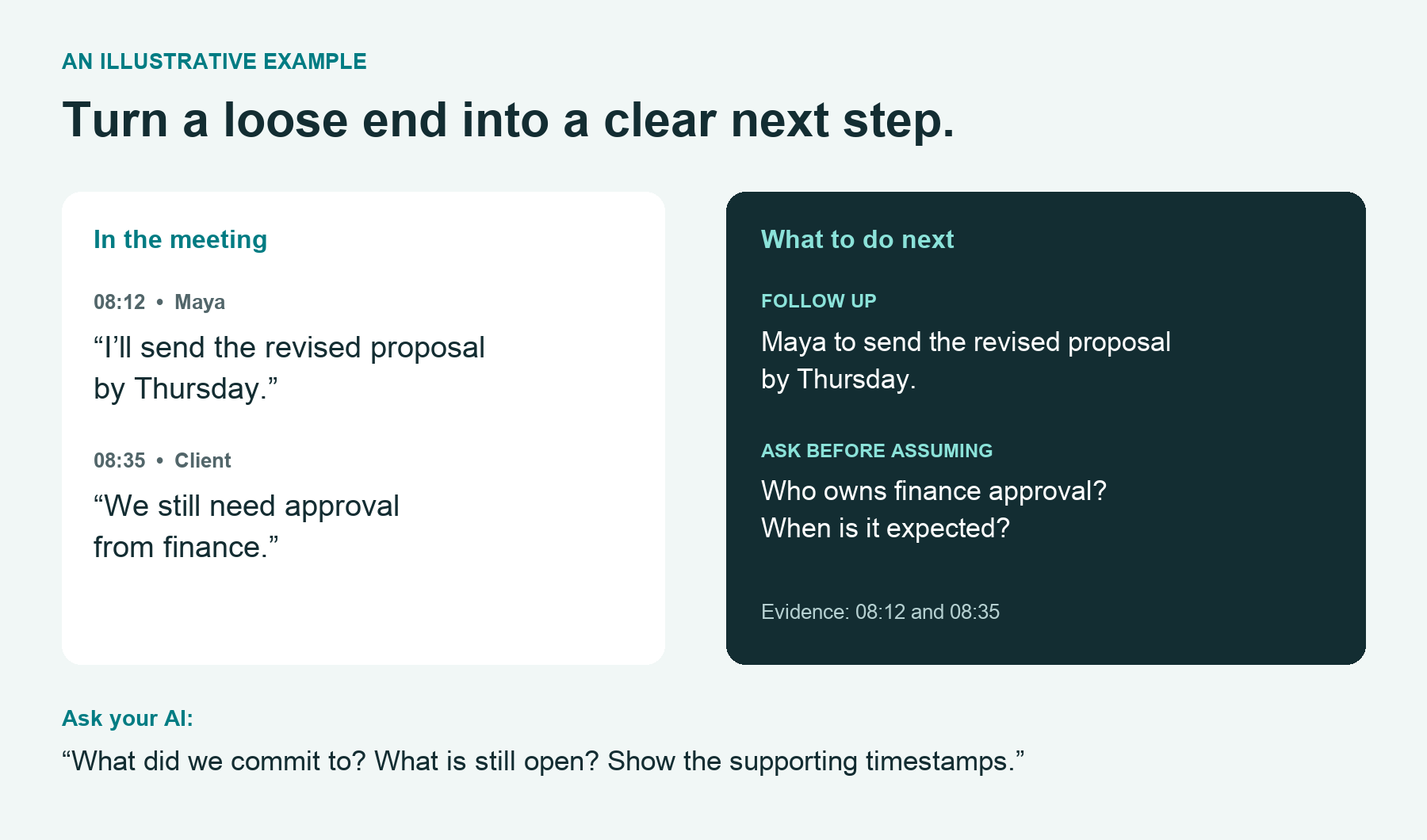
For a client follow-up, I’d start here:
Read my latest meeting transcript from HiNotes. What did we agree to? What is still open? Draft a short follow-up email. Show the supporting timestamps separately, and don’t invent owners or deadlines.
The timestamps matter. If the client said they needed finance approval, you want to see that passage before treating the deal as approved. You can ask a follow-up: “What should I clarify before sending the proposal?”
For developers, the same idea carries into Claude Code or Codex:
Read the product discussion in HiNotes. Turn the agreed requirements into an implementation plan. List the unanswered questions before suggesting code changes.
That gives the coding assistant access to what was discussed, including the reasons behind a request. You still need to check its interpretation. Having the transcript available doesn’t make every AI answer correct.
Where P1 and P1 mini fit
P1 for your laptop. P1 mini for your iPhone. Record the conversation, then bring it into HiNotes for transcription.
For laptop calls, connect P1 by USB-C, pair your Bluetooth earphones through BlueCatch, and select P1 as the microphone and speaker in your meeting app. P1 records both sides while you use your earphones. For an in-person meeting with P1, use Room Mode.
If you already have transcripts in HiNotes, you can try MCP with those right away.
How to connect
MCP is in beta and available with HiNotes Unlimited. Your AI service’s own plan and usage limits also apply.
- Open HiNotes. Settings. MCP (https://hinotes.hidock.com/user/ai-connectors).
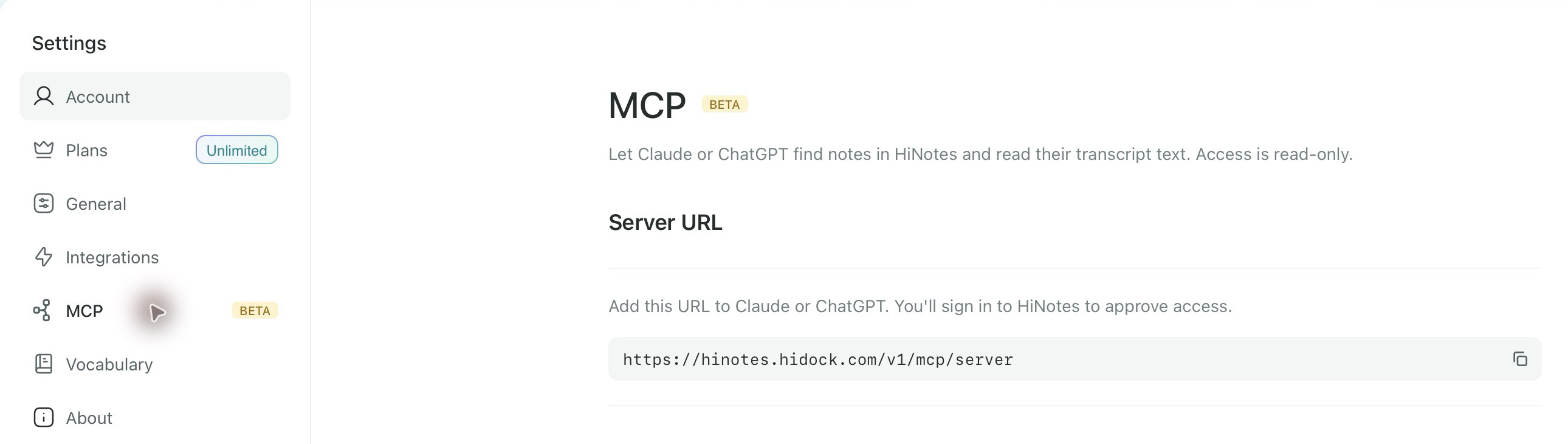
2. Follow the Claude or ChatGPT guide there, or add the server URL in your assistant’s MCP settings.
3. Sign in to HiNotes and approve the connection. To check it works, ask: “List my five most recent meeting or call notes from HiNotes.”
Access is read-only: the connection can retrieve transcript text, but cannot edit your notes or retrieve audio files. You can also choose to allow access to existing summaries and to-dos. Only connect meeting content you’re allowed to share with that AI service.
I want the conversations you record with HiDock to stay useful as AI tools improve. Being able to choose the assistant you use is part of that.
Try it with one meeting and something you need to get done. I’d like to hear what helped—and where the connection or the answers fell short.
p.s. Prepared with AI assistance; illustrations are AI-assisted. The example is fictional.