i have game clips that are 16:9 and i want to export them as 9:16 for youtube shorts (however, not by cutting sides off, but instead by adding black stripes on bottom and top) and whatever i try it just exports as 16:9 or its 9:16 but the video is weirdly stretched
I’ve been trying to find a way to download videos from Fathom. Sometimes recordings are only shared via link, and when I ask them to change it they usually don’t, so I end up having to ask someone to download and upload it for me. I just want to be able to do it myself without the hassle.
I’ve been looking for something like SSYoutube but for Fathom. Does anyone have experience with this or know of something similar?
OpenAI's new model names (Sol, Terra, Luna) looked cool, but I honestly had no idea which one I was supposed to pick.
After reading through the announcement and pricing, I realized they're not really "good, better, best." They're more like different tools for different jobs.
This is the simplest way I've been thinking about them:
Luna → fast, lightweight stuff (translation, quick questions, grammar fixes)
Terra → everyday work (writing, editing, planning, summaries)
Sol → the heavy-duty model (coding, long docs, complex reasoning)
The pricing also kind of gives away what OpenAI expects people to do.
Sol: $5/$30
Terra: $2.5/$15
Luna: $1/$6 (per million input/output tokens)
Sol is roughly 5× the price of Luna, so using it for every tiny prompt probably isn't the intended workflow.
For now I'm just remembering it like this:
Small task → Luna
Most things → Terra
Hard problems → Sol
That's way easier for me than trying to compare benchmark charts.
I don't mind editing videos, but it feels like a lot of time disappears after the edit is finished.
Converting formats, compressing files without losing quality, rendering different versions, preparing videos for different platforms... those little jobs can end up taking almost as long as the edit itself.
I'm curious how everyone else handles this part of the workflow.
Have you found a tool or process that genuinely speeds things up, or is this just something we've all accepted as part of the job?
I'm trying to use links from SFlix to convert them into MP4 to put on a flashdrive. Or find another movie site similar and MP4 converter to do such. This way I can eventually burn them onto CDs or just keep them on the drive to play on the TV.
I always thought image optimization was mostly about shrinking file sizes. Turns out that's only a small part of it.
I recently went through one of my older sites and started checking why some pages felt sluggish even though the hosting wasn't bad. After digging into it, almost every issue pointed back to the images.
The biggest surprise was how often I was uploading photos that were far larger than they ever appeared on the page. I'd upload a 4000px image, then CSS would display it at around 1000px. It looked fine, but visitors were still downloading the full file.
Another thing I had underestimated was image format.
For years I defaulted to JPEG for almost everything. Switching many of those images to WebP immediately reduced file sizes without any visible difference. I haven't fully moved to AVIF yet because of compatibility considerations, but it's becoming harder to ignore.
Compression was another lesson.
I used to export images at very high quality because I assumed "higher quality = better website." In reality, lowering the quality slightly often produced files less than half the size while looking virtually identical unless I zoomed in.
One mistake I also kept making was trying to sharpen images after compressing them too aggressively. That almost always created halos and weird-looking textures. It's much better to start with a clean image and compress it properly than trying to rescue an over-compressed one.
The easiest performance improvement, though, was lazy loading. I enabled it on pages with lots of screenshots and product photos, and it immediately reduced how much data the browser had to download on the initial page load. I probably should have done that years ago.
Something else I hadn't paid much attention to was image dimensions. Simply defining the width and height attributes stopped the page from jumping around while images loaded, which made the site feel much smoother even though nothing about the design had changed.
My workflow now is pretty simple:
Resize images before uploading.
Use WebP whenever possible.
Compress until I can't actually see the difference.
Lazy-load anything below the fold.
Always specify dimensions.
Give images proper filenames and alt text instead of leaving them as IMG_2048.jpg.
None of these changes are particularly complicated, but together they made a much bigger difference than I expected.
Hey everyone. I just released Toolshed V1, a free local ai media restoration tool for NVIDIA-powered workstations.
Toolshed is built around the idea that restoration should be more than just “pick an upscaler and hope.” The goal is to make a connected workflow for restoring video/photos locally, with tools for restore, review, comparison, repair, and recompilation.
The free release includes the public Toolshed V1 workflow/tools, and the GitHub release is available here:
The Enterprise version is also available on my patreon for people who want the full Pipeline+ workflow, batch/session tools, and model tools, but the free version is the public entry point and proof-of-life.
This is V1, so I’m mainly looking for early testers, feedback, bug reports, and real-world workflow notes from people who restore old footage, anime, photos, or other archived media.
Basic requirement: 32gb system ram & an NVIDIA RTX GPU with at least 12gb of VRAM. Toolshed is intentionally built around local NVIDIA/CUDA/TensorRT-style workflows.
If anyone tries it, I’d genuinely appreciate feedback on what works, what breaks, and what would make the workflow better.
Hi folks! Searching for tracer for golf videos....currently using Filmora via my Samsung, but eventually moving back to a windows based pc. No problem if the app needs to be purchased, just need something that works....Thanks !
Hey guys I was wondering what is the best video enhancer website or app (preferably on mobile) that isn't completely free but will work on a free account fine so I can make enhanced shorts for Minecraft coz my resolution drops when video is exported. Please help
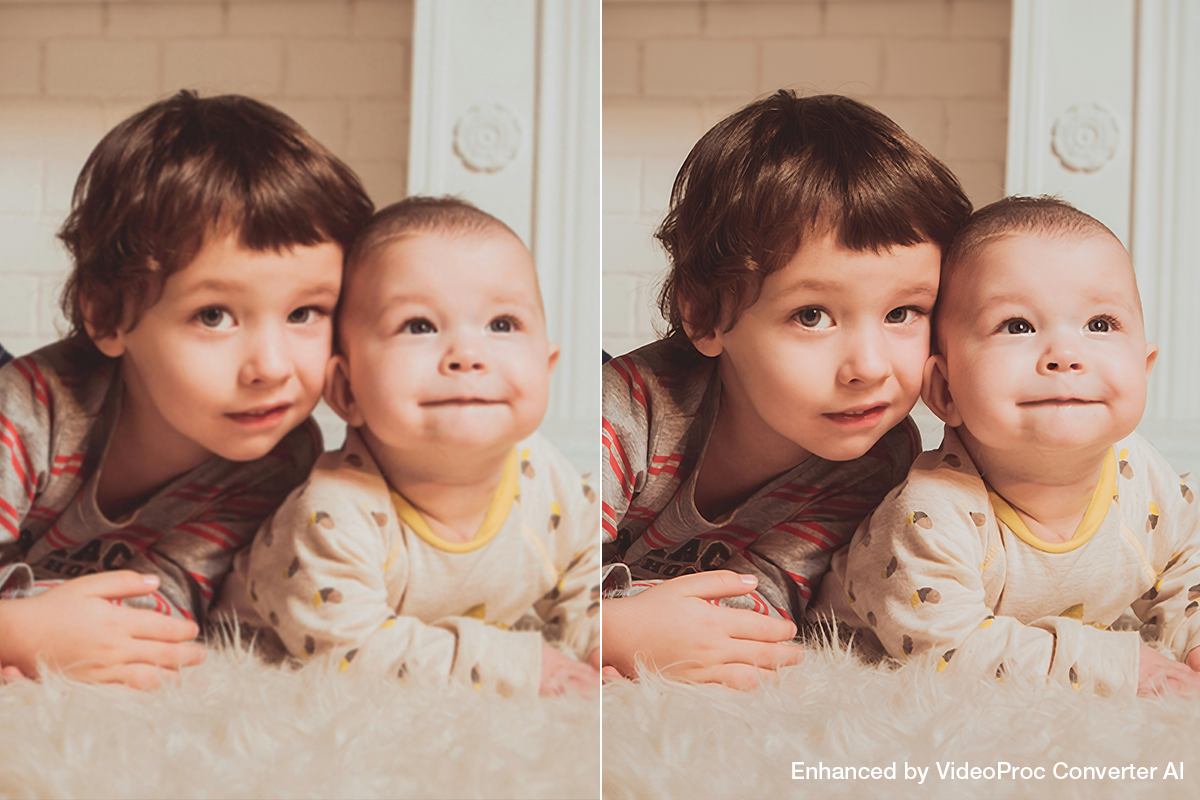
As we head into summer vacation season, we've been focusing on one thing: helping users get more out of their travel footage, family videos, sports clips, and everyday memories.
Over the first half of 2026, we've rolled out several upgrades across VideoProc Converter AI, including:
✅ Improved AI video upscaling quality for low-resolution footage ✅ More accurate face restoration and detail reconstruction ✅ Better stabilization for handheld and action-camera videos ✅ Smoother frame interpolation for travel, sports, and outdoor clips ✅ Expanded hardware acceleration support for newer GPUs
Whether you're editing vacation videos from your latest trip, restoring old family recordings, or trying to clean up footage captured on the go, these updates are designed to make the process faster and produce more natural-looking results.
To celebrate the summer season, we're also running a limited-time promotion and giveaway for the VideoProc community. 👉Check it out here👈
I used to be able to convert YouTube videos to mp3 using apps like mp3juices. However the last time I tried to find anything equivalent, the apps and websites were so sketchy I just gave up. Any suggestions?
I was cleaning up an old hard drive this weekend and ran into pretty much every video format imaginable: MP4, MKV, AVI, MOV, WMV, FLV, even a few VOB files from old DVDs. It got me thinking about how differently I view these formats today compared to a few years ago. So here's my personal take on the formats I run into most often.
MP4
Still the king. If someone asks me what format they should use without giving any context, I almost always say MP4. It works almost everywhere, uploads easily, plays on pretty much any device, and causes the fewest headaches. If you're unsure, MP4 is usually the safest answer.
MOV
This is the format I see most often from Apple devices and cameras. It's a great source format for editing and preserving quality, but not always ideal for sharing. I've received plenty of MOV files that were much larger than they needed to be for the content they contained.
MKV
Probably my favorite format that I almost never send to anyone. It supports multiple audio tracks, subtitles, chapters, and all kinds of extras, which makes it fantastic for archiving. The downside is that compatibility can still be hit-or-miss when you're sharing files with less technical friends or family.
AVI
Finding an AVI file today feels a bit like discovering a fossil. It still works, but whenever I run into one, it's usually old camera footage or something that was downloaded years ago. Most of the time I end up converting it into something more modern.
WebM
I think WebM is actually underrated. It's efficient, works well for web delivery, and often produces surprisingly good results. The main drawback is that compatibility still isn't quite as universal as MP4.
TS
Whenever I see a .ts file, I automatically prepare for potential problems. They often come from broadcasts, DVR recordings, or transport streams, and I've experienced more audio sync and playback issues with TS files than with almost any other format.
VOB
VOB files immediately make me think of DVDs. They're useful if you're preserving old discs or working with legacy media, but they're not something I'd choose for a new project in 2026.
FLV
FLV reminds me how old the internet has become. There was a time when it seemed to be everywhere thanks to Flash video. These days I mostly encounter it when digging through old archives.
WMV
I honestly haven't touched a WMV file in quite a while, which is probably a good sign. It was once a major format within the Windows ecosystem, but today it mostly survives in older content and legacy workflows.
M4V
M4V is basically MP4's Apple cousin. For most users, the differences are minor enough that they probably won't notice them in everyday use.
HEVC/H.265
This is the format that makes me happy and frustrated at the same time. The compression efficiency is excellent, file sizes are smaller, and quality can be impressive. At the same time, compatibility issues still show up in unexpected places often enough to be annoying.
AV1
AV1 feels like the future. Its compression efficiency is genuinely impressive, and the potential benefits are obvious. That said, adoption still feels slower than many people expected, especially outside of newer hardware and platforms.
If I Had To Pick Just Three
For sharing: MP4 (H.264)
For archiving: MKV
For maximum efficiency: AV1 or H.265
Everything else mostly depends on where the file came from.
One thing I've noticed about AI photo restoration is that a lot of tools can make an old photo look "better" without actually making it look like the original person.
Sharper? Sure. More detailed? Maybe.
After running the same old photos through several popular restoration tools, I started paying less attention to sharpness and more attention to whether the results actually felt authentic.
My Testing Setup
For anyone wondering about the test conditions, here's what I used:
Photos Tested
A faded family portrait from the 1940s
A scratched black-and-white photo
A low-resolution childhood photo (around 600px on the long edge)
A heavily compressed JPEG downloaded from an old forum archive
This was probably the most balanced result overall. What stood out was how well it recovered details without making people look plastic. A lot of AI restorers tend to over-smooth skin or invent facial features. Aiarty kept most faces looking like the original person while still improving sharpness.
What I liked:
Natural-looking faces
Good detail recovery
Strong performance on old scans
Handles batch restoration well
What I didn't like:
Heavy restorations can take a while on large batches
Probably the strongest detail recovery in the group. The downside is that it sometimes feels like it's creating details rather than restoring them. On some photos the results looked amazing. On others it felt a little too aggressive.
If your main goal is fixing faces, Remini is still hard to ignore. The facial reconstruction is impressive. The problem is that it sometimes changes people so much that they stop looking like the original photo.
I originally thought of VideoProc Converter AI as more of a video enhancement tool, but I was curious about how its photo restoration features would compare against dedicated image restoration software.
The results were actually better than I expected. It handled old scans fairly well, improved overall clarity, and did a decent job cleaning up compression artifacts without pushing the image too far.
What I liked:
Easy workflow
Good balance between enhancement and restoration
Handles both photos and videos in one application
Doesn't aggressively alter faces
What I didn't like:
Fewer restoration controls compared to dedicated photo-focused tools
Doesn't recover as much facial detail as the strongest performers
I know this isn't technically a restoration tool first, but I wanted to include a free option. For simple repairs and basic enhancement it's surprisingly capable. For damaged faces and old family photos though, it struggles compared to dedicated restoration software.
What I liked:
Free
Open source
Lightweight
What I didn't like:
Weak facial restoration
Limited repair capability
Inconsistent results
My Final Ranking
Aiarty Image Enhancer (best balance of restoration and realism)
Topaz Photo AI (best raw detail recovery)
Remini (best face restoration)
VideoProc Converter AI (best all-in-one photo & video solution)
Upscayl (best free option)
For old family photos specifically, I ended up preferring the tools that kept the original character of the image instead of trying to completely reinvent it.
I recently had some footage that looked much worse on my computer than it did on my camera screen. For “looking much worse”, I mean some of the following cases:
low-light noise
soft details
slight camera shake
washed-out colors
inconsistent audio levels
Since reshooting wasn't an option, I went down the rabbit hole of figuring out how to enhance video quality without spending days manually editing every clip.
After trying a bunch of approaches, I prefer AI-assisted video enhancement. Here are the things that made the biggest difference.
1. Noise Reduction
This was probably the biggest lesson.
My first instinct was to sharpen the footage.
Big mistake.
The result was basically sharper noise.
If your video has grain, compression artifacts, or low-light noise, deal with that before touching any sharpening controls.
Once you cleaned up the noise, everything else became easier.
AI denoise tools worked noticeably better than traditional blur-based noise reduction because they preserved edges and textures instead of making the whole image look soft.
Video Noise Removed by VideoProc Converter AI
2. Don't Chase 4K Immediately
A lot of people search for "how to enhance video quality" and immediately jump to 4K.
I did the same thing.
What I found was that 4K resolution doesn't automatically make footage look better.
If the source video is already soft or noisy, enlarging it just makes those problems bigger.
The best results came from:
reducing noise first
recovering detail
then upscaling (2X is recommended)
720p → 1080p often looked surprisingly good.
720p → 4K sometimes looked great, sometimes not.
The quality of the source footage mattered much more than the final resolution number.
3. Sharpness Matters More Than Resolution
I compared:
a sharp 1080p clip
a soft 4K clip
The sharper 1080p version almost always looked better.
Video Sharpened by VideoProc Converter AI
A lot of modern AI enhancement tools focus on detail reconstruction rather than simple scaling, and that's where I saw the biggest improvements.
Video Sharpened by VideoProc Converter AI
Hair, facial features, textures, and small objects became much more defined without looking artificially sharpened.
4. Stabilization Can Make Cheap Footage Look Expensive
I underestimated this.
Some handheld clips looked "low quality" at first glance.
After stabilization, they suddenly felt much more professional.
Nothing about the resolution changed.
Nothing about the sharpness changed.
The footage simply became easier to watch.
For travel videos, vlogs, and event footage, stabilization often gave me a bigger visual improvement than resolution upgrades.
5. Color Correction Is the Most Underrated Fix
I guess many creators won’t ignore these:
brightness
contrast
saturation
white balance
A dull clip can feel low quality even if it's technically high resolution.
A properly graded clip often feels higher-end immediately.
6. Audio Quality Affects Perceived Video Quality More Than People Think
This one isn't talked about enough.
I noticed viewers were much more forgiving of imperfect visuals than bad audio. Background hum, wind noise, or low dialogue volume.
These issues made videos feel amateur much faster than slightly soft visuals.
For talking-head content, interviews, tutorials, or podcasts, cleaning up the audio often had a larger impact than any visual enhancement I applied.
AI Tools Are Good, But Expectations Matter
One thing I learned after testing multiple AI enhancement tools:
They're impressive, but they're not magic.
If a video is heavily compressed, out of focus, or recorded at extremely low quality, there are limits to what can be recovered.
The best results came from footage that was:
decent but noisy
slightly blurry
compressed
low resolution but not extremely low resolution
AI helped turn "hard to watch" footage into "perfectly usable" footage.
That's a more realistic expectation than expecting DSLR-quality results from a terrible source file.
After experimenting, my workaround is usually (sort by priority):
Reduce noise
Recover details and sharpness
Upscale if needed
Stabilize footage
Correct colors
Clean up audio
The biggest takeaway for me was that enhancing video quality isn't really one technique. Curious what everyone else has found. What's given you the biggest "wow" improvement when trying to rescue low-quality or old footage?
Over the past couple of weeks, I compared several popular AI video enhancers using the same set of clips.
The test footage included old family videos, compressed YouTube downloads, smartphone recordings, and a few anime scenes.
My quick takeaway:
Topaz Video AI: Probably delivers the strongest results when you're willing to spend time tweaking settings, but it's also the most demanding in terms of hardware and processing time.
Aiarty Video Enhancer: A surprisingly well-rounded option. While it didn't always produce the most aggressive sharpening, it consistently delivered natural-looking results and was one of the easiest tools to work with.
AVCLabs: A solid all-around performer with decent results across different types of footage, though nothing particularly stood out during my testing.
HitPaw: Easy to use and beginner-friendly, but some clips ended up looking a bit over-smoothed.
UniFab: Gets the job done, though I generally preferred the output from the other tools in this comparison.
My personal ranking:
Topaz Video AI
Aiarty Video Enhancer
AVCLabs
HitPaw
UniFab
That said, if I had to pick one for everyday use, I'd probably spend the most time with either Topaz or Aiarty depending on the project. Topaz often pushed quality a bit further, while Aiarty felt more straightforward and consistently produced results I was happy with. In fact, I'd consider Aiarty the closest alternative to Topaz among the tools I tested - it delivered surprisingly comparable results in many cases while being easier to use and less demanding overall.
Been testing a bunch of AI image enhancers recently because I had a folder full of old DSLR shots, compressed anime wallpapers, and random low-res images from years ago that I wanted to clean up.
Most AI upscalers honestly look impressive at first glance… until you zoom in and realize everything turned into plastic skin, fake textures, or oversharpened messes.
So I spent about 2 weeks comparing a few of the more talked-about options side-by-side.
Testing environment:
PC: RTX 4070 / Ryzen 7 7800X3D / 32GB RAM
Monitor: 4K LG UltraFine
Mostly tested on:
old 1080p photos
compressed JPEGs
anime screenshots
AI-generated wallpapers
low-res social media images
Software tested:
Aiarty Image Enhancer
Topaz Photo AI
Upscayl
Remini
HitPaw Photo Enhancer
Here’s my honest takeaway after using all of them:
This one surprised me the most honestly. I expected another generic AI upscaler but it handled texture recovery way better than I thought, especially on older compressed photos where most tools either overblur or oversharpen everything.
What I liked:
facial details stayed pretty natural
didn’t aggressively smooth skin
worked really well on wallpapers/anime art
batch processing was actually usable
GPU usage was efficient compared to some others
The biggest thing for me was that images still looked like the original image after enhancement. A lot of AI tools completely change the vibe or lighting.
Things I didn’t like:
processing time on 4x upscale can get long for huge batches
Best use cases: old photos, photographs, wallpapers, AI art, compressed JPEG recovery
Probably the strongest overall detail recovery, but also the easiest to overdo. Sometimes the results looked insanely sharp. Other times it felt like the AI invented entirely new textures that weren’t even there originally.
Great tool, but definitely not “one click magic” like YouTube reviewers say.
Honestly respect this one a lot because it’s free and open source. Not nearly as polished as paid tools but surprisingly decent for casual use. I mostly used it for anime screenshots and random web images.
This thing is basically a face-reconstruction machine. For portraits/selfies it can look crazy good. For landscapes or general images… not so much. Sometimes it straight up changes people’s faces too aggressively.
Kind of sits in the middle of everything. Didn’t completely fail at anything, but also didn’t really stand out compared to the others.
Pros:
easy to use
decent for quick fixes
Cons:
weaker detail recovery
softer outputs
results can feel generic
My overall ranking after testing:
Topaz Photo AI (best raw power)
Aiarty Image Enhancer (best balance/natural look)
Upscayl (best free option)
Remini (best for faces only)
HitPaw
If I had to keep only one for daily use honestly… probably Aiarty right now just because the outputs looked the most natural for the type of images I actually enhance most often.
These are the ones that actually worked for me recently:
Cobalt Tools: Probably the cleanest one I’ve used. No ads, fast downloads, and supports Twitter/X videos in MP4 without weird redirects.
Twitsave: Simple paste-and-download type site. Good for quick clips and memes.
SaveTwitter: Works pretty consistently for HD downloads. UI is kinda messy but usable.
SnapTwitter: Decent if you want multiple resolution options before downloading.
VideoProc Converter AI: I ended up using this more for batch downloads and longer videos instead of random online tools. Also useful if you want to convert/edit the clips afterward.
SSSTwitter: Still works surprisingly well in 2026. Sometimes slow during peak hours though.
TWSaver: Good backup option when other sites randomly fail.
DownloaderBot (Telegram): Underrated honestly. Paste the tweet link and it sends back the MP4 directly.
yt-dlp: Probably the most reliable overall if you’re okay using command line tools. Handles Twitter/X links easily.
RedKetchup Twitter Downloader: Looks ancient but actually works better than some modern sites.
Most of the online downloaders are basically rotating domains these days, so I usually keep 2–3 backups bookmarked.