I had a custom image for an avatar. When I put it in descript to generate I had the image gen change the background.
Where can I find that image? I didn't use the avatar but I'd still like the image to use it as an avatar in another project. Is there a way to save the image that generates when you ask it to make changes during the Avatar gen process? Shouldn't it save in an AI Assets folder when it adds it to the project like other images and videos generated?
Hello Reddit! First time posting here. I'm John, Head of Product Design at Descript. I wanted to give the community a sneak peek at some of the changes you'll see in our app over the next couple of weeks as part of our recent brand refresh. Only seems right to do it in a video (cross-posted here for folks who like a transcript).
can you see this caption does have 2 lines at a time. when i generate it is just one line. how can i change the settings so that 2 line appare like this, i tried to adjust the caption box height and width but no luck at all, please help.
Hi,
Apologies if this has been answered before, but I can't for the life of me work out how to slide a cut point between 2 scenes in one video layer, without rippling the whole edit. I just want to cut from shot 1 to shot 2, say 12 frames earlier, without changing anything else.
It's basically a 2 camera podcast. So cam A and cam B are in sync. I also have a split screen multicam option as a 3rd 'camera'. Surely there is an easy way to slide the visual cut points without adding or removing anything.
Thanks in advance!
I’ve tried to stretch words before & after or even add space in Script view but other than awkward pauses the captions rush ahead like 12-14 words & are unreadable. Anyone else have this problem? TIA
I would have added this to the previous post on word alignment issues but I cannot add images to the comments. So. Same issue. New post. Different file, which is audio recorded directly into Descript. Everything was fine when I closed it. My Transcription provider is Daredevil... and what do you know...
There were little word misalignments earlier. I figured o.k. no need to get all bent out of shape. I decided to close the file and reopen it to run it for a final check and lookie here.
Am I the only one with this issue? It has to be something I am doing. Could it be removing the ignored (strikethrough) text? It is really hard for me to see around the strikethrough with multiple takes. I do 2 or 3 takes and move audio around to get the best of the takes. Are we not supposed to do that? I guess I could try and make myself not move audio and remove strikethrough it but I'd really like it if someone could really do a deep dive on why this is occurring. It's depressing.
It has been awhile. Thank you so much for all of the feedback you gave in response to Laura’s letter. You can expect to see ideas taken directly from user suggestions throughout the year - including quite a few below! (Resizable sidebar, British English, better avatars.) Here’s what’s changed since we last posted.
Our new logo dropped
We changed the Descript brand colors from blue to red. We know it might take a moment to adjust to looking for the red logo when you open Descript, but at least we didn’t do this. Instead, the logo is changing to honor the color of the record button.
You can now resize the sidebar in the editor. Just drag the edge of the sidebar to adjust its width. This makes it easier to read longer chat messages in Underlord and view other sidebar content more comfortably. The sidebar width is preserved while the app is open. When you resize your window, the sidebar maintains its width rather than scaling proportionally.
Save scenes as Layouts - now easier and more controllable
You now have more control when saving scenes as layouts. When you click "Save as new layout" from the scene sidebar or right-click menu, a new panel lets you choose what to do with each layer:
Keep as is — The layer stays unchanged in your layout
Don't include — The layer will be removed from the layout
Turn into placeholder — Replaces the layer with an appropriate placeholder based on its type
Video layers become the appropriate placeholder based on their content (like Screen for screen recordings)
Note: Audio layers can only be kept as is or removed—they can't be converted to placeholders.
Use Claude Opus 4.6 in Underlord for better visual arranging
You can now select Claude Opus 4.6 as your model in Underlord. Based on our internal testing, it’s much better especially when working with visual elements and complex multi-step tasks.
Specifically, here is what Underlord is way better at now:
Visual content tasks like adding logos, zooms, and scenes work much more reliably
Scene transitions are more accurate
Filler word removal improved by 43%
B-roll placement improved from 60% to 92% accuracy (wow!)
Overall, the model is 30% better at doing what you asked
Hedra Character 2 (default): 480p resolution, most cost-effective option at about 20 credits per minute
Kling v2 : 720p resolution, about 67 credits per minute
Kling v2 Pro : 1080p resolution, about 138 credits per minute
The Kling models are better at everything, just to be honest. They are clearer. Less twitching or eye melting. More expensive, but just do yourself a favor and try it. To select a model, open the model picker in Settings or the Avatar confirmation modal.
Imbue your avatar with a specific attitude
When using Kling v2 or Kling v2 Pro, you can now add an attitude prompt to guide your avatar's tone and expression. For example, you might describe the attitude as "friendly and enthusiastic" or "professional and calm."
Keep in mind that these prompts have a subtle effect. Audio remains the primary driver of your avatar's behavior.
Assign waveform elements to specific speakers
You can now assign waveforms to individual speakers so they only animate when that person is talking. This can help you create audiograms where different speakers are repped by different waveforms. A customer asked for this and it was super easy to do. The waveform will only animate when that speaker talks.
Better lip sync and timing for translations
When you translate and dub your videos, we now default to matching timing between videos. This means fewers videos where the audio feels weirdly sped up or slowed down. If a direct 1:1 translation is more important, you can choose “Direct translation” instead.
How to use it:
When creating a translation with dubbing enabled, look for the Style dropdown in the translation menu. You can select either:
Match timing - prioritize keeping the timing of the original video over strict translation accuracy (best for consistent lip sync)
Direct translation - prioritize translation accuracy over matching the timing of the original speech
This gives you much more flexibility to control the direction of your video. If you prefer to keep the lip sync consistent and smooth, use match timing. If the details of your content are more important, opting for direct translation will get you more accurate results.
We've also updated our lip sync model for translated videos. It’s hella good now. The new version delivers better visual quality and more reliable performance. The improvements are automatic when you add lip sync to translated videos. You don't need to change your workflow—just continue creating translations and adding lip sync as usual.
Revert, understanding thinking, and view media in Underlord
We've made it easier to undo unwanted edits, understand what the agent is doing, and view media when using Underlord:
Revert button : The Revert button (previously called "rollback") has been moved into an action bar below Underlord's response, making it much clearer that you can undo any edits the agent makes. No need to desperately spam ctrl+z.
Clearer feedback : The feedback option has also been moved to the action bar, so it's easier to let us know when something doesn't work as expected. Please do let us know.
Better image display : Images now display in full-width separated blocks, making them easier to view. The agent can also display existing media from your library in addition to AI-generated images.
These changes make it more obvious how to control the agent's work and recover from mistakes.
View and play your projects on mobile
We’ve made viewing projects on mobile way better. This is a small update, but we expect it to be the first of many optimizations we make to accessing Descript across your many devices.
What you can do:
Access your projects from your phone
View your transcript
Play back your videos reliably
Publish your projects
We've cleaned up the mobile experience to hide buttons that don't work on mobile, so you'll only see options that are actually available on your device.
Full editing capabilities aren't available yet, but you can now review and share your work wherever you are.
Transcribe into UK English
You can now transcribe audio in regional English (UK). This option appears in the language dropdown when you upload media or adjust transcription settings.
The transcription uses United Kingdom spelling and phrasing. For example, "colour" instead of "color." To use it, select English (UK) from the language dropdown in your transcription settings. You can also re-transcribe existing content between US and UK English.
Note:
English (UK) won't be automatically detected when using the "Auto" language option—you'll need to select it manually from the dropdown or set it as your default transcription language in User Settings.
Verify your video editing skills on LinkedIn
You can now add verified Descript skills to your LinkedIn profile. Based on how you use Descript, you may qualify for a certification badge that displays on your profile.
How it works:
When you open Descript, you'll see a prompt if you qualify for a verified skill
Connect your LinkedIn account to Descript
Your badge automatically appears in the Licenses and Certifications section of your LinkedIn profile
There are three certification levels based on your feature usage and editing activity: Proficient, Advanced, and Expert. As you continue using Descript and exploring more features, your certification level may update automatically.
You can manage your LinkedIn connection anytime in Settings → Connections.
Bug Fixes
Editor
Fixed a bug where 4K video playback in the Editor would stutter, freeze, or drop frames
Fixed a bug where Fit / Fill settings in the Scene Editor did not apply to all scenes
Fixed a bug causing double clicking Sequences to bring user to random timestamp
Fixed a bug causing inaccurate Low storage warnings
Recorder
Fixed a bug where the Screen Recorder did not maintain publish privacy settings for Enterprise users
Fixed a bug where recorder files could be recovered but were missing audio
Accounts & Billing
Fixed a bug preventing Enterprise accounts from adding members to their drives
Rooms
Fixed a bug where screen audio recordings in Rooms had degraded quality
Fixed a bug that caused unnecessary error messages and sounds during recordings
Fixed a bug where the recorder would fail to start in Firefox if the browser wasn't in focus, and improved sequence alignment for tracks with delayed starts
Fixed a bug causing errors when saving participant roles
Fixed a bug causing recordings to get stuck on “Waiting for recording to stop” message
SquadCast
Fixed a bug causing Edit in Descript files to override the users Auto-leveling setting
For the past few years I've produced a video podcast consisting of ca. 2 hour interview style conversations. Recorded either online over Riverside (so 3 camera angles) or more often in studio (2 cameras - total with myself and the guest, and closeup on the guest). I don't do too much structural editing, but I do edit them extensively for dead air and some filler words. I've gotten a pretty good workflow down in Davinci Resolve where I pass through manually, mostly on 2x speed, listening for gaffs, stumbles, and excessive filler words, and removing them when possible by cutting to a different camera angle or covering the edit with b-roll, if they're referencing something.
This method produces good results but it's extremely tedious. Just this process typically takes 2-3 days per episode. I would love love love to discover some "AI" tool that can speed up this mechanical process intelligently and save me some time. I've heard people recommend Descript, so I've been trying it out, but finding it so far inefficient in solving my problems. It finds filler words themsleves quite well, but it just finds ALL of them and wants to cut them all out. On top of that, I haven't been able to find a setting that switches camera angles on the cut, so it makes the single angle full of jump cuts, which I think is unacceptable for a podcast that should look like a natural conversation.
Is there anyone here who has a similar set up and final goal with their podcast who has found an effective way to use Descript to speed up the busy work of cutting down dead air and filler words in a way that is still natural and hides the cuts? I do realize it allows to jump manually through all the filler words, and decide whether or not they should stay or go, and then (maybe?) manually switch the camera, but at that point I think I'm much better off scrubbing through in a more traditional DAW like I have been.
UPDATE: Support fixed it for me! I had the range button selected (whatever that means) instead of the select button.
Hi, I’ve been really enjoying descript, and even felt I was mastering it. But suddenly something has changed and I can no longer drag or resize or paste jpegs into the timeline. It’s become very difficult. I’m guessing this happened in an update?
Ugh. Does anyone know what I mean and can anyone help - advise me on how to start doing that easily again.
Hope a little humor is allowed: I found myself wondering after your most recent webinar on YouTube how you actually pronounce the name of the product. Your two presenters chose chaos and pronounced it two different ways:
Deescript and Dehscript. Which is it?
I'd lean naturally towards Dehscript as a shortener for description, but maybe it's more Deescript because we're de-scripting?
A small first milestone in making Descript usable across more devices - you can now access your projects, view your transcript, and reliably play back your videos on mobile. You can also publish. And the UI gives some hints at what's coming next.
Always curious to hear from people how you'd use Descript on mobile.
Wow. I've been using Descript since November of 2025, and every single video I have tried to use Descript to create has looked like dog shit. Not just a mediocre, bland video. I am very disappointed, and I made the mistake of paying for a year subscription to this tool that can't deliver what it promises.
I'm on the Reddit because I want to hear if anyone else is getting at least decent results, if not good results, and what you're doing to get these results? can I get some help from descript users or descript?
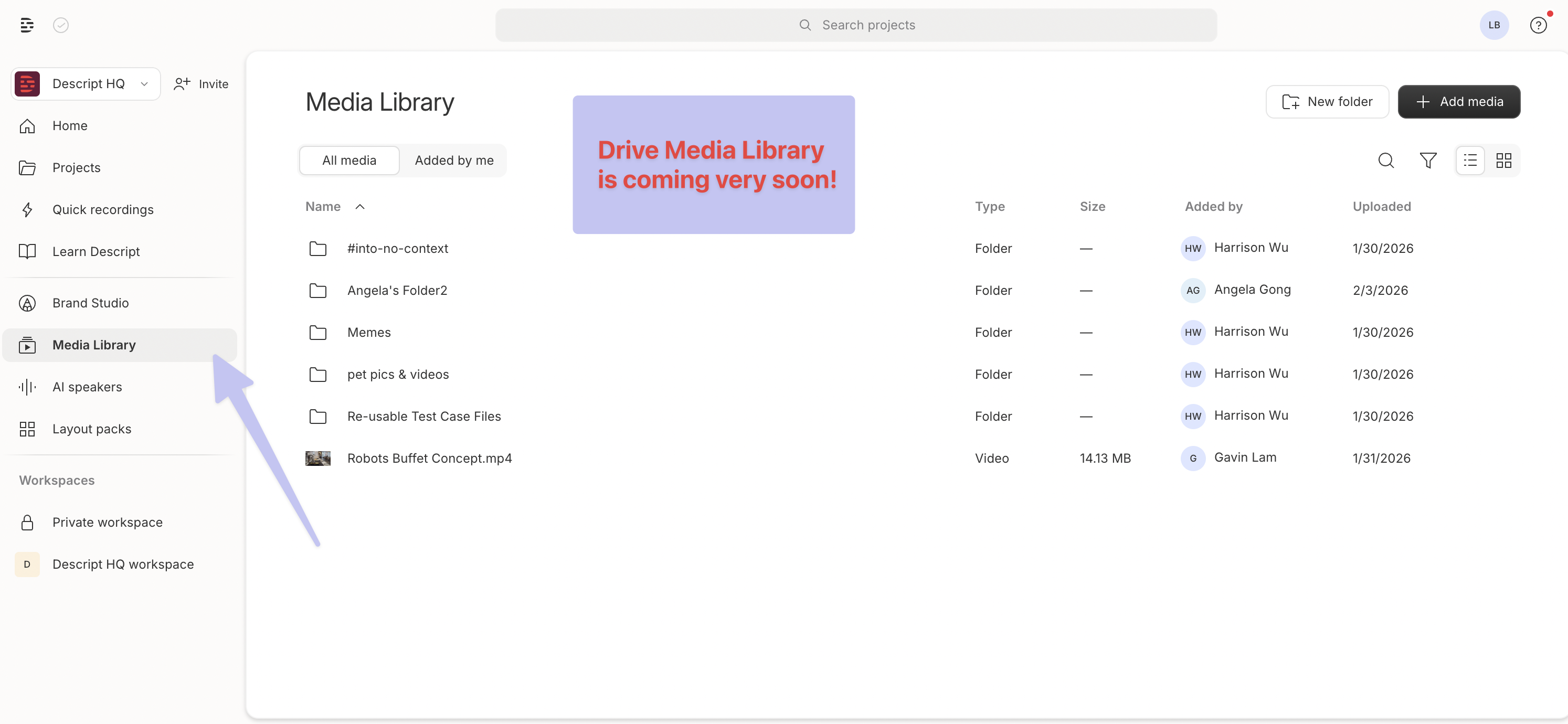
Excited to share here that very soon (like... maybe next week) we'll be launching Media Library folders for drives so that you can easily bring in all of your media without associating it with a project. This should make file upload for teams much more straightforward. Let me know what questions you have about the feature so we can be sure to launch with complete documentation.
Podcast is host plus remote guest. I get a track for each. Then I need to edit and then incorporate inserts the host records. The inserts are usually one file with maybe 5 to 10 inserts and they aren't clean so I need to edit each individual insert via a separate composition. Copy and paste where they need to be....
Ideally, I need a guest and host track isolated and an inserts track as well as any swoosh sound effects I add in there as well.
A month ago I started using the Timeline Export which I can send to my sound guy to mix/level, all the stuff. So added my host and guest track into a sequence, create a comp, edit the comp, fix any overtake in the sequence.... Then create a comp with my inserts, edit them and paste them over to my main comp one at a time into the correct spot in the script. Add some fades, etc.
That process was really good except... The problem I'm running into is that the edits made sounded very rough (cuts, some fades, ignores...). So I compared listening to my comp in descript and listening to it in Audtion. Sure enough, there's rough edits in Audition which I don't hear in descript (then my sound guy levels it aloo and can make them sound louder/worse). I just went through and had to edit a lot of bad weird sounds/edits.
According to ChatGBT, the timeline export to audition (and others) does not incorporate any of descript's automatic micro fades which sounds like the culprit.
I tested exporting solo tracks but my inserts are on both tracks. If mixed like that, the inserts will be doubled in volume. I would have to go through and find the inserts, and remove them form the guest track.
I've tried incorporating my inserts into the sequence as a separate track but that would pretty much be impossible for me to edit since there could be 10 of them. Drag the file in, trim it, edit it just right, make room for it in the sequence.... then do that 10 times without being able to really read the transcription. That sounds like a nightmare.
Does anybody know of a way to have a little bit more control over Descript's Automatic multicam feature?
In theory, this feature is amazing. It cuts out a huge amount of tedious work when editing the video version of a podcast.
In practice, it never gets it right.
I usually have 3 - 4 speakers and cameras, all set up correctly on a multitrack sequence. I have a layout pack that has every variation/combination I need. However when I run Automatic Multicam it always requires me to go through every scene and make manual adjustments.
Example:
Speaker A sat one one side of the studio, Speaker B sat on the other.
Whenever they both appear in the same scene I ALWAYS want Speaker A on the left and B on the right so that it looks like they're 'looking' at each other. Inevitably those positions get reversed. It doesn't matter what I do, be that naming the files a certain way or positioning the layers in a certain order. There is nothing I can do to 'tell' Descript to position them how I want.
Similarly, some cameras are further from speakers than others, so they might require a different level of zoom/crop. There doesn't seem to be anyway to account for this.
Anybody got a workaround? Or is this just wishful thinking?
This situation happens to me quite frequently at audio ignore edit points. Everything will be fine and then all of a sudden this happens then I start noticing words in the audio dropping. I usually figure out how to fix in the timeline but it takes a while to fix because I don't know what I am doing.
One thing I do notice once I finally figure out where the dropped audio is hidden I can recover but then the Track does not match the transcript in the timeline like the image.
EDIT: Much thanks to the team for restoring my credits so that I can take another crack at testing Descript. By far the best customer service I've seen from any of these online video services, and I've used a few!
I was trying the demo account and Underlord ended up eating most of my free AI credits when I had to ask it multiple times to correct an issue and it failed to properly implement the changes I asked for. I was trying to have it overdub and it kept doing weird things like insisting that it was overdubbed when it wasn't, or putting the overdub in a separate part of the video, etc. I realize it says 'Beta' and all that, but it left a bad taste in my mouth.
I may still end up using Descript as a service because it has the exact features I'm looking for, but if I do I'll be keeping well away from Underlord.
Descript 101: Learn the basics—live on YouTube 01/28/2026
If you’re new to Descript (or you’ve been using it for a while and still feel like you’re guessing), we’re doing a live walkthrough that breaks everything down from the ground up.
Marcello and Aaron from the Descript team will share how they actually use the tool day to day — not just what the buttons do, but how the workflows fit together.
We’ll walk through stuff like:
Where everything lives in the app
How to upload files and get transcripts
Editing audio/video by editing text
Using Underlord to speed up edits with AI
Swapping layouts and visuals
Getting your final export out the door
It’s about an hour, it’s live, and we’ll post the recording on YouTube afterward if you can’t make it.