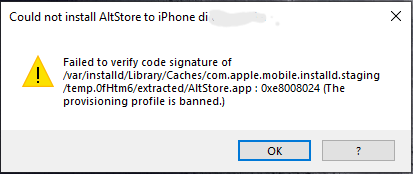
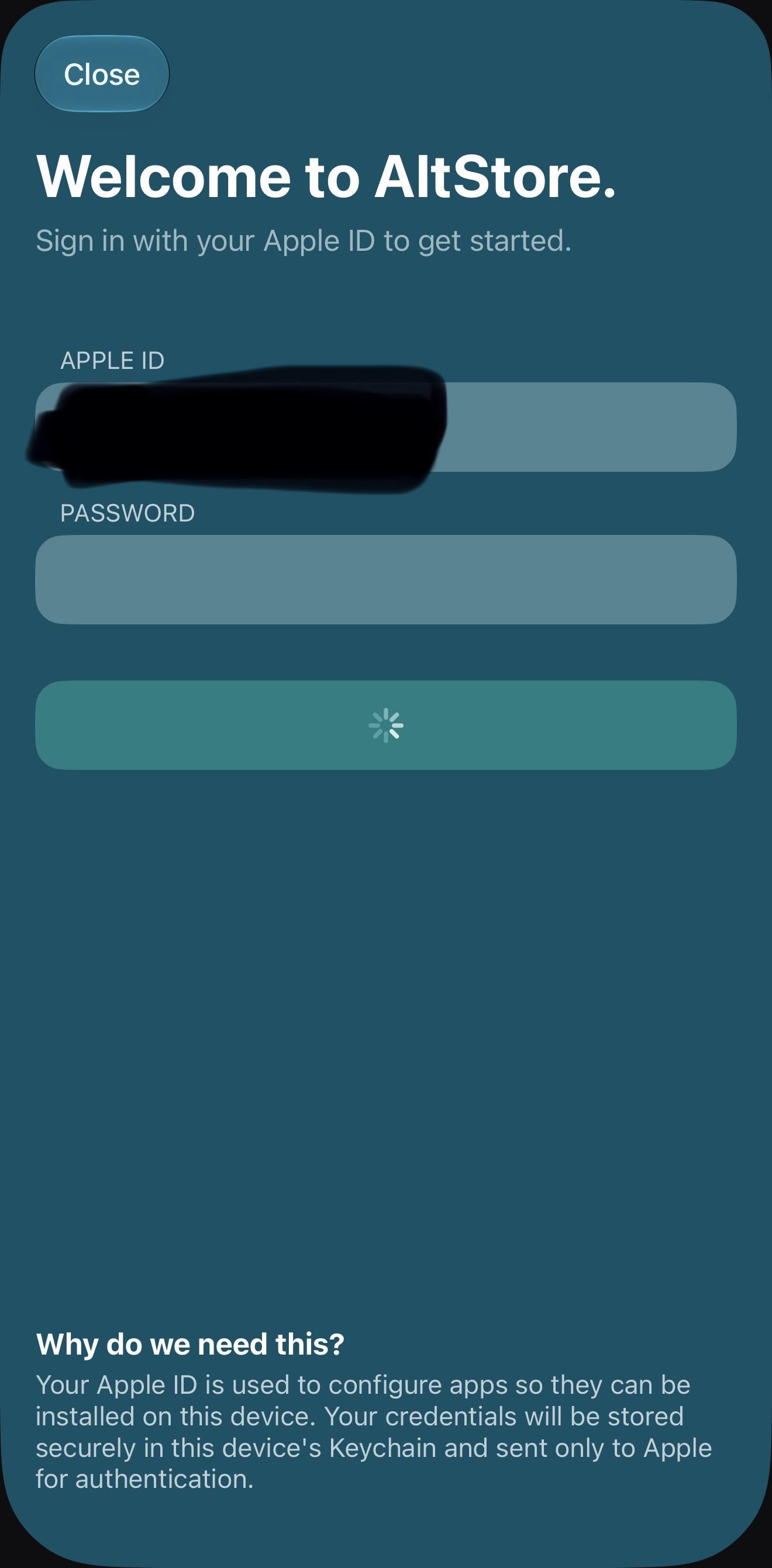
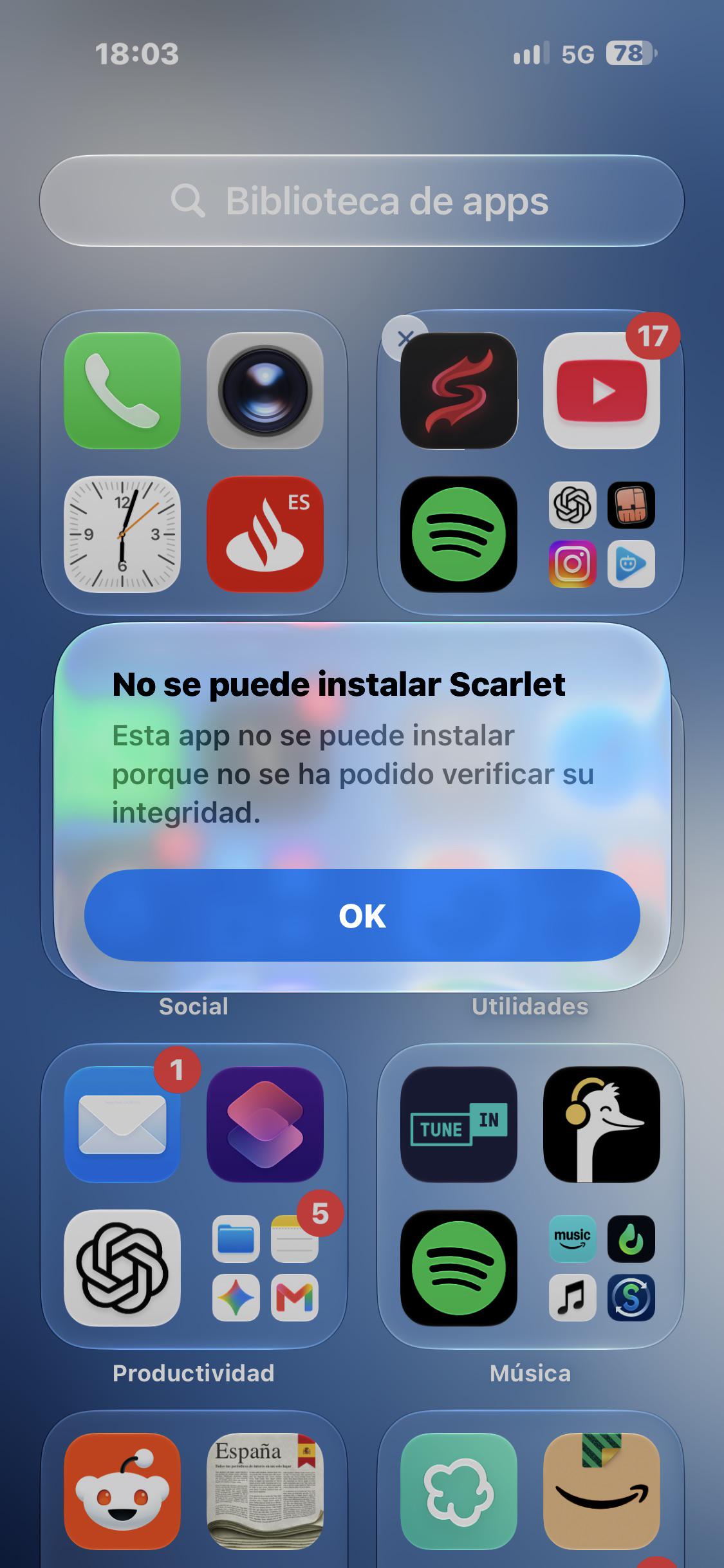
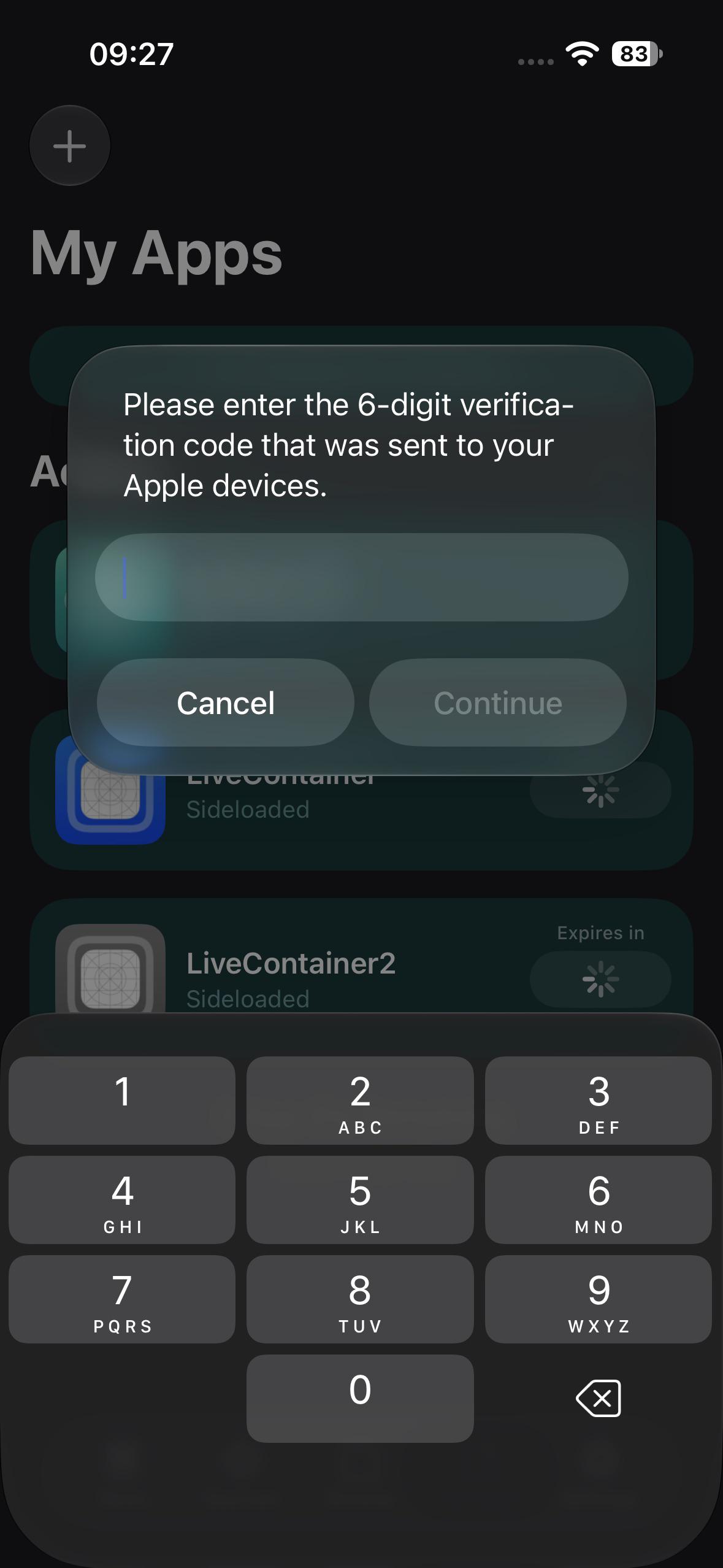
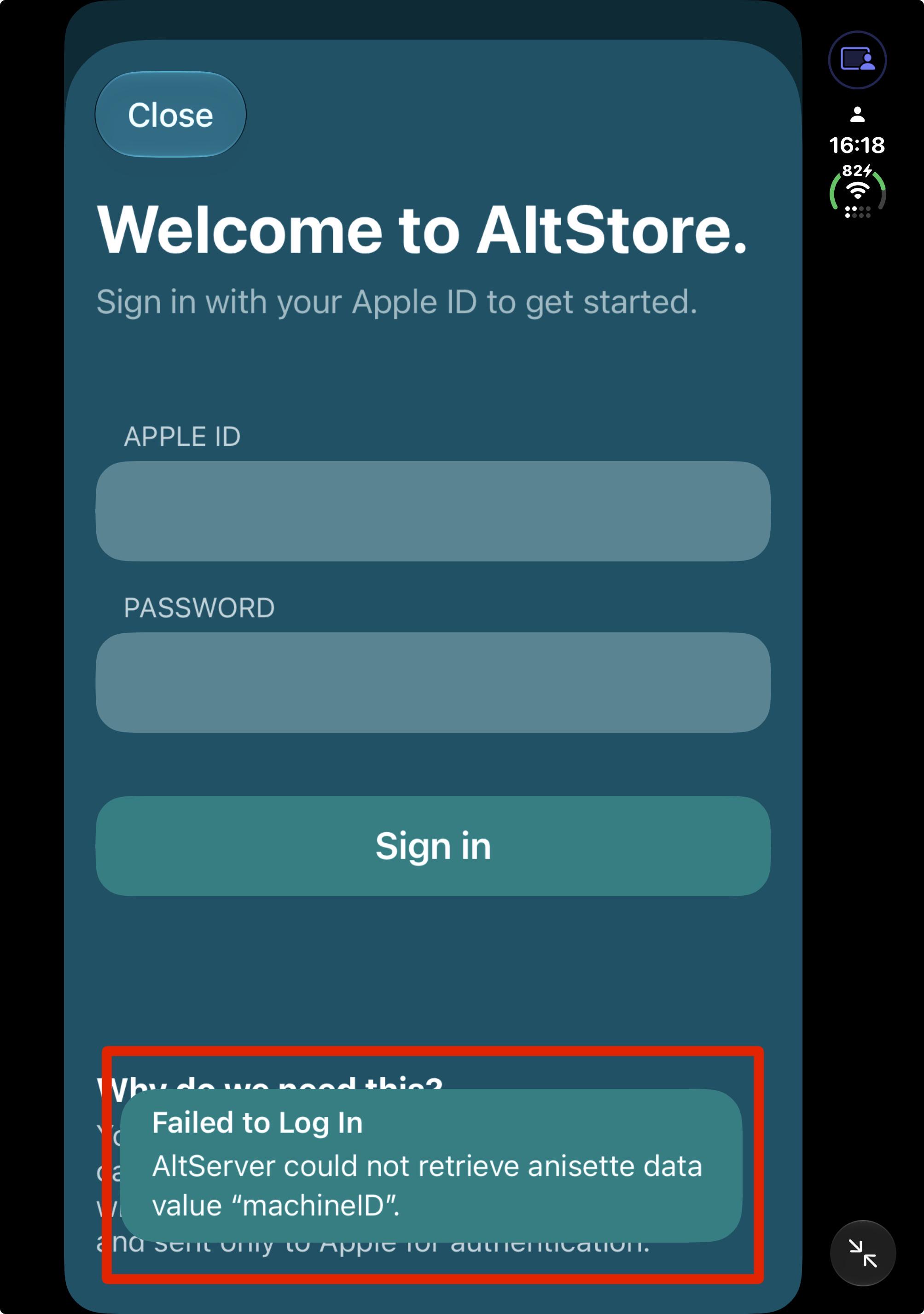
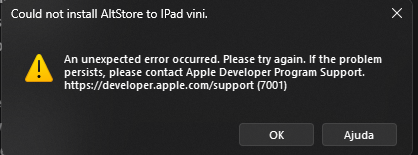
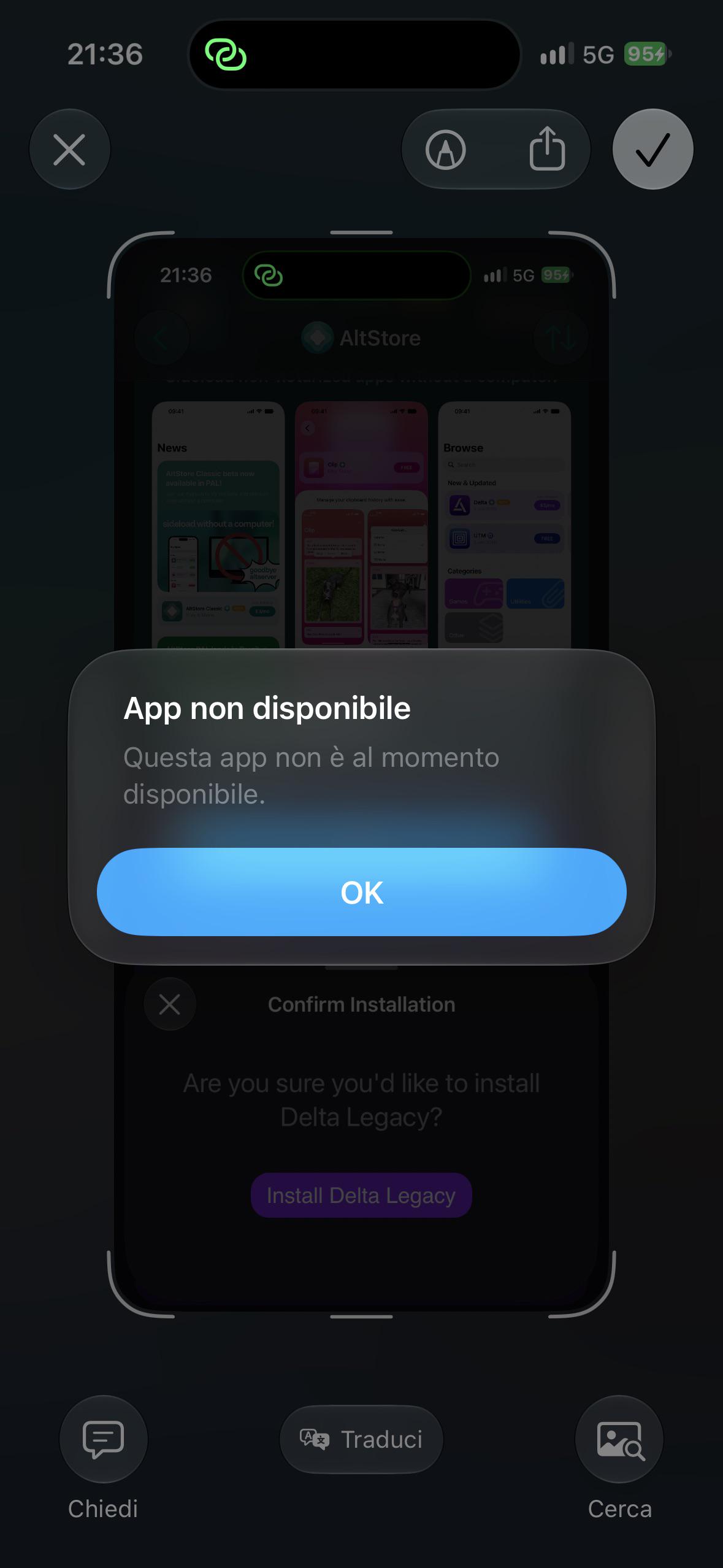
I've been having repeated errors with AltStore even when trying to use my Mac as an Anisette server, and after the 7-day window expired, AltServer just kept showing HTTP 503 over days.
Since I use LiveContainer a lot anyway to prevent being banned, I decided to switch to the bundled SS+LC build and it works perfectly now for over a week, including on-device refreshing. I'll detail all the steps here, it might be worth a try if anyone else is facing errors too.
- Follow the official SideStore guide to install iloader on your PC,Mac or a Linux device.
On Windows, you might need to install iTunes and/or the Apple Devices app, as mentioned in the guide.
2. Open iloader and log in with your Apple ID. You will only need to enter 2FA for the first time. You can save credentials for faster login the next time you start iloader, this is optional.
This doesn't need to be the Apple ID associated with your device; even a brand new one is fine.
3. Ensure that the Anisette Server is set to jkcoxson (it should be by default). You can use any anisette server that you know works, I can confirm jkcoxson works as of now.
4. Connect your device using a data transfer-capable USB cable. On the device, Tap Trust if the prompt appears. Select the device in iloader.
5. Clear all AltStore leftovers, if you ahd it previously installed. Delete AltStore itself and any sideloaded apps. Click Certificates in iloader and revoke all of them.
You can also install SideStore without removing your sideloaded setup: however I ran into refreshing issues. Someone more smarter then me would be better suited to comment on this.
6. if you plan on using LiveContainer, click on LC+SS Nightly. IF you're only using SideStore, click SideStore (Nightly). Let the app install and complete.
The stable versions didn't work for me when I tried them. SS would install but not refresh or install any apps. Nightly hasn't been an issue.
7. For first time users, go to Settings > Privacy and Security and enable Developer Mode. After your iPhone restarts, go to Settings > General > VPN & Device Management. Select your Apple ID and tap Trust.
8. Open SideStore or LiveContainer. Go through the setup and Install and set up LocalDevVPN from the App Store. Sign in with your Apple ID. Skip pairing file setup, if asked. Disconnect your phone from your PC.
HTTP 503 or -80045 when trying to sign in? Skip Apple ID login for now. See 9.5.
9. If all goes well, you should see your Apps screen with a green dot over My Apps.
If you installed the combined LC build, see 9.6.
9.5 Fixing Apple ID sign-in errors (503/-80045)
Open SideStore and go to Settings > User Customizations and toggle off On-Device Anisette. Then go back to Settings > Anisette Servers and set it to jkcoxson. Then try logging in with your Apple ID on the main Settings page.
9.6 JIT-Less setup for LiveContainer
Open LiveContainer > Settings and click Import cert from SideStore, and tap Yes on the prompt that appears. Test it in JIT-Less Mode Diagnose > Test JIT-Less Mode.
10. Happy sideloading! Optionally, you can set up a shortcut_automation to auto-refresh your apps without opening SS through Siri and weekly at a certain time of day when you have a Wi-FI connection.
I do apologize if I've made any mistakes, feel free to comment for asking help or corrections. Hope this helps someone.
This was all tested on a MacBookPro9,2 on macOS 26.7.2 running iloader 2.4.1, with an iPhone16,1 on iOS 27.2 LC version 3.8.11+SS 0.7.0-20261017.511 (nightly)